Set up an A/B rotation
Anchor an A/B block schedule to your term so the app knows what kind of day every day is.
A schedule that knows which days are A and which are B, colour-coded across your whole term, with alarms landing on the right kind of day.
- Tap the three-dot menu → Schedule Settings, then the + button.
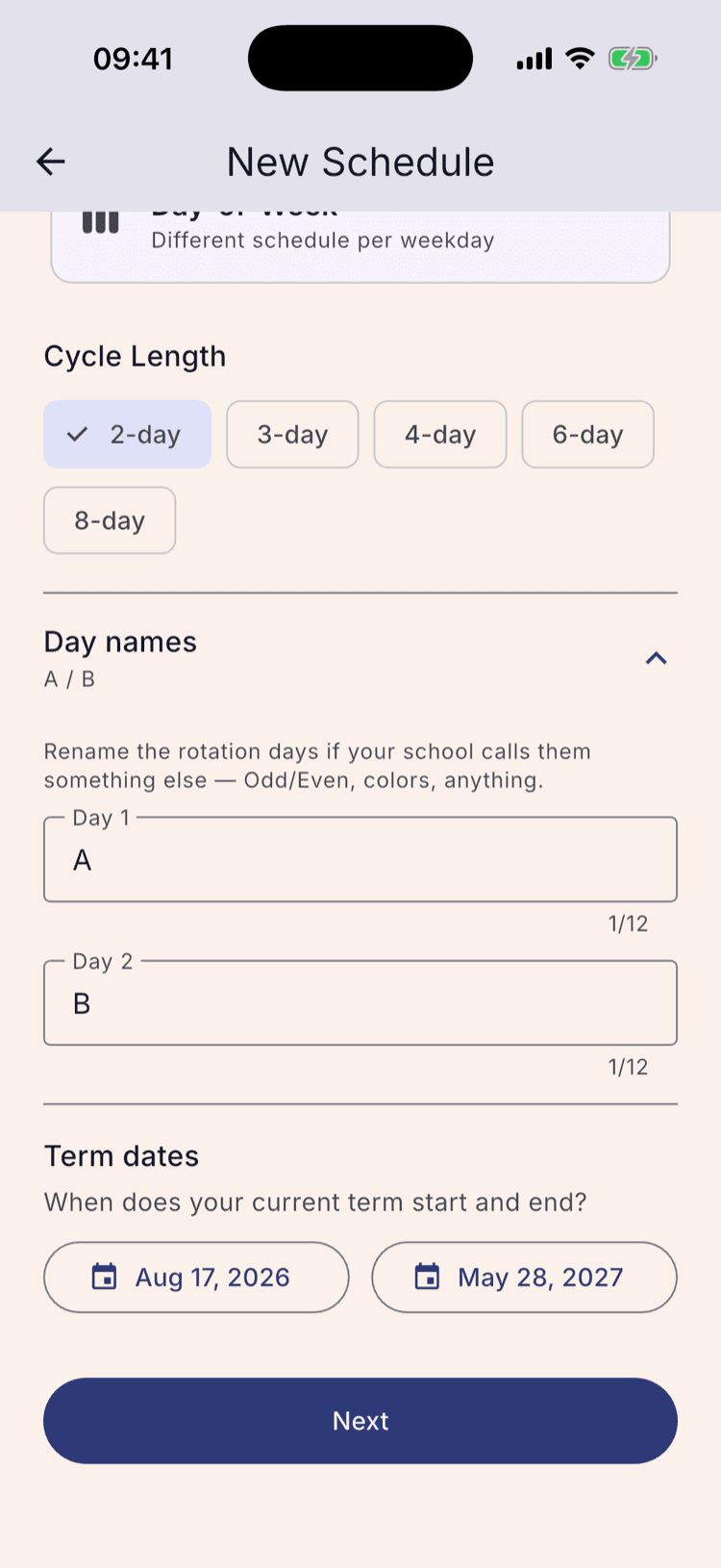
- Name it, choose Rotation, and leave the cycle length at 2-day.
- Set your term start and end, tap Next, then tap Activate.
In a rotating schedule, this Monday is an A day and next Monday is a B day, and the pattern only advances on days you actually have school.
Setting one up takes about five minutes and you do it once. This page covers the whole thing, from an empty schedule list to a colour-coded year.
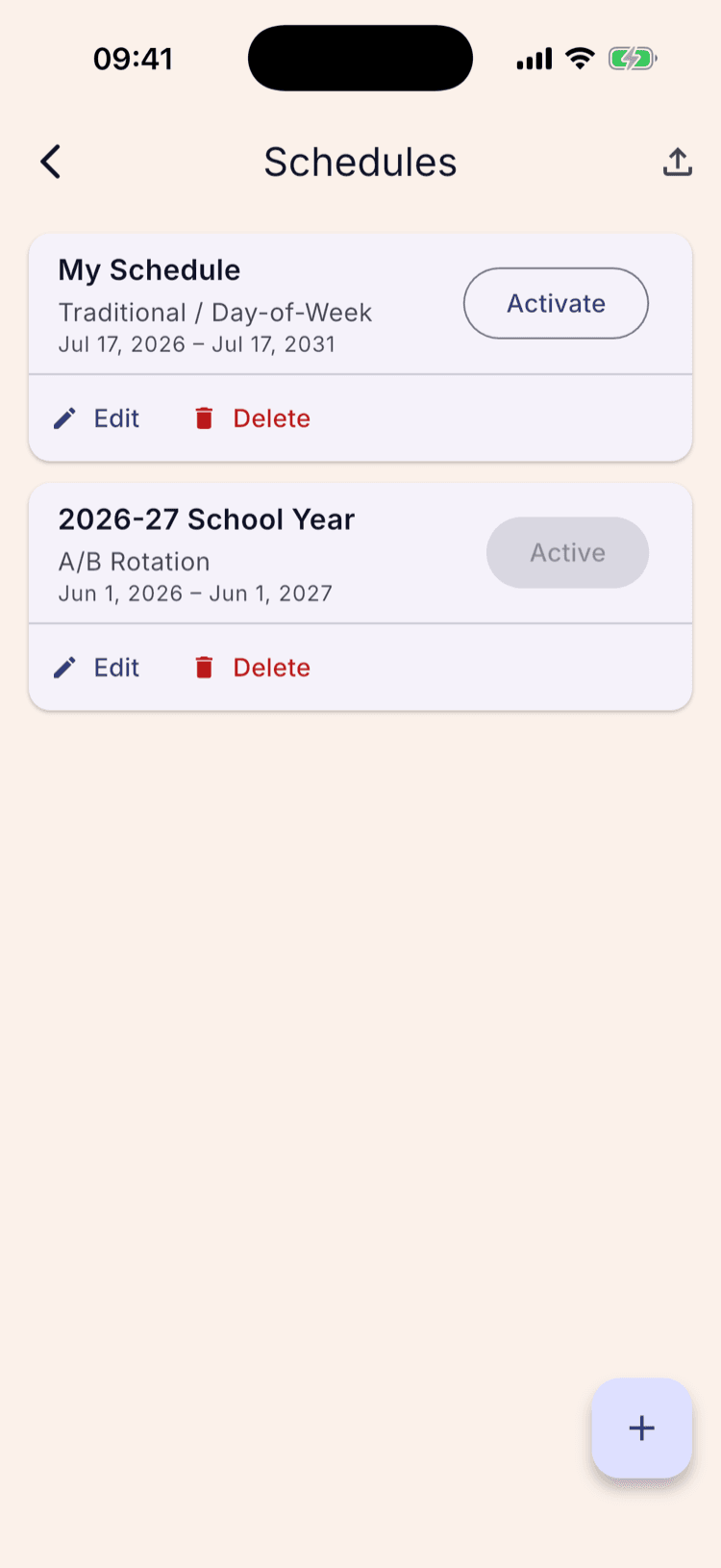
Open your list of schedules
Tap the three-dot menu in the top right of the home screen, then Schedule Settings. What opens is your list of schedules.
Tap the + button at the bottom right to start a new one.
Setting the app up for the very first time? Onboarding walks you through these same screens on its own — skip ahead to step 3.
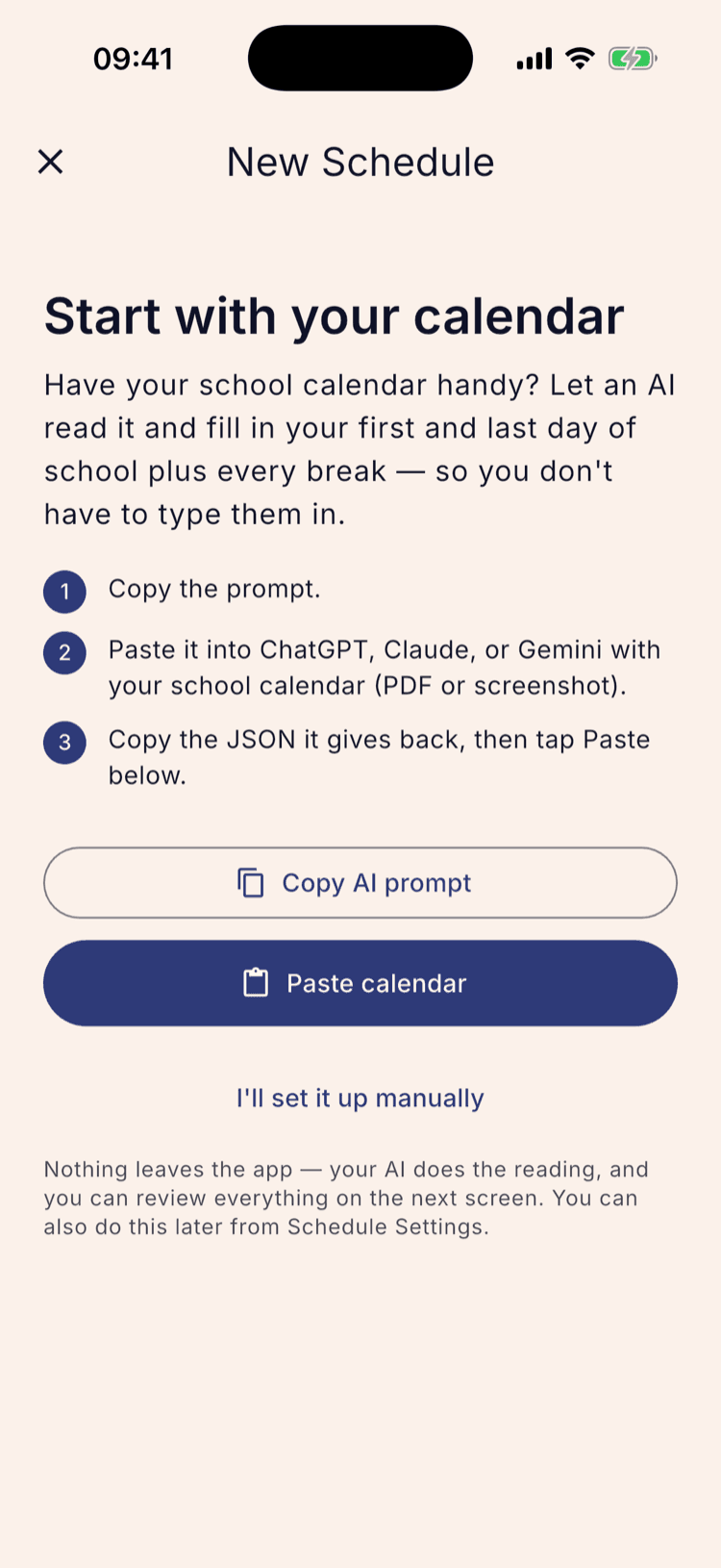
Skip the calendar import for now
The first screen offers to read your school calendar with an AI and fill in your term dates and every break. It's the faster route if you have the district PDF handy, and it has its own tutorial, linked at the bottom of this page.
To set the rotation up by hand, tap “I'll set it up manually”.
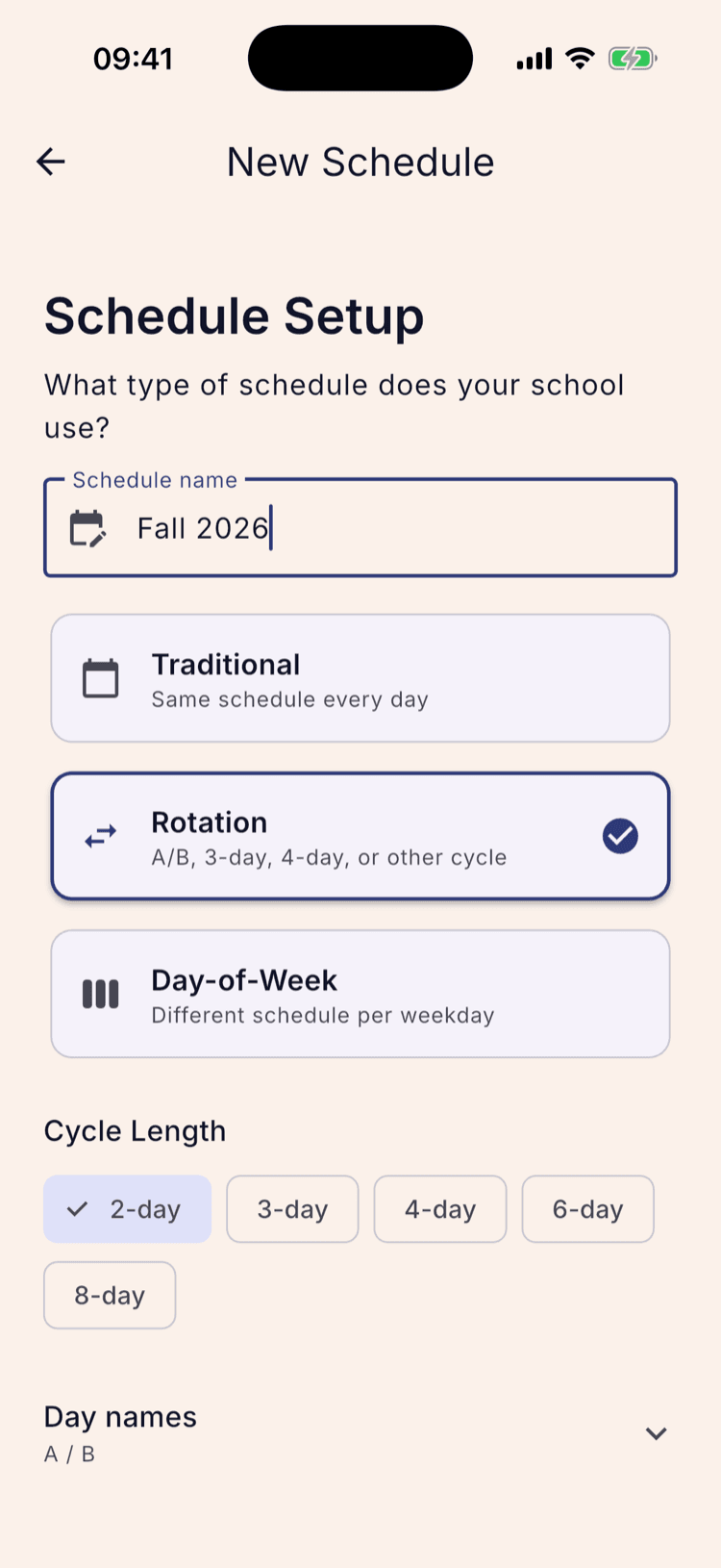
Name it, then choose Rotation
Give the schedule a name you'll recognise later — “Fall 2026”, “2026-27 School Year”. Leave it blank and it's called My Schedule.
Then pick Rotation. Traditional and Day-of-Week are for schools without a cycle; Rotation is the one that gives you A and B days.
Choosing it opens the rest of the settings underneath it.
Leave the cycle at 2-day, and rename the days if you like
Cycle Length is how many school days pass before the pattern repeats. An A/B block schedule is 2-day, and it's already selected.
Under Day names you can call them something other than A and B — Odd and Even, Maroon and Gold, Blue and White, whatever your school calendar says. What you type here is what shows on every screen in the app.
Longer cycles work exactly the same way. 4-, 6-, and 8-day rotations are all in the same row, labelled Day 1 through Day N, and they have their own tutorial.
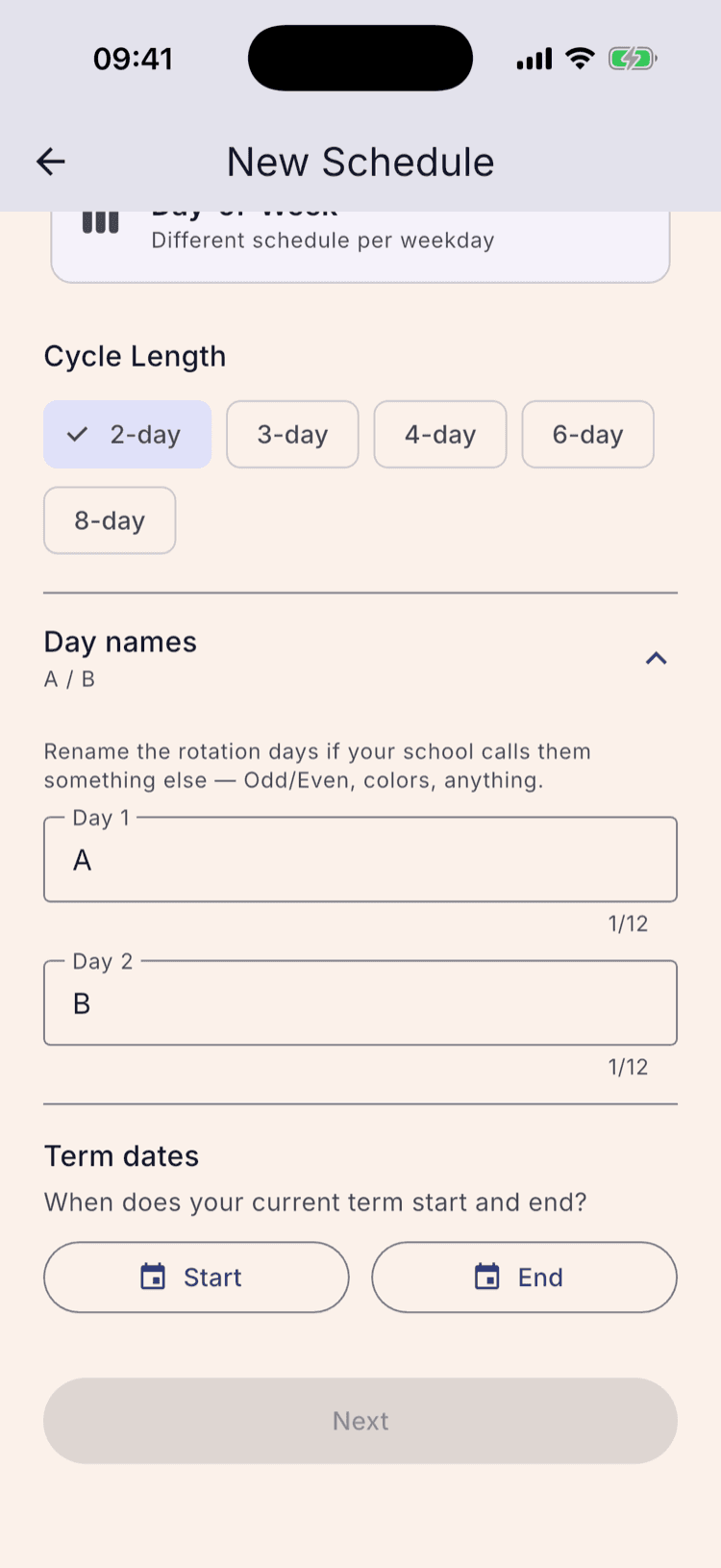
Set your term dates
Start is your first day of school, End is your last. Tap each button and pick the date.
The start date does two jobs. It bounds your year, and it's where the rotation begins counting: the first day of your term becomes your first day name. Aug 17 here is an A day, and every other day counts forward from it.
Weekends don't count. The cycle only advances on weekdays, so a Friday A day is followed by a Monday B day.
Create it, then switch it on
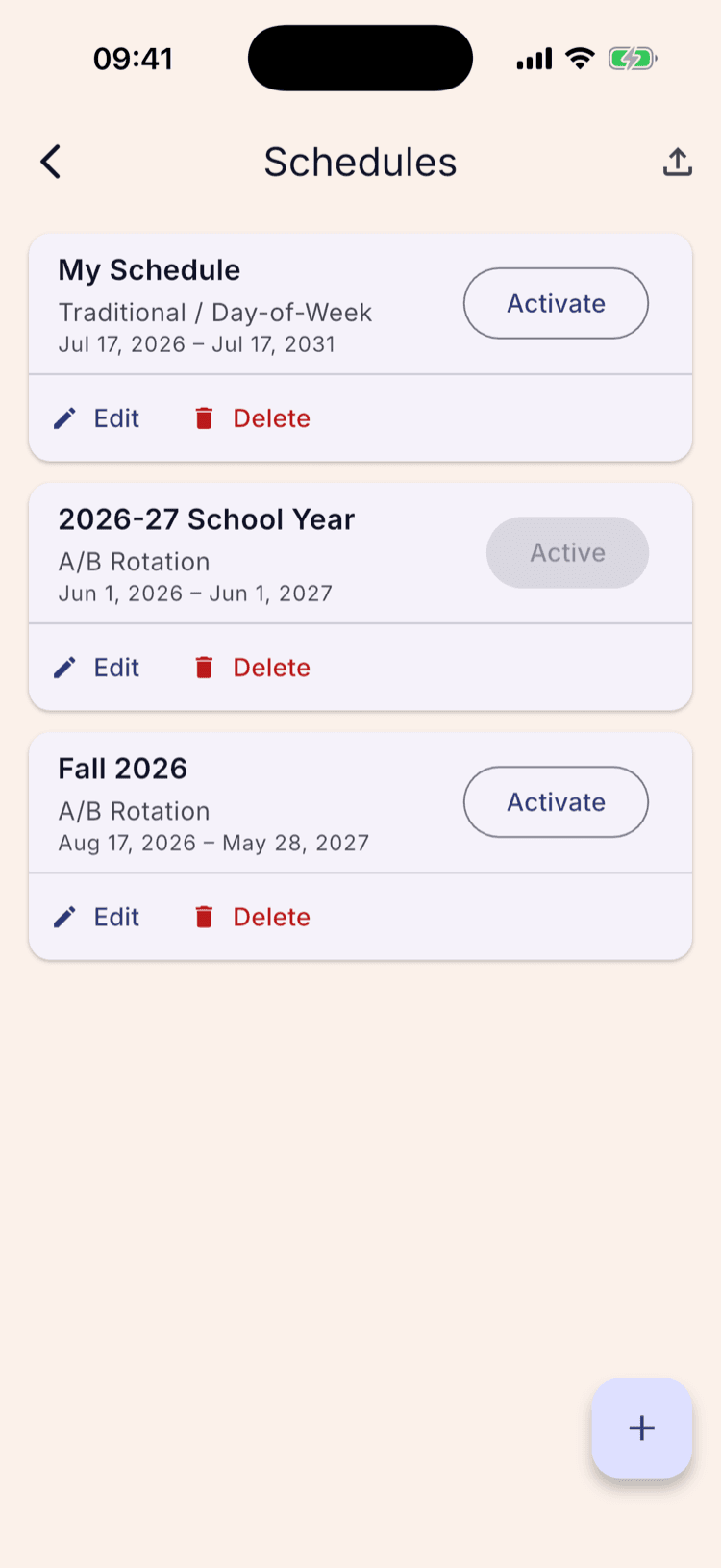
Tap Next. The schedule saves and you land back on the list with it added, showing its cadence and term underneath the name.
It isn't running yet: a new schedule is created switched off, so building one can't disturb the schedule you're already using. Tap Activate when you're ready.
Only one schedule is active at a time — activating this one steps the previous one down.
Check the calendar
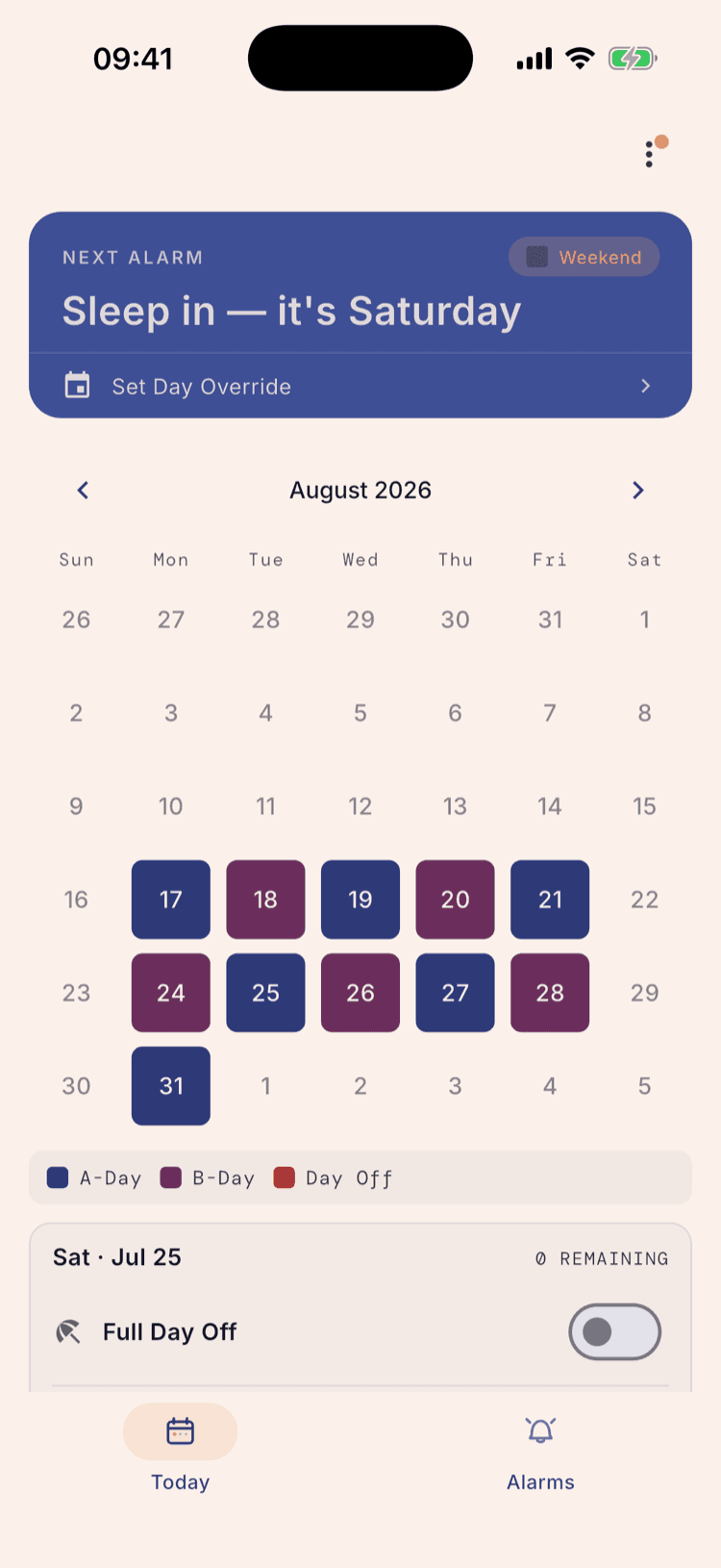
Go back to the home screen. The calendar opens on the month your term starts — not today's month — and every school day is coloured by its type.
Monday Aug 17 is an A day and Monday Aug 24 is a B day. That's correct, not a bug: a week holds five school days, five is an odd number, so a two-day cycle lands on the opposite day type each Monday.
Days before your term starts stay blank and don't respond to a tap. So do weekends.
If your first day isn't an A day
Setup always assumes day one of the term is day one of the cycle. Plenty of schools open the year on a B day instead, and if yours does, this is the one thing left to fix.
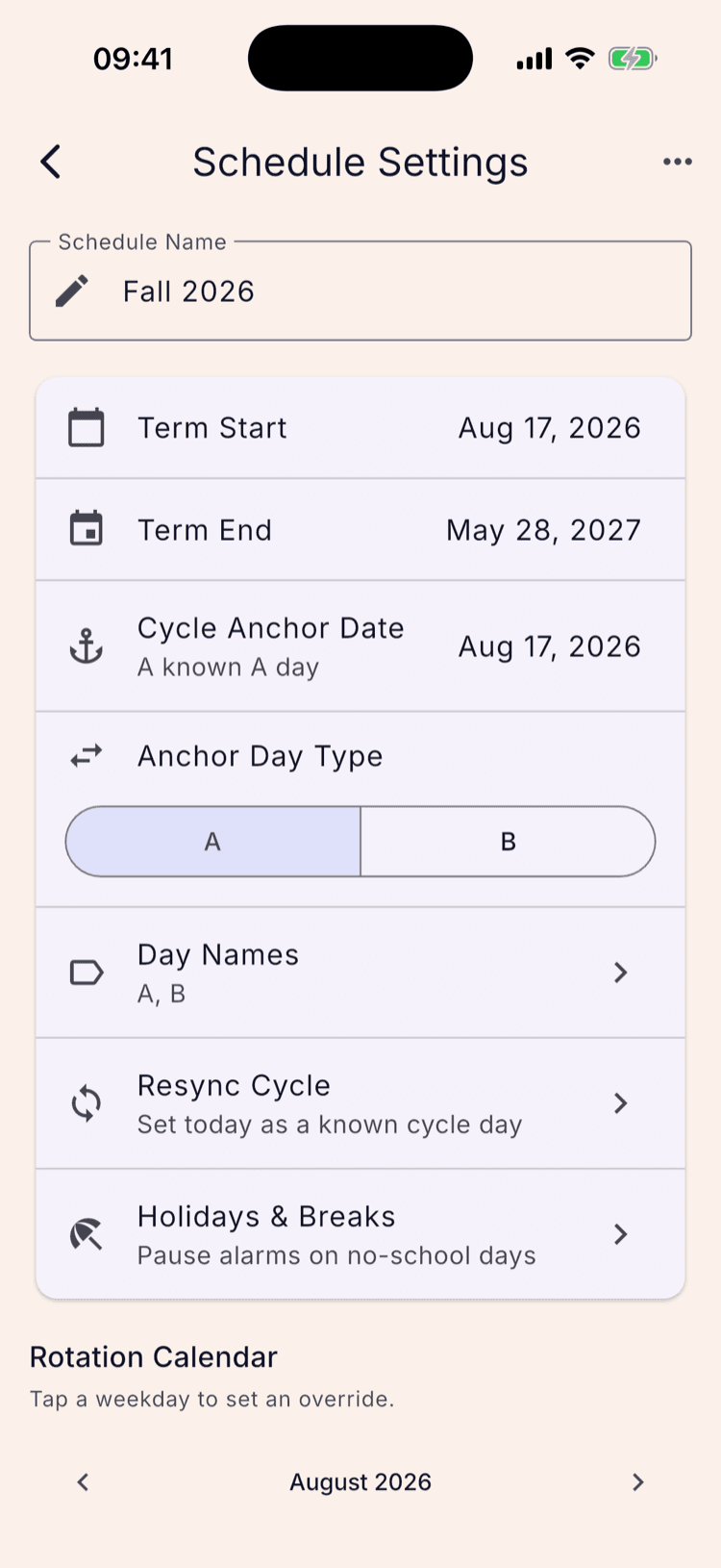
Go to the three-dot menu → Schedule Settings, tap Edit on the schedule, and find Anchor Day Type. Switch it from A to B and save. Every day in the year flips with it.
Cycle Anchor Date, the row just above, is the same idea from the other end: a date you're certain about. Setup points it at your term start, and the line underneath reads back what the app currently believes — “A known A day”.
What happens next
The rotation is set for the whole term and doesn't need maintaining. The pattern runs to your last day and stops.
Two things to do next, in this order. Add your school's breaks, so the cycle doesn't drift out of step when the building closes for a week. Then build your alarm groups — one for A days, one for B days. Until you do, the calendar is colour-coded but nothing rings.
If the day type ever disagrees with your school, don't rebuild the schedule. Resync Cycle, in Schedule Settings, pins today to the day type you tell it and corrects the rest from there.
Set it up once. Sleep through Sunday.
ScheduleLock is out now on the App Store and Google Play.
Get the app