Import breaks from your school calendar
Let your own AI read the district PDF, paste back what it finds, and check every break before anything saves.
Every no-school day from your school's calendar in your rotation, checked by you before saving, with your term dates picked up along the way.
- In Holidays & Breaks, tap the sparkle icon and copy the AI prompt.
- Paste it into ChatGPT, Claude, or Gemini along with your school calendar, then copy back the JSON it returns.
- Tap Paste holiday list, check every break against your calendar, then tap Import.
A school calendar PDF can carry twenty no-school days — holidays, teacher workdays, both halves of winter break — and entering each one by hand takes a while.
Import hands the reading to an AI instead: copy a prompt, paste it into whichever AI you already use along with your calendar, and paste its answer back. There's no AI built into ScheduleLock and nothing here reaches a server of ours. Every break the AI finds is listed for you to check before anything saves.
Open Holidays & Breaks
Tap the three-dot menu on the home screen, then Schedule Settings, then Edit on the schedule you're using. Holidays & Breaks is the last row — the same screen “Add your breaks and holidays” walks you into.
Once a schedule has at least one break, the full-width “Import from school calendar” button is gone — the same import lives behind the sparkle icon in the top right instead.
Copy the prompt
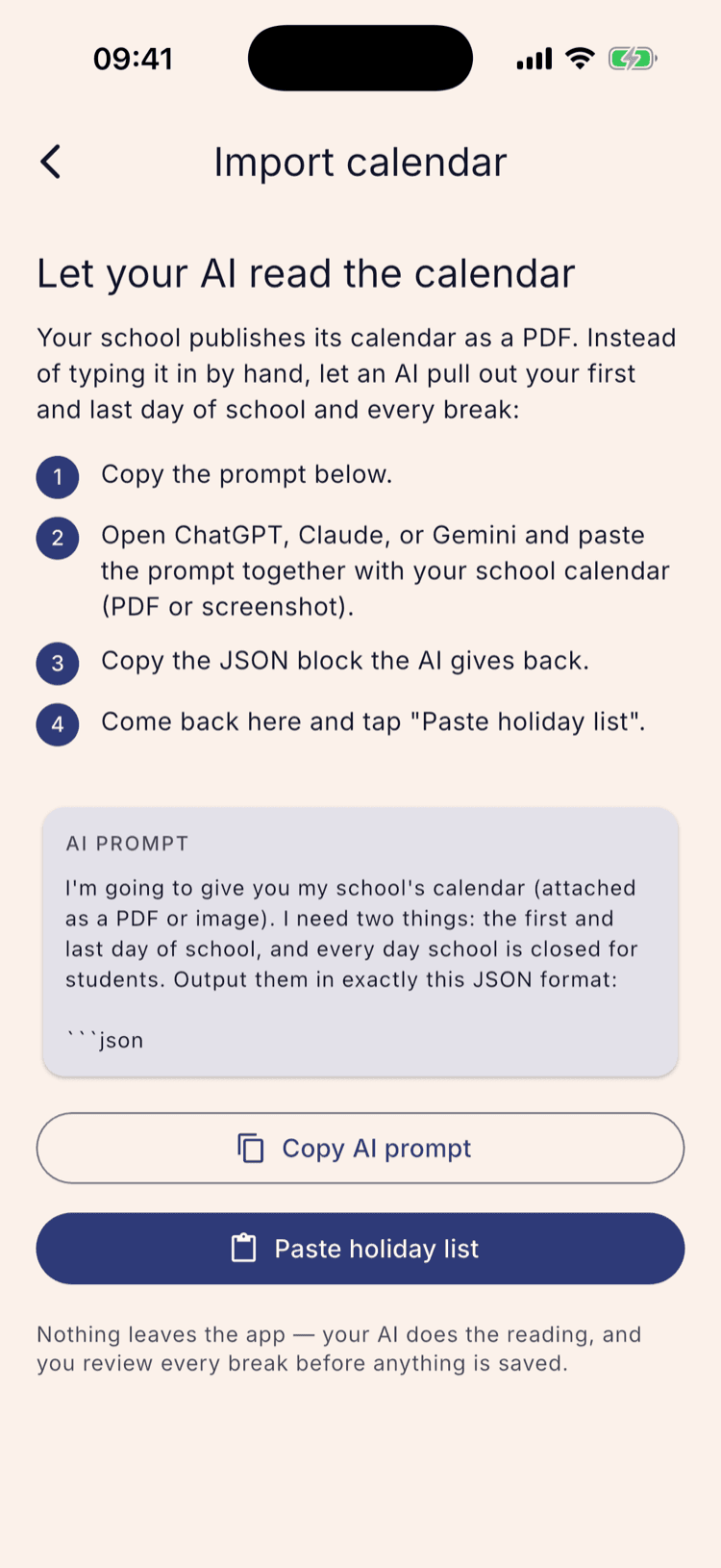
Tap the sparkle icon. The Import calendar screen lays out the four steps and previews the prompt it gives you — the same wording regardless of which AI you use.
Tap Copy AI prompt.
Let your AI read the calendar
Open ChatGPT, Claude, or Gemini — whichever you already use — and paste the prompt in together with your school's calendar, as a PDF or a screenshot. The prompt asks for the first and last day of school and every day school is closed, merged into named ranges, and tells the AI not to guess: anything unclear is listed separately rather than invented.
Copy the JSON block the AI returns, then go back to ScheduleLock.
This step happens outside the app, so there's nothing to screenshot here — ScheduleLock doesn't call any AI itself, and doesn't favor ChatGPT, Claude, or Gemini over the others. It only reads back the JSON you paste in.
Paste it back
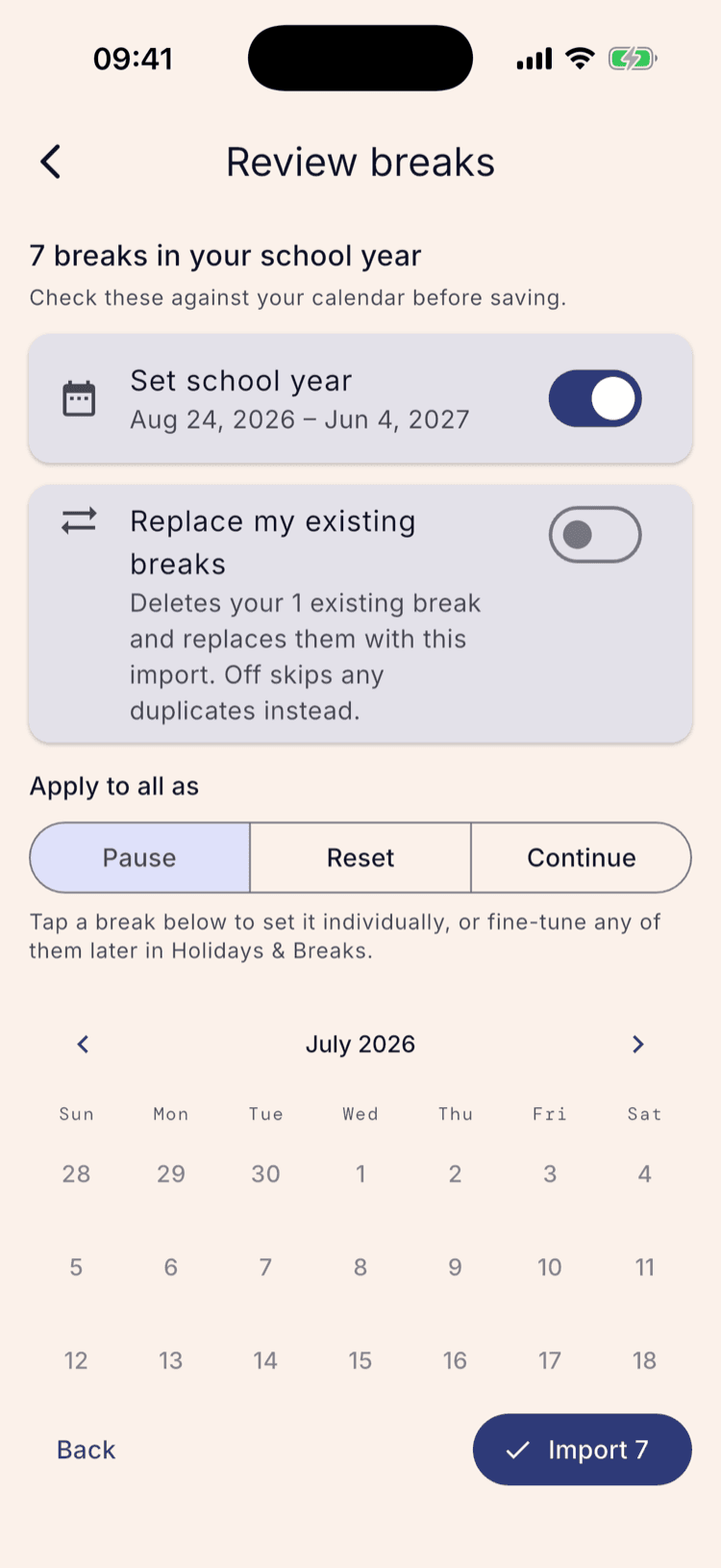
Tap Paste holiday list. Your phone may ask whether ScheduleLock can read your clipboard — allow it — and the screen switches to Review breaks with everything the AI found.
Set school year is on by default and updates your term dates to whatever the AI reported; turn it off if your term dates are already right. Replace my existing breaks is off by default, so a break that matches one you already have — by name and dates — is skipped rather than duplicated.
Apply to all as is the same Pause / Reset / Continue choice “Pause, reset, or continue your rotation” covers in full — this is just where it lives during an import.
Check every break, then import
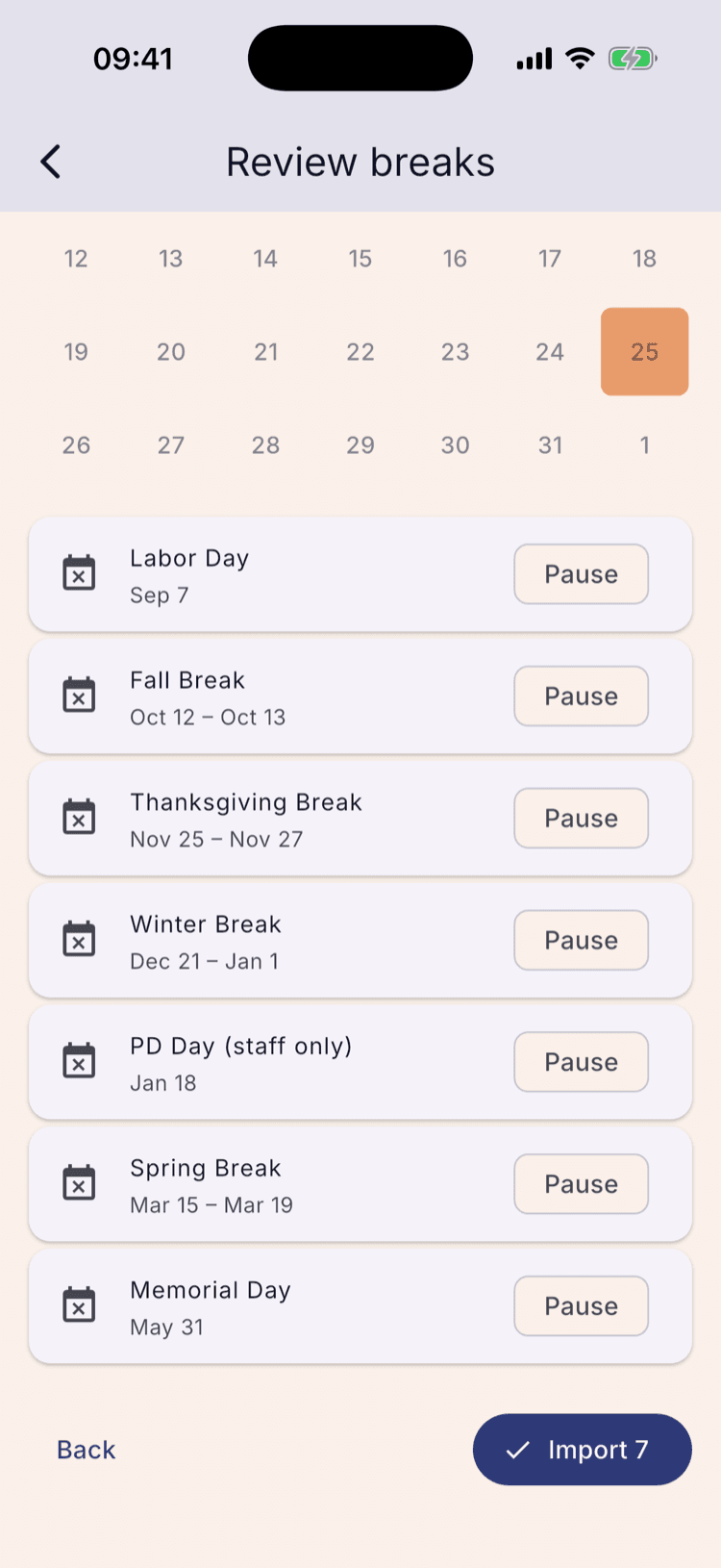
Scroll down. A calendar previews the breaks, followed by one tile per break with its own Pause / Reset / Continue chip for overriding the bulk setting on that break alone. Check the dates and names against your school calendar.
Then tap Import.
Back to the full list
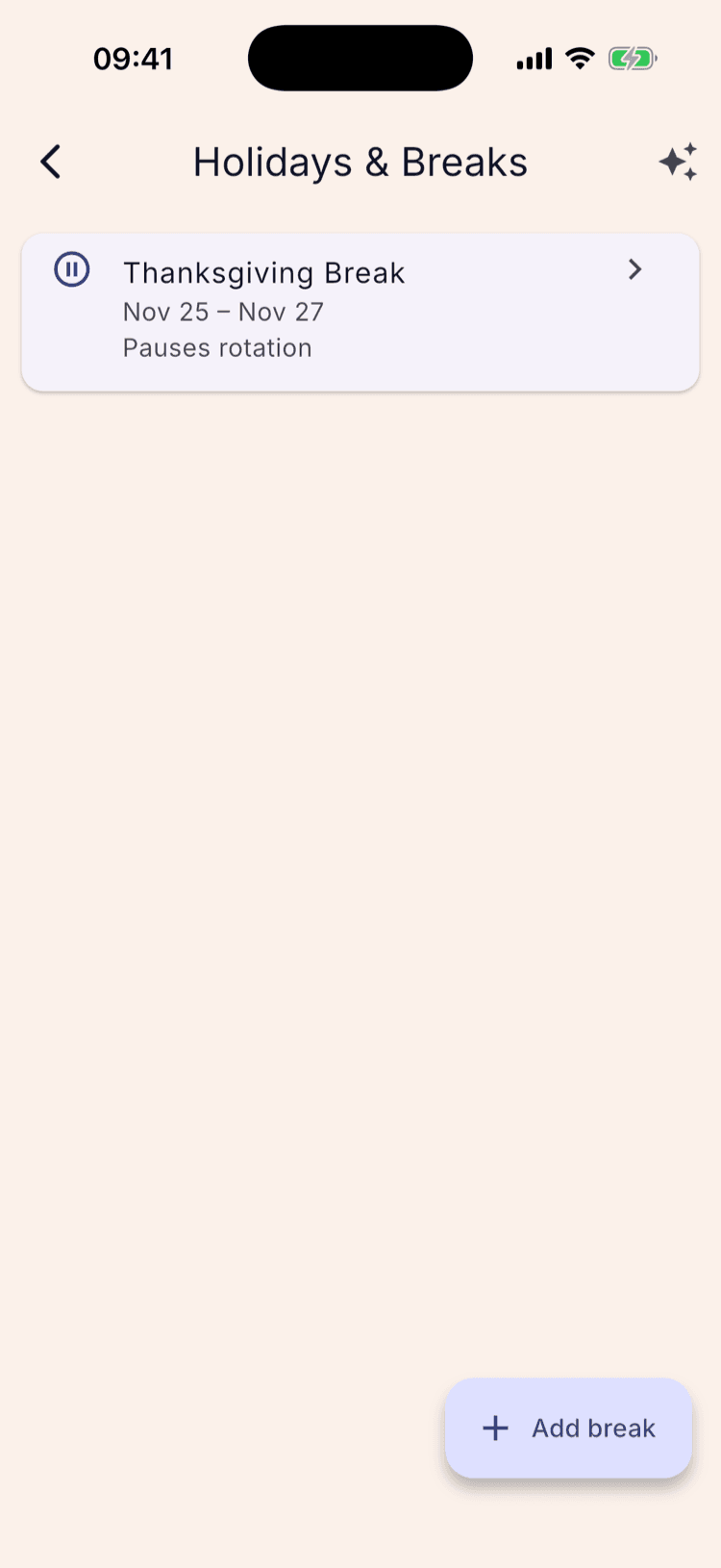
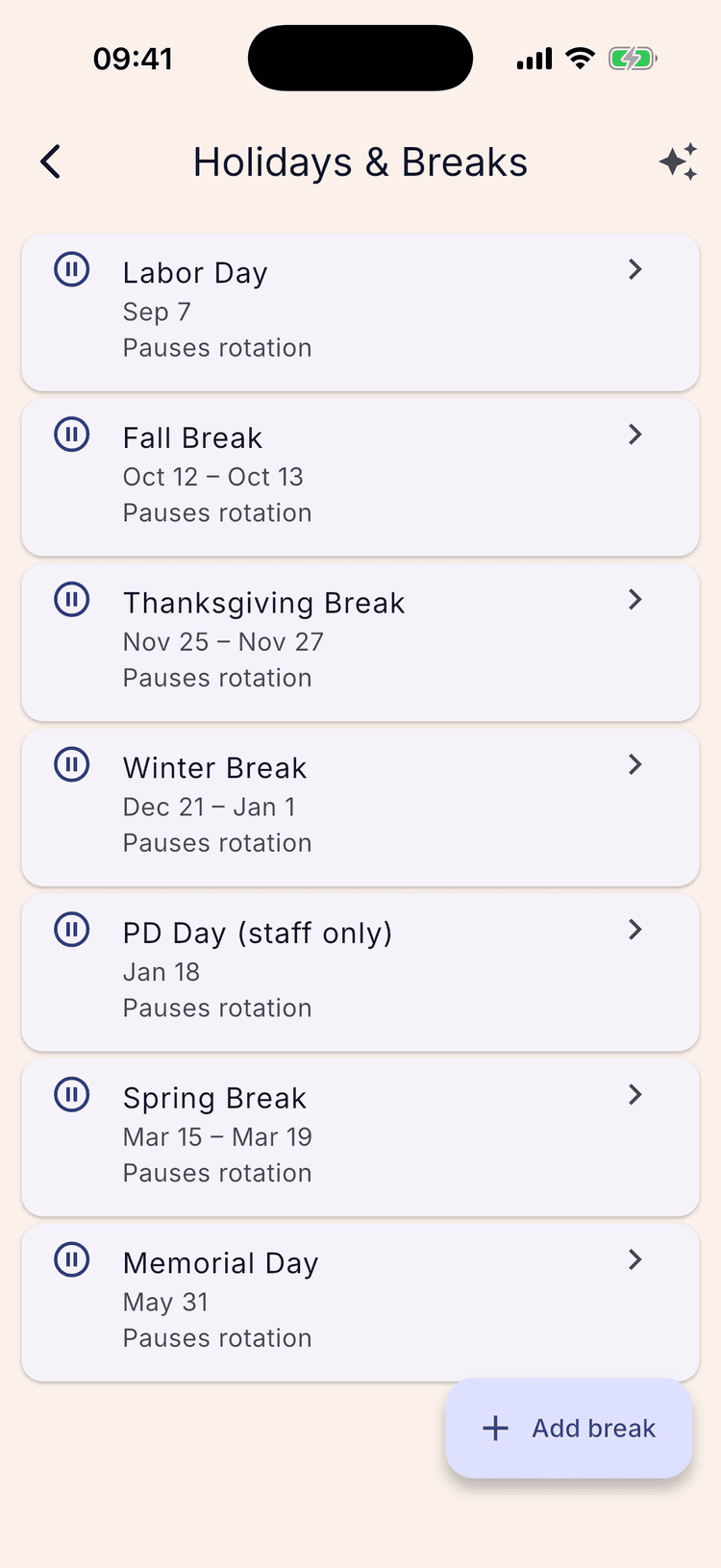
The import lands you back on Holidays & Breaks with the whole year on one screen — every break it found, each showing the setting you gave it.
The break that already existed — Thanksgiving — didn't duplicate. It matched an import row by name and dates and was skipped, which is what Replace my existing breaks being off does.
Look at the calendar
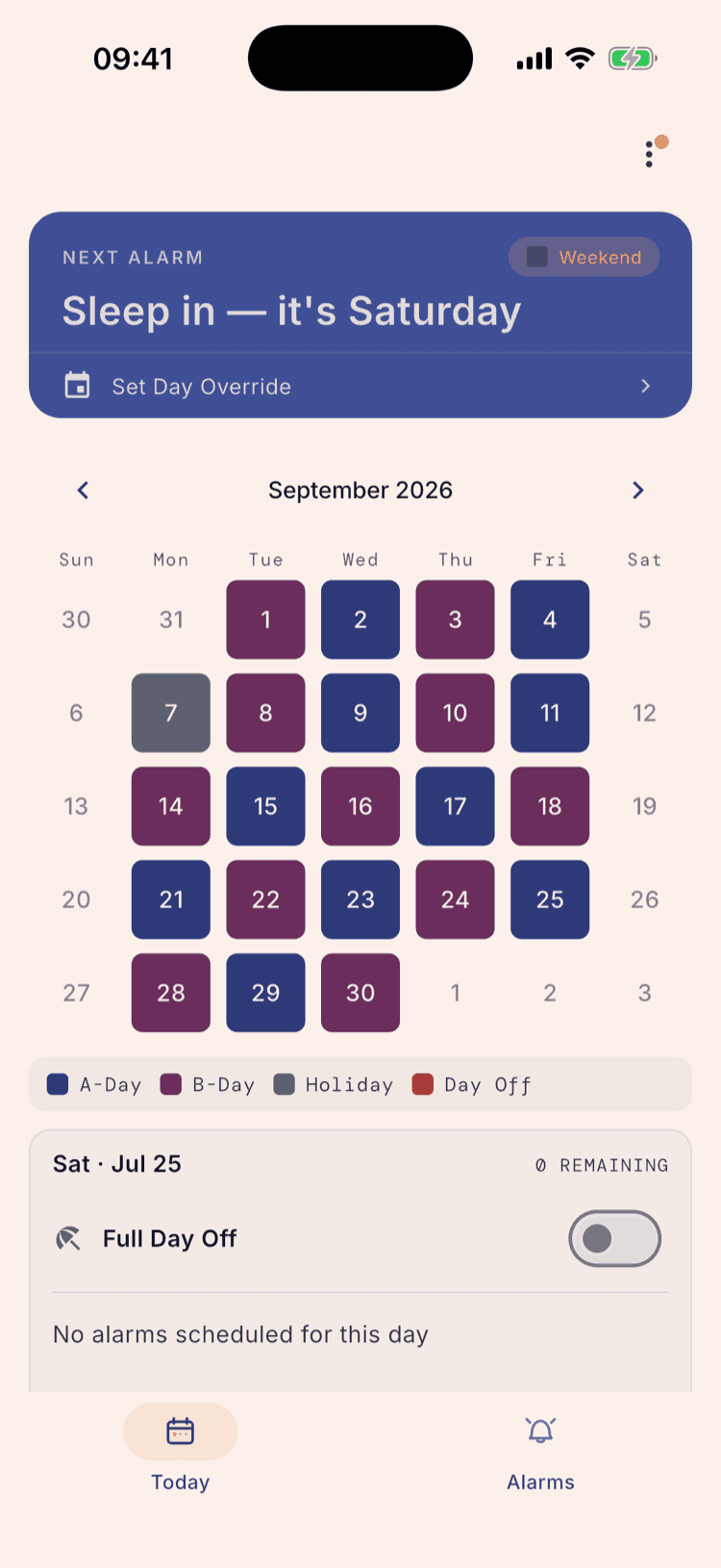
Page the home calendar to any of those months: the no-school days are slate grey, their alarms are silent, and a Holiday key joins the legend.
What happens next
Nothing to undo. An imported break behaves exactly like one entered by hand — alarms stay quiet on those dates, and the rotation does whatever “During the break” says once you're past it.
Run the import again next year, or partway through this one if your district issues a revised calendar. Turn on Replace my existing breaks and it swaps the whole list instead of skipping duplicates.
If a date comes out wrong — a typo on the calendar, a break the AI misread — open it from Holidays & Breaks and edit it directly.
Set it up once. Sleep through Sunday.
ScheduleLock is out now on the App Store and Google Play.
Get the app