Pause, reset, or continue your rotation
What a break actually does to your A/B cycle — shown on a real calendar, not just described.
Your rotation landing on the day type your school uses after a break, because the setting matches what your school does.
- Open the break in Holidays & Breaks and look at During the break.
- Pause resumes where the cycle left off; Continue keeps counting silently; Reset restarts at Day 1.
- Pick the one your school does — Pause is the default, and the common one for U.S. A/B schools.
Every break has a “During the break” setting with three options. All three keep your alarms silent for the same days. They differ in what the cycle does on the other side of the break, which doesn't show up until the next school day.
This page shows the same November break under each setting.
Look at the three options
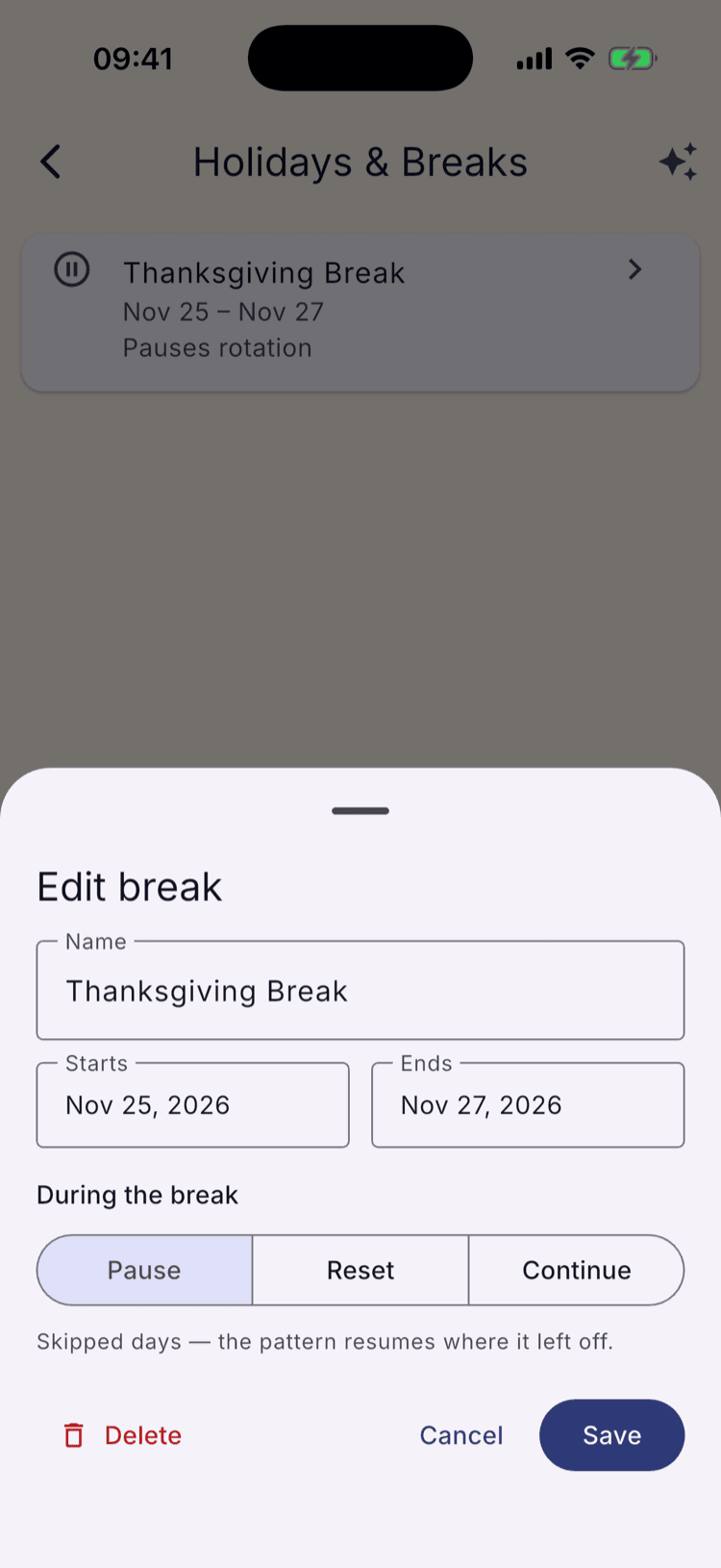
Open a break's edit sheet (Holidays & Breaks → tap a break) and “During the break” shows three settings, each with its own explanation underneath:
Pause — “Skipped days — the pattern resumes where it left off.”
Reset — “The rotation restarts at the beginning of the cycle on the first school day back.”
Continue — “Rotation days pass during the break, but no alarms ring.”
These only matter for a rotating (A/B or multi-day) schedule. A traditional schedule has no cycle to protect, so the setting has nothing to do.
Pause: the cycle waits for you
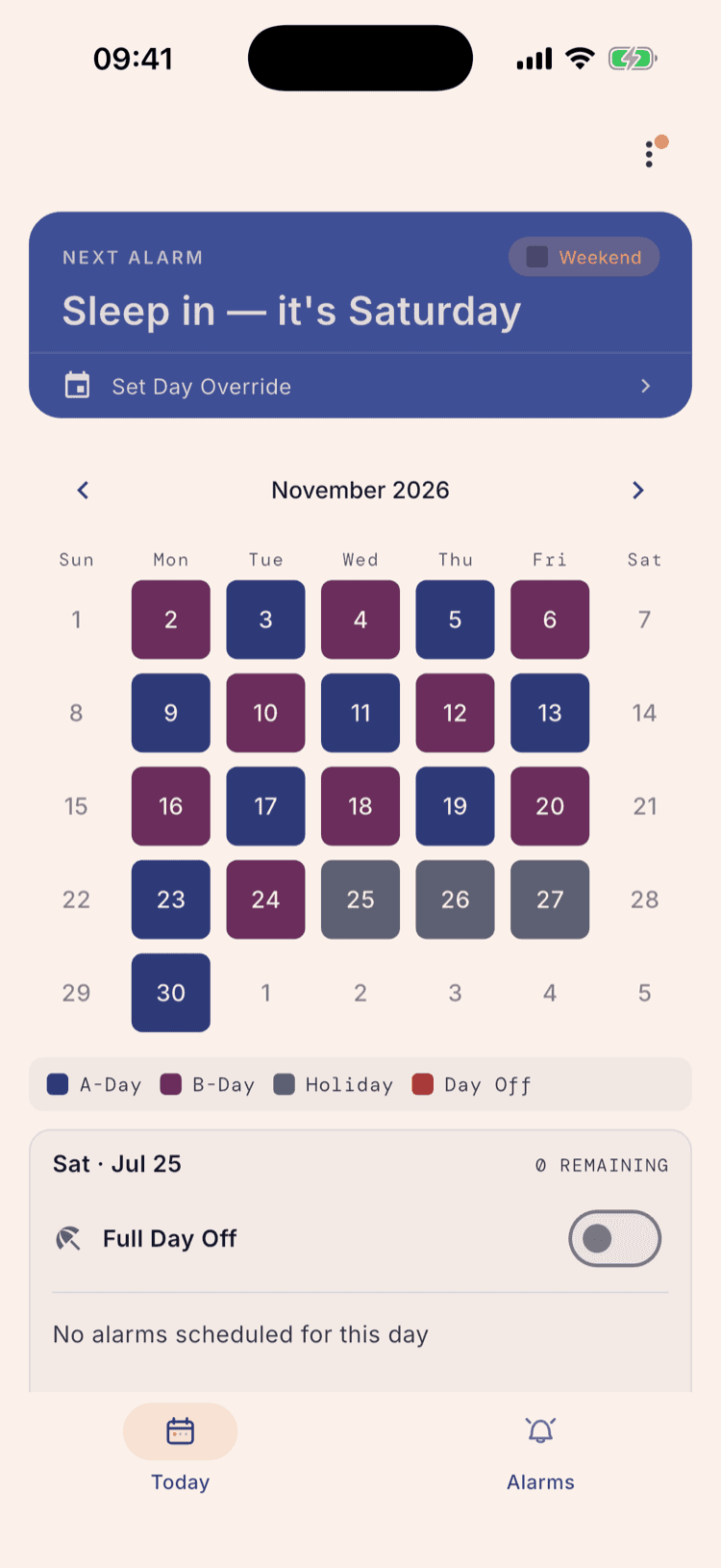
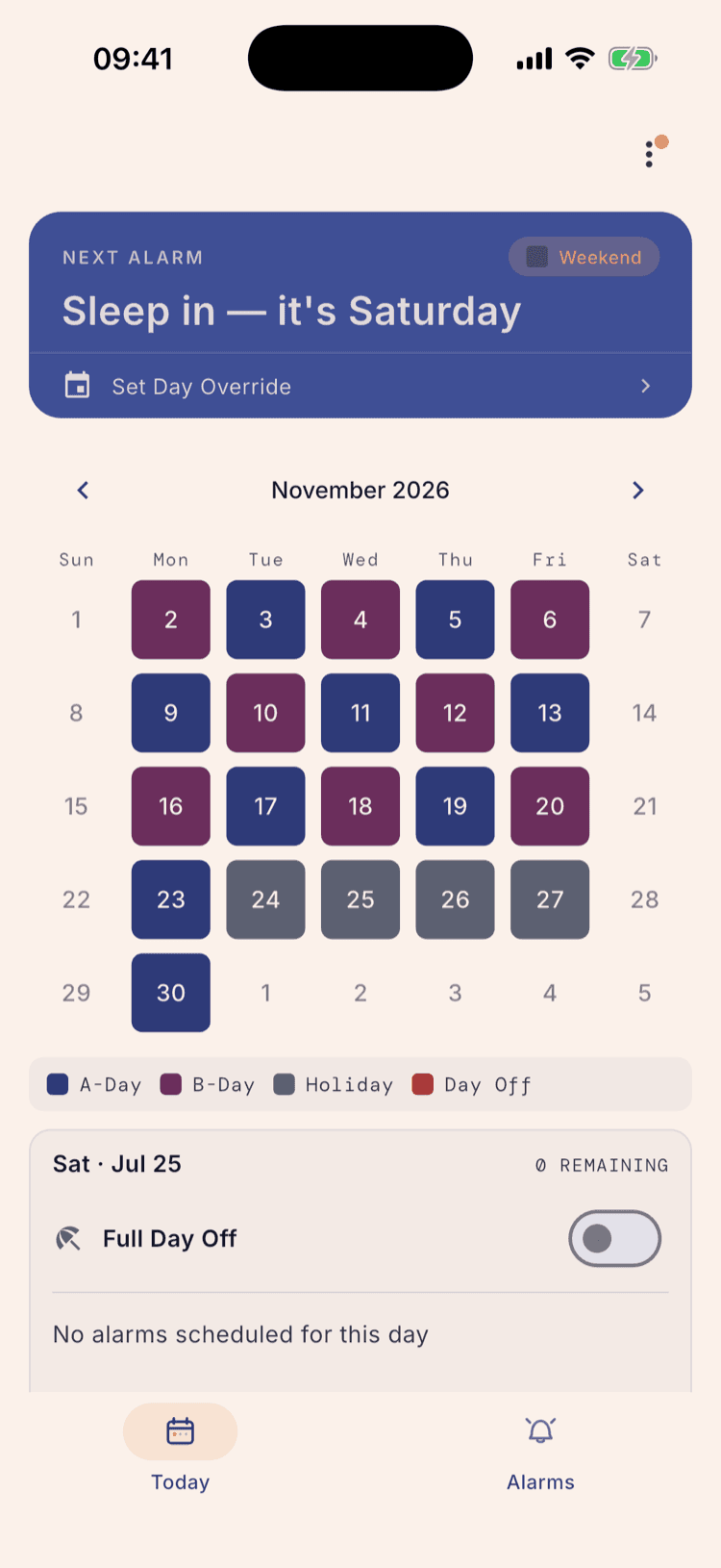
This Thanksgiving break runs Nov 25–27 with Pause selected, the default. Nov 24 is a B-day, so the pattern freezes there for the three grey, silent days.
The next school day, Monday Nov 30, comes back as an A-day: the cycle picked up where it stopped, the same way it does across a weekend.
Continue: the cycle keeps counting
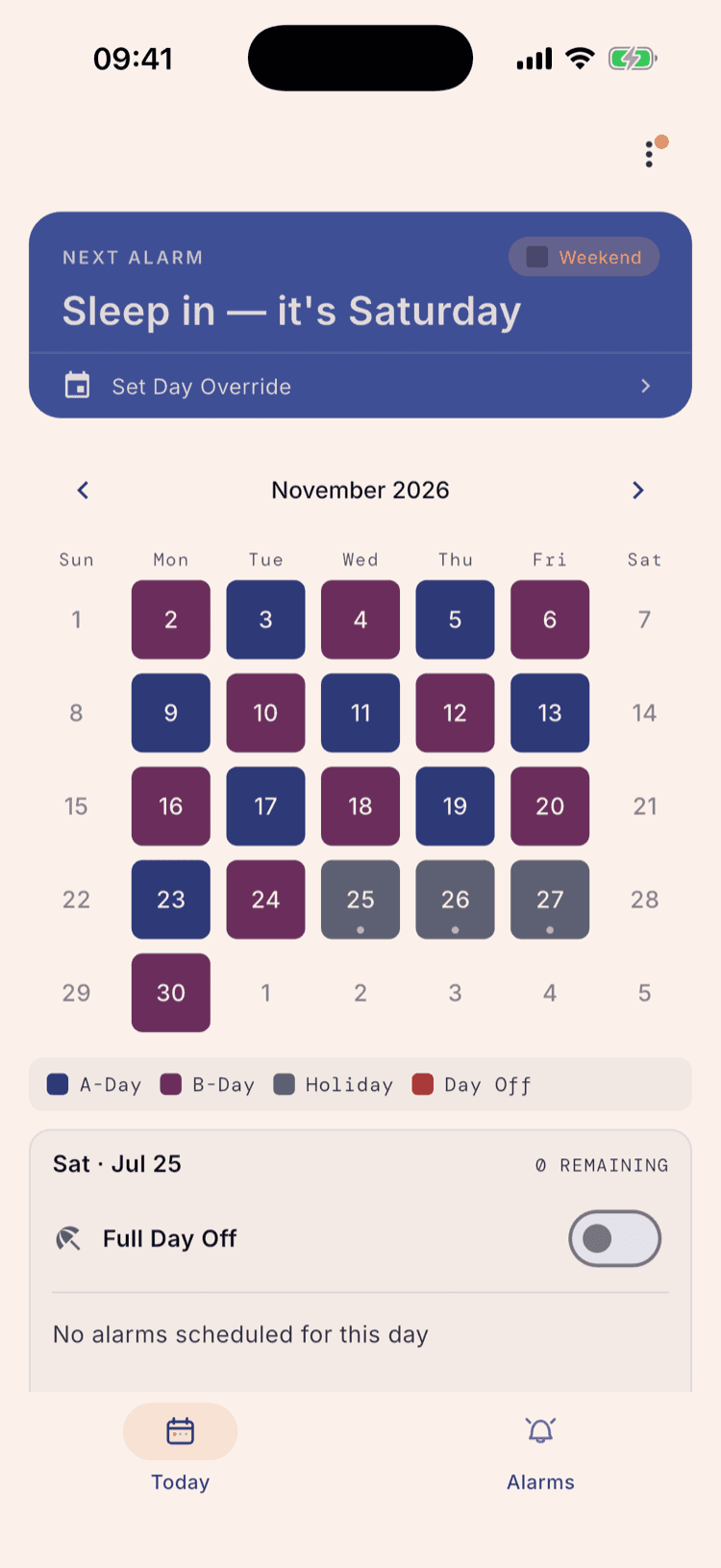
Switch the same break to Continue and the break itself looks identical — Nov 25–27 are still grey, still silent. Continue only changes what happens on the other side.
With Continue, break days quietly advance the rotation even though no alarms ring for them. Nov 30 comes back as a B-day instead of A, because the cycle never stopped counting — it just stopped ringing.
Reset needs a fairer comparison
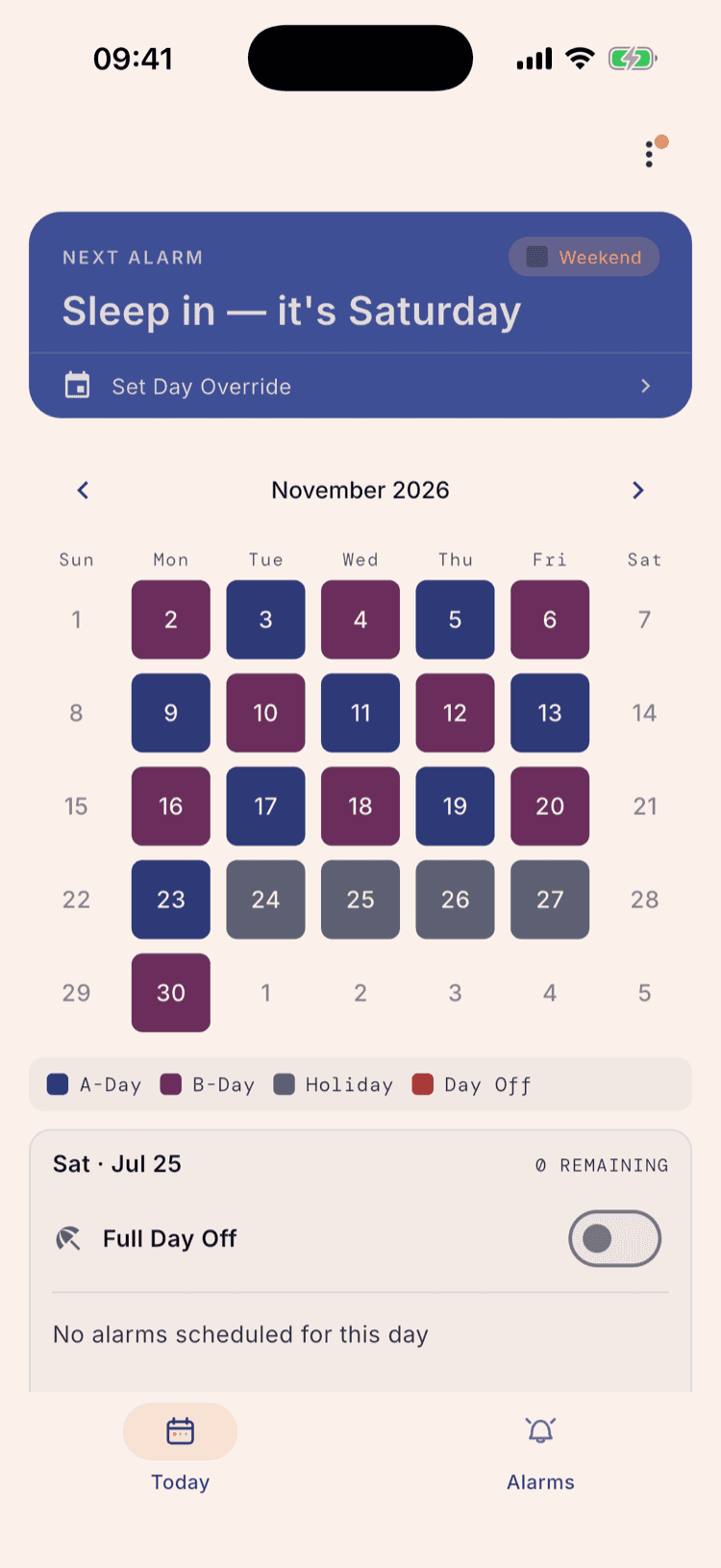
On this particular break, Reset would look identical to Pause: with Nov 25–27, the cycle already lands back on Day 1 (A) afterwards. So the break below runs one day earlier — Nov 24–27 — still on Pause.
Nov 23 is an A-day, so Pause brings the cycle back as a B-day on Nov 30. Keep that B in mind for the next step.
Reset: always back to Day 1
Flip that same Nov 24–27 break to Reset. Every day inside it is still grey and silent, exactly like Pause — Reset only changes what happens afterward.
Nov 30 is now an A-day. Reset doesn't look at what label the cycle was on before the break; the first school day back always re-anchors to the start of the cycle — Day 1, or A — no matter where Pause would have landed.
What happens next
Nothing to undo. “During the break” lives on the break itself — change it any time from the break's edit sheet, and the calendar recalculates from wherever the cycle currently sits.
If you don't know which one your school does: Pause is the default and the common choice for U.S. A/B schools. To confirm, note what day type your school uses on the first morning back from a real break, and match the setting to that.
The break shown above is the same Thanksgiving break from “Add your breaks and holidays,” still set to Pause, Nov 25–27.
Set it up once. Sleep through Sunday.
ScheduleLock is out now on the App Store and Google Play.
Get the app