Fix it when today is the wrong day type
The app says A-day, your school says B-day. Resync Cycle pins today and corrects the rest.
Today showing the day type your school is actually on, with the rest of the term recalculated to match.
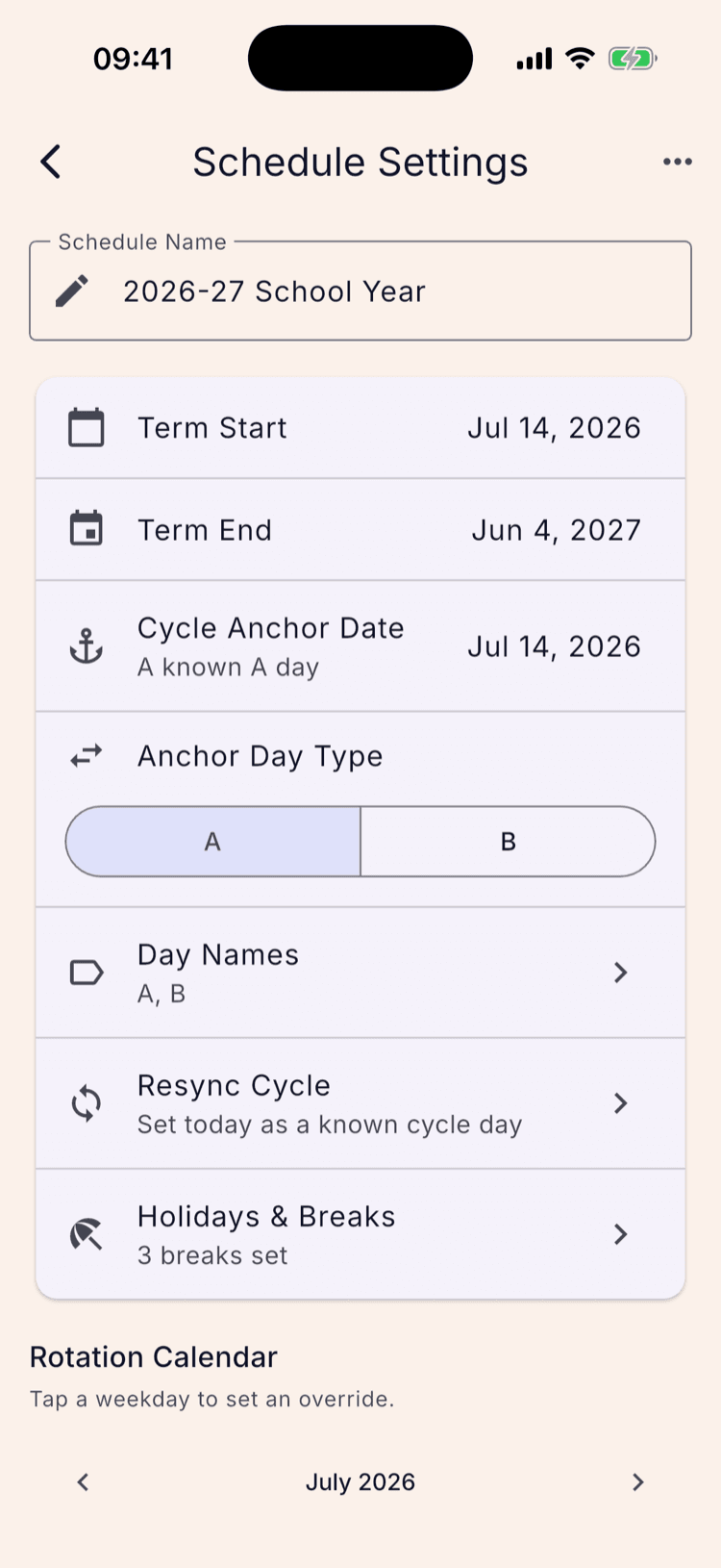
- Tap the three-dot menu, then Schedule Settings, then Edit on your schedule.
- Tap Resync Cycle and pick the day type your school is on today.
- Tap Save. Nothing is stored until you do.
Some mornings the app and your school disagree. ScheduleLock says today is an A-day, the office says it's a B-day, and every alarm that depends on the day type is now the wrong set.
Resync Cycle is the fix, and it takes one screen. You tell the app what today actually is, and it recalculates the term around that answer.
Check what the app thinks today is
Two places on the home screen name today's day type: the chip in the top right of the next-alarm card, and the summary line above Full Day Off at the bottom.
If that doesn't match what your school is on, this page is your fix.
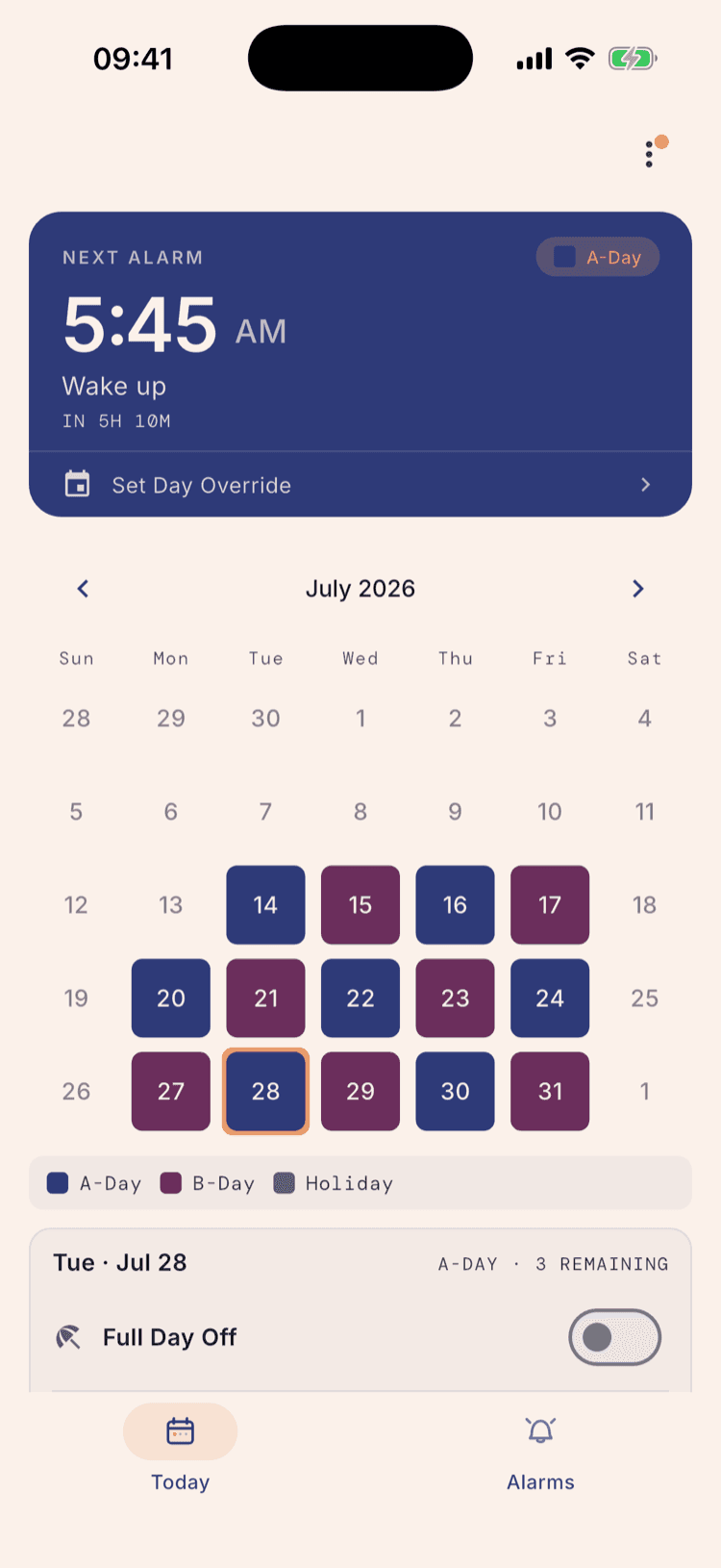
Open the three-dot menu, then Schedule Settings
The menu is in the top right of the home screen.
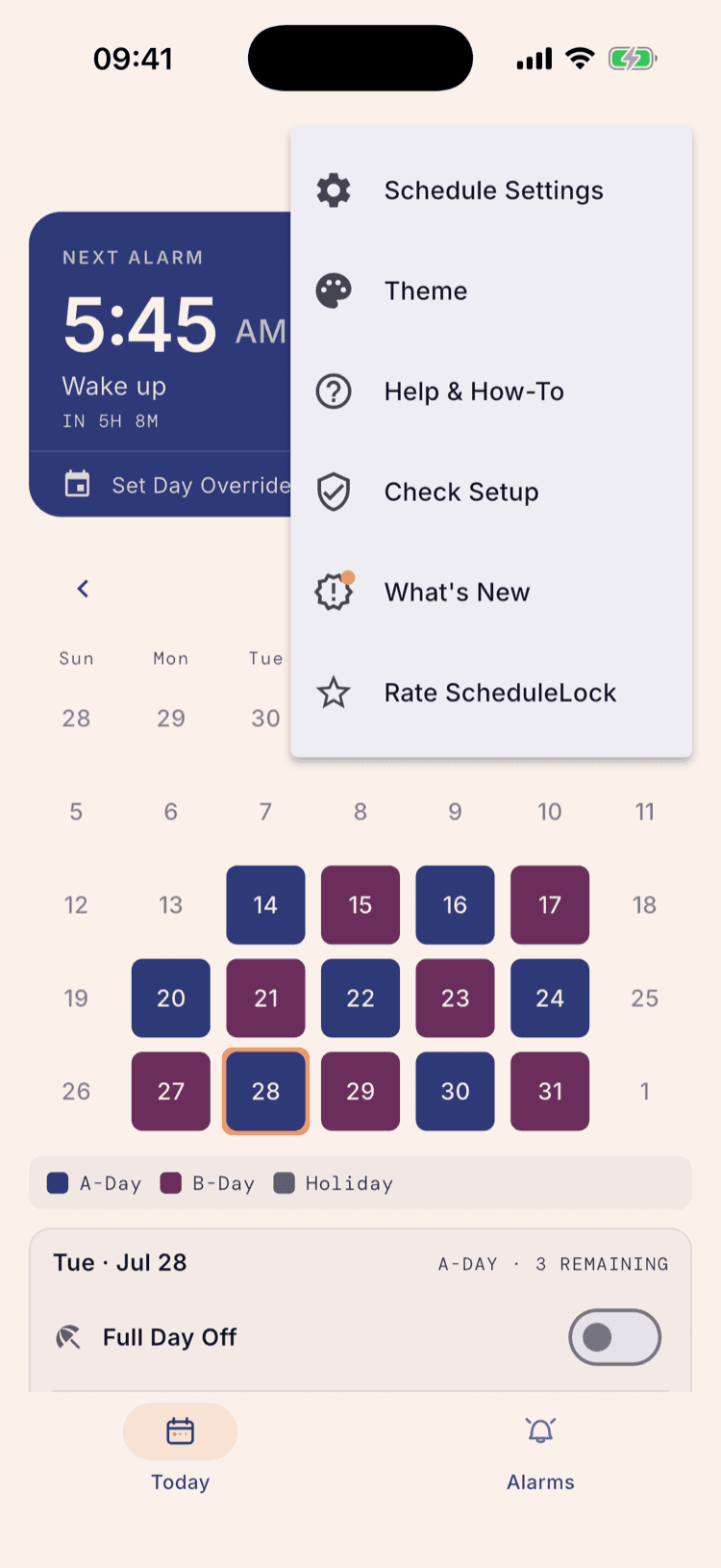
Tap Edit under the schedule you're using
Schedule Settings opens your list of schedules first. The one you're on is marked Active.
The cycle anchor belongs to a schedule, not to the app. If you keep a separate fall and spring schedule, resync the one that's running.
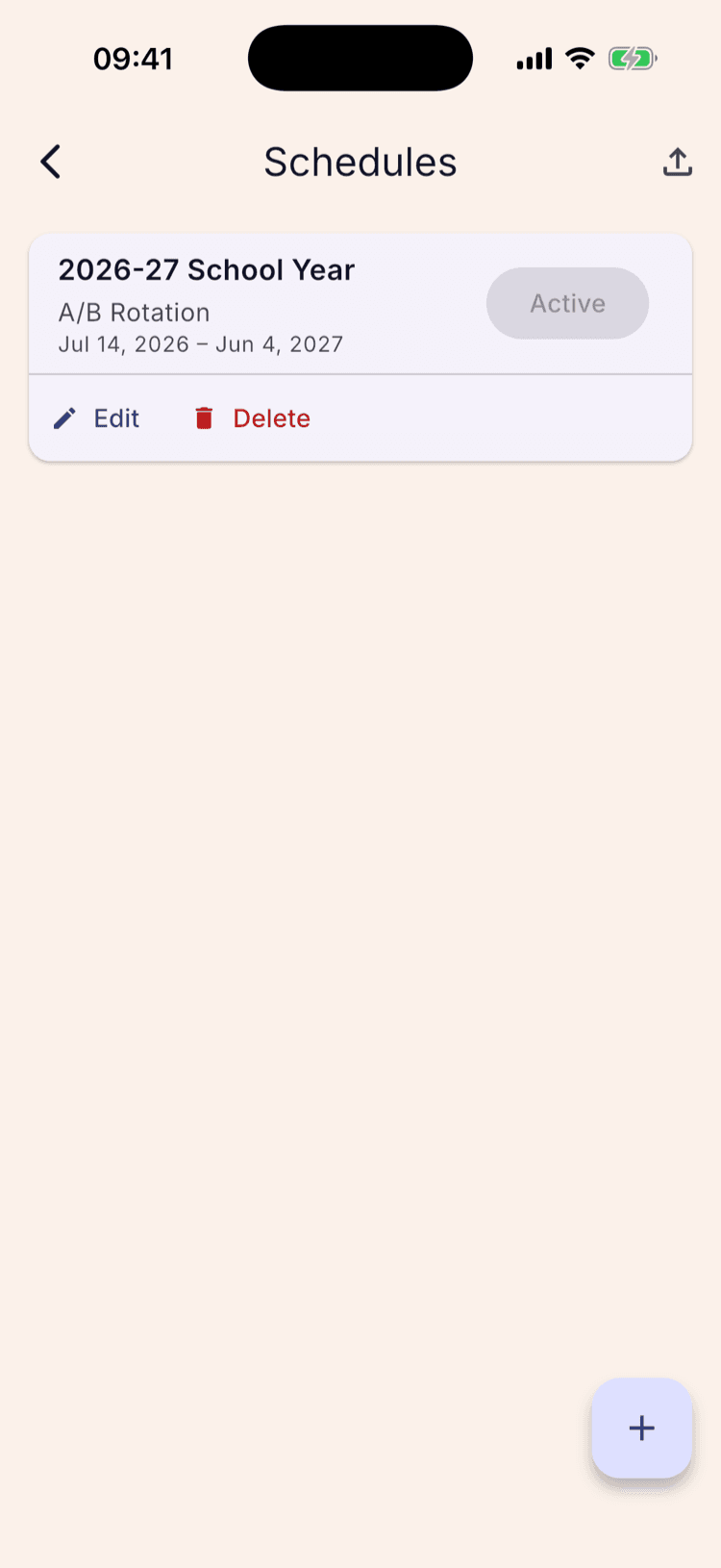
Tap Resync Cycle
It sits between Day Names and Holidays & Breaks, and describes itself: “Set today as a known cycle day.”
Pick the day your school is on
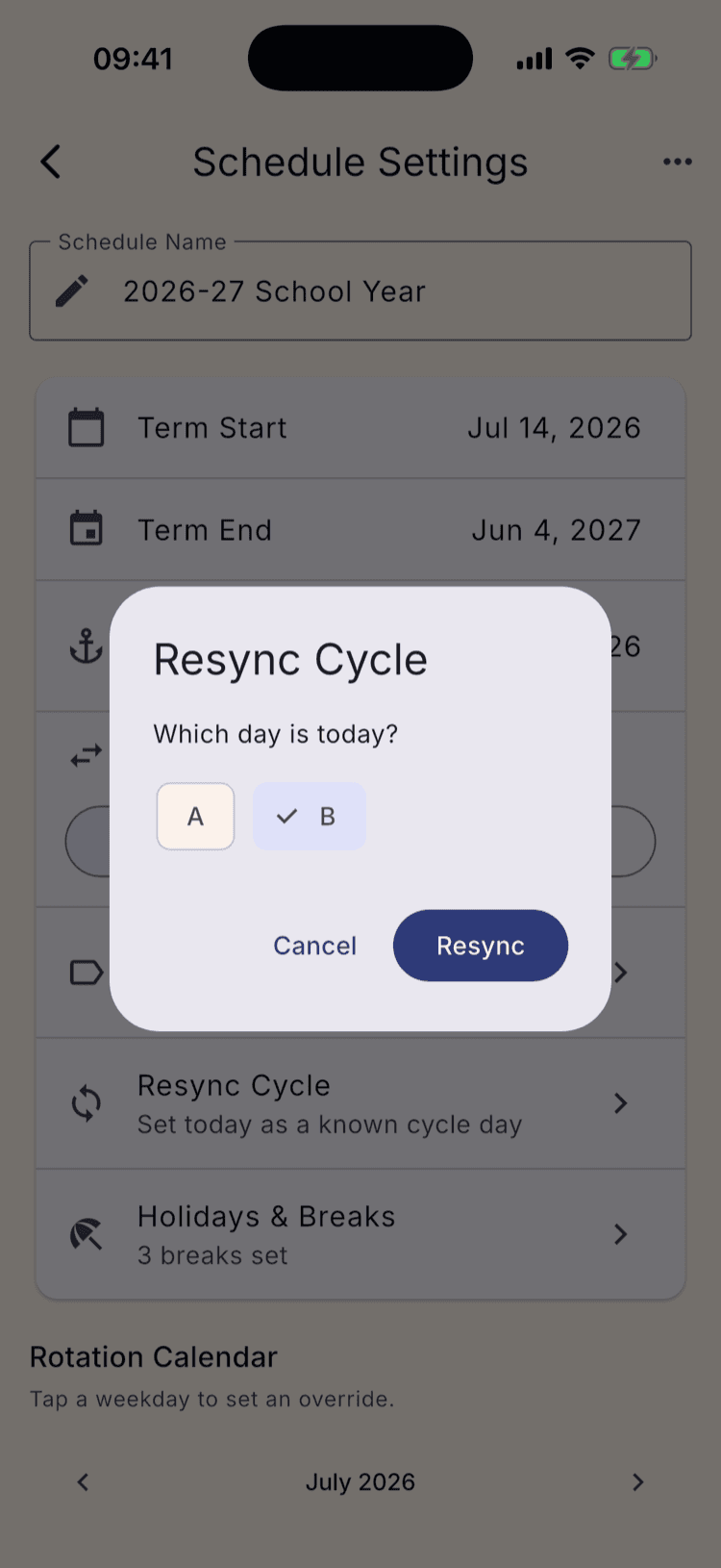
The dialog asks one question: which day is today? Tap the day type your school is actually running, then tap Resync.
The chip that starts selected is your schedule's anchor day type, not today's. Don't read it as the app's answer to the question. Pick what your school is on regardless of what's already highlighted.
Tap Save
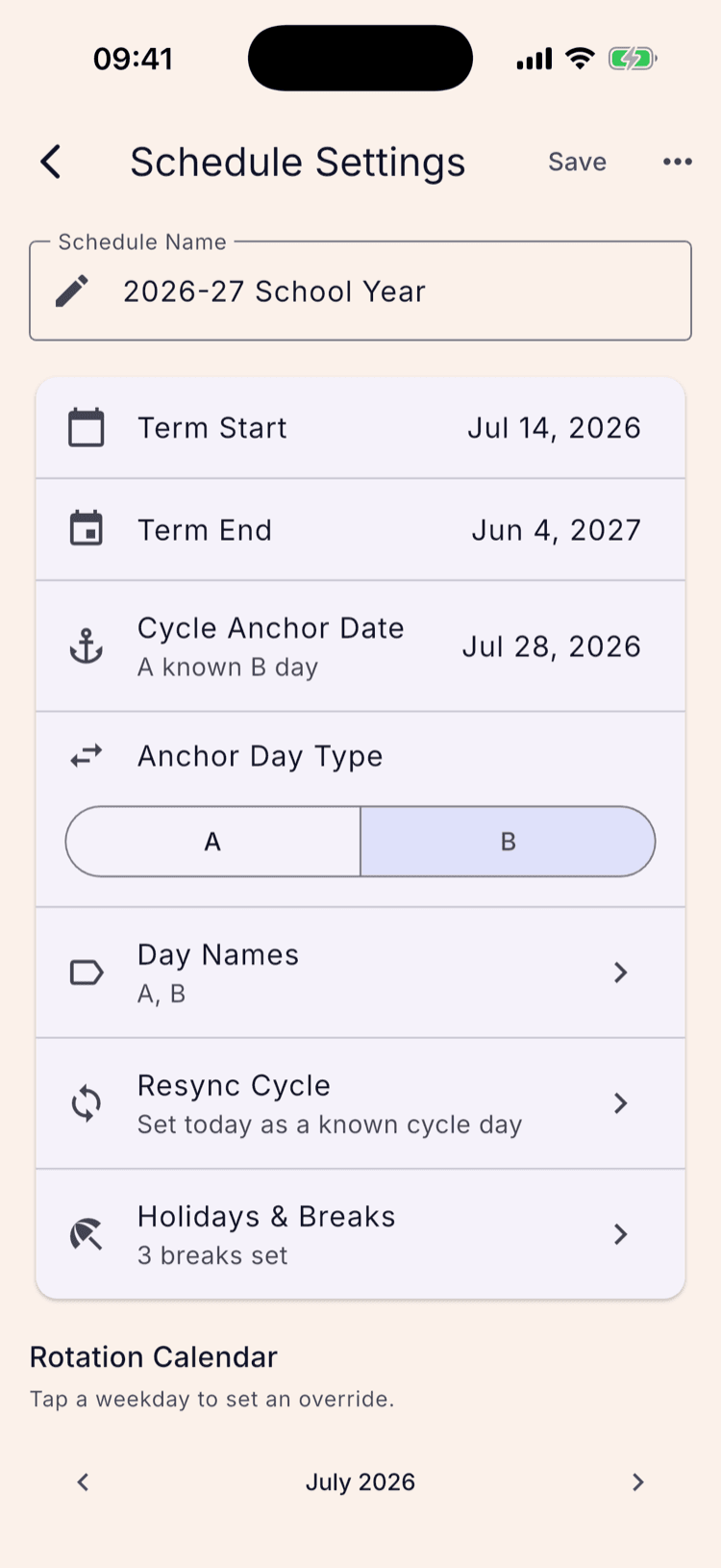
This is the step people miss. The dialog only stages the change. A Save button appears in the top right the moment you resync, and nothing is stored until you tap it.
Two rows down you can see what the resync did: Cycle Anchor Date has moved to today, and Anchor Day Type now shows what you picked. That's your confirmation you resynced the right way round before you commit it.
There's no success message. The only sign it saved is the Save button disappearing, so check the top right before you back out.
Go back and check the calendar
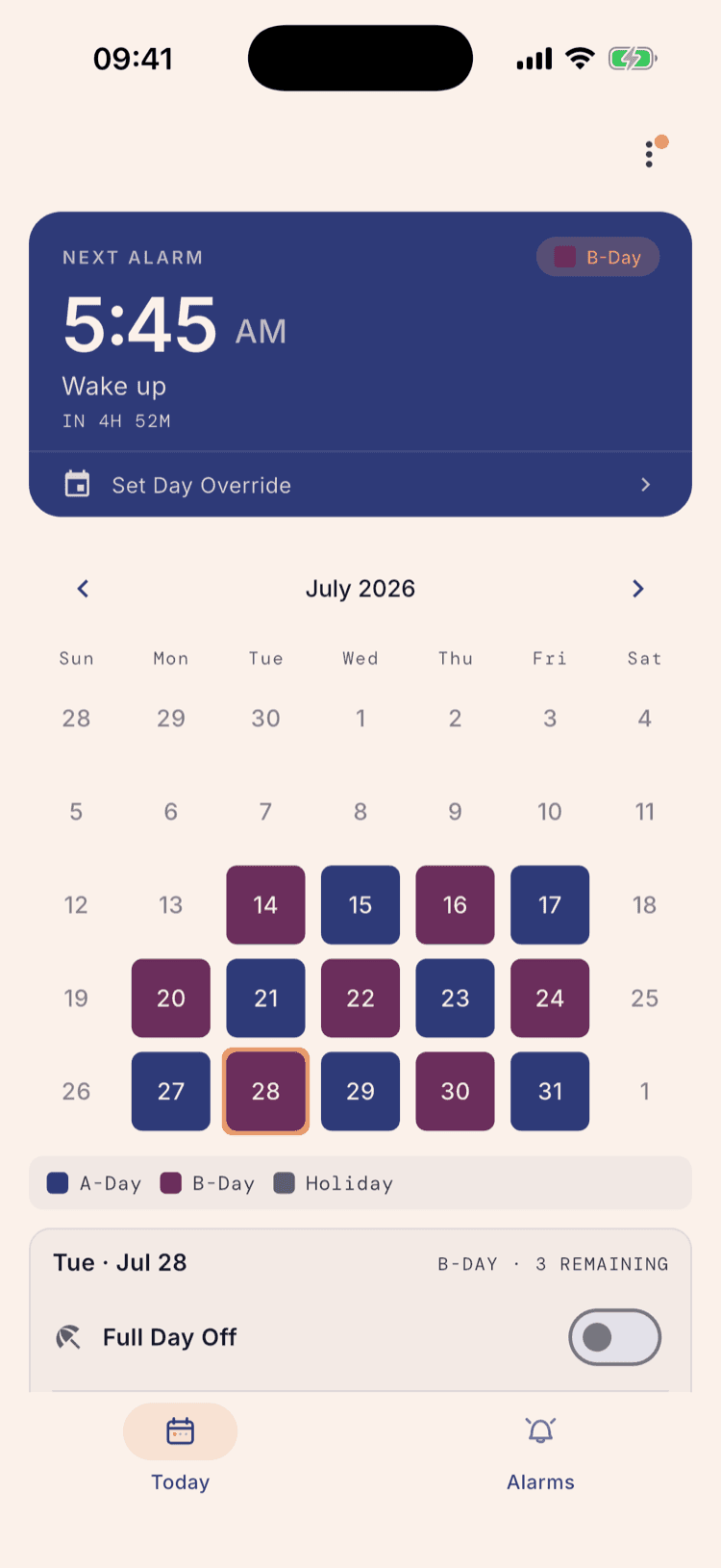
Today now reads the day type you picked, and the rest of the month has moved with it.
Compare this calendar with the one in step 1. Every weekday swapped colour, not just today.
What happens next
Your alarms reschedule as soon as you save. Breaks, alarm groups, and the alarms themselves are untouched, because a resync only moves the cycle anchor.
It moves the whole rotation, though, not just today. Your schedule has one anchor date and the app counts outward from it in both directions, so re-anchoring on today also relabels the days behind you. In the shots above, every weekday in July flipped, including the two weeks already past.
That matters when you're deciding whether this is the right tool. Resync is for “the app is wrong from here on”. If your rotation was right until a particular break and wrong afterwards, the break is the thing to fix: open Holidays & Breaks and check whether it's set to Pause, Reset, or Continue. Correcting the break leaves the days before it alone.
One resync is usually all you need for the year. If you find yourself doing it repeatedly, something upstream is off, and it's normally a missing break or one with the wrong setting.
Set it up once. Sleep through Sunday.
ScheduleLock is out now on the App Store and Google Play.
Get the app