Build an alarm group
Name a group, point it at a day type, and fill it with the alarms that belong to that kind of day.
A named group attached to one day type, ready for the alarms that only belong on that kind of day.
- Open the Alarms tab and tap the + button.
- Name the group and pick the day type it belongs to.
- Tap Create, then open the group and add its alarms.
A group is how ScheduleLock knows which alarms belong to which kind of day. Attach a group to your B-days and everything inside it fires on B-days only, without you setting anything each night.
Setup gives you one group per day type to start with. You'll want more once the days stop looking alike: an early duty week, a late meeting, the practice that only runs on one side of the rotation.
Open the Alarms tab
It's the second item in the bar along the bottom. This is your list of groups, not your list of alarms, which is why it can look shorter than you expect.
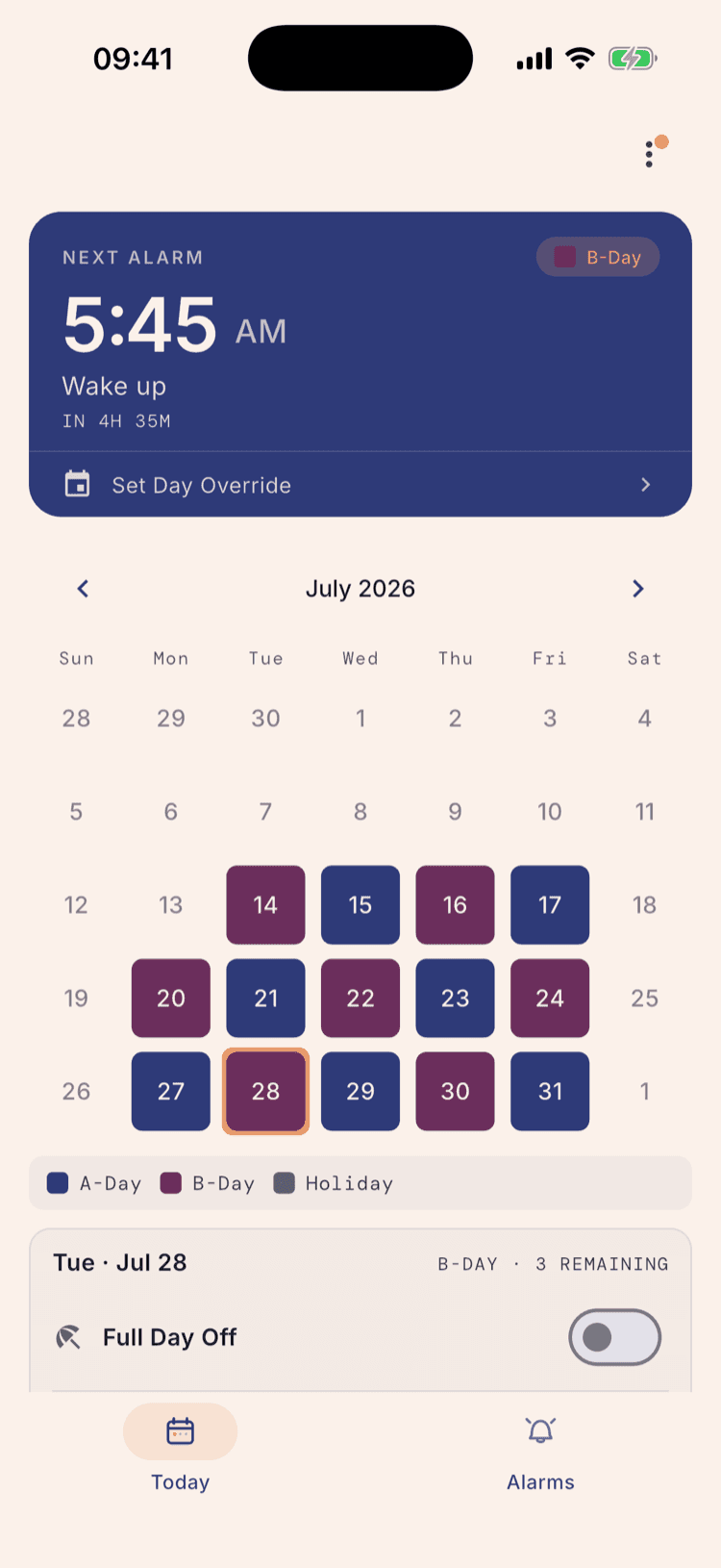
Tap the + button
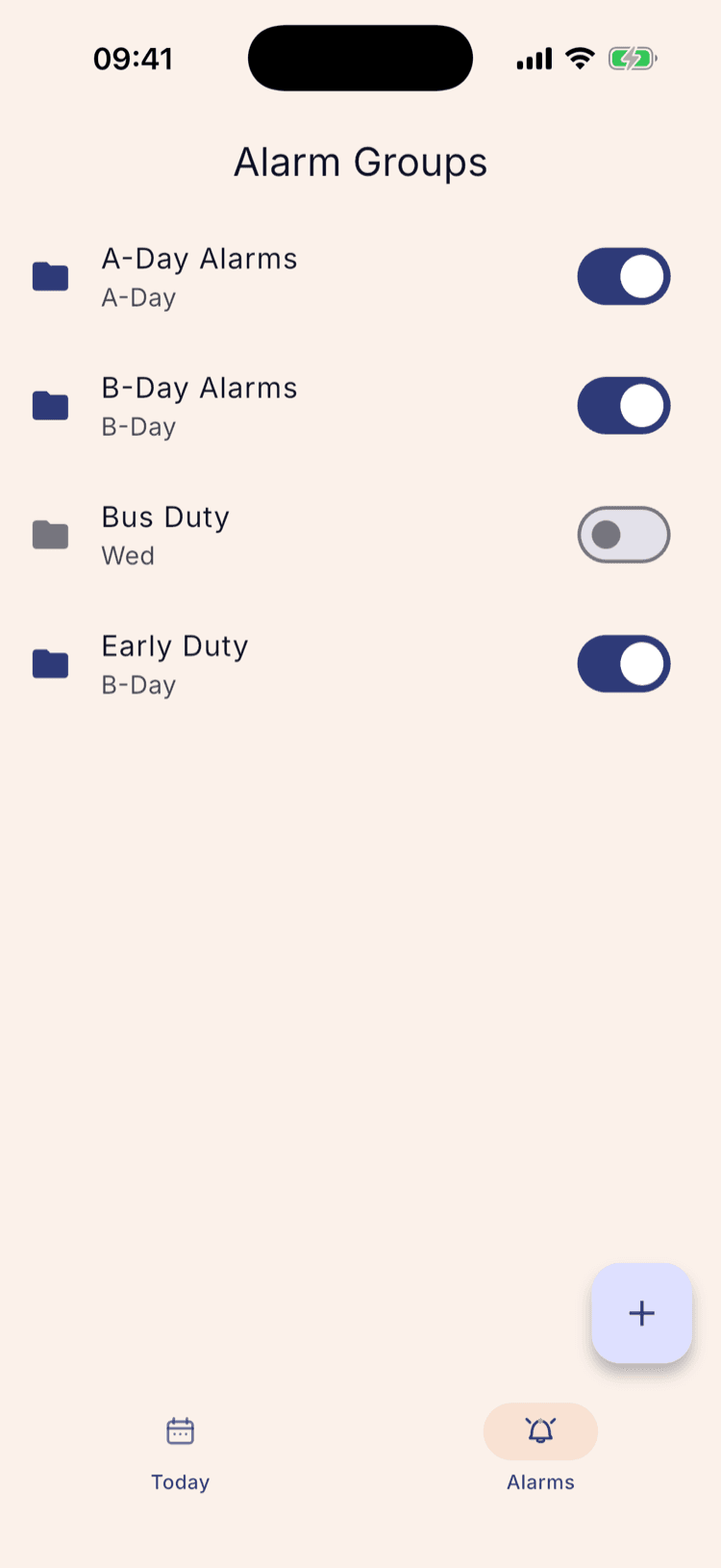
Bottom right. The groups already listed came from setup, one per day type in your rotation.
The toggle on each row switches a whole group off at once. That's the control you want for a duty that stops after the first term, rather than deleting the alarms and rebuilding them in January.
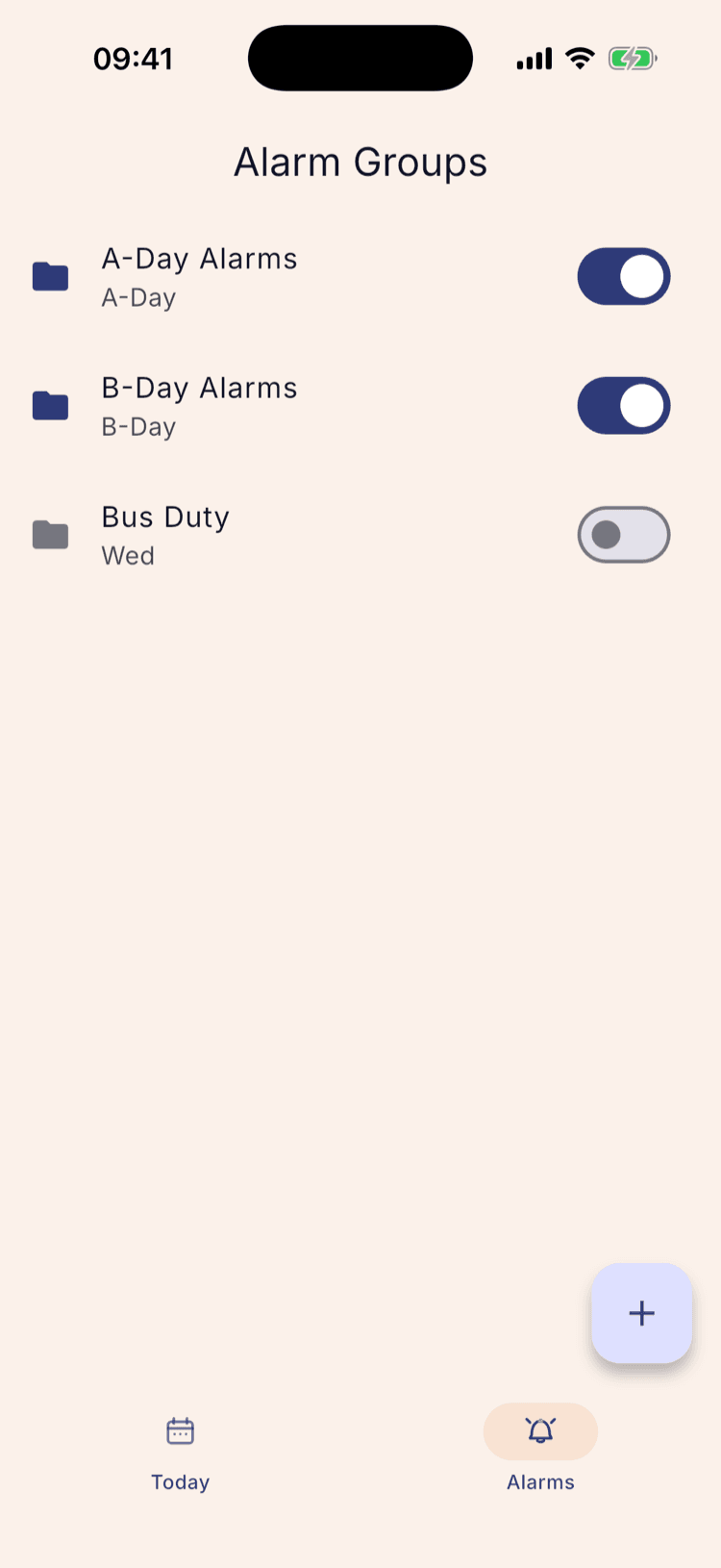
Name it
Name it after the thing that happens, not the time it happens. “Early Duty” still makes sense in March; “6:15 alarms” stops making sense the moment you move one of them.
Create does nothing at all while the name is empty. There's no error message and the button doesn't grey out, so if a tap seems to be ignored, that's why.
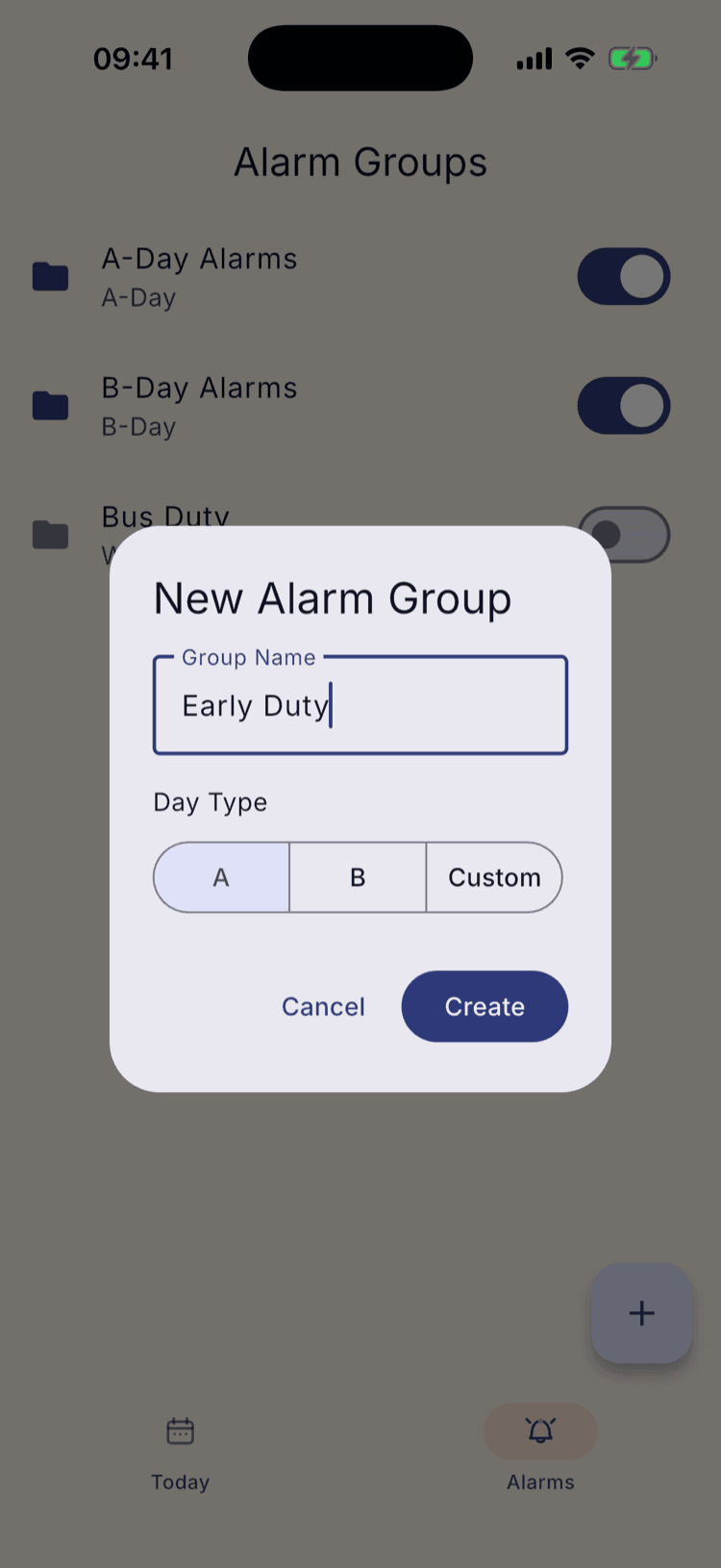
Pick the day type
On an A/B rotation you get your two day names and Custom. The group fires on the day type you pick here and nowhere else.
Custom is the other kind of group: instead of following the rotation it follows the week, so you can build one that only fires on Wednesdays. That one has its own tutorial.
What this control looks like depends on your schedule. A rotation of three days or more gives you a dropdown instead, which also carries All Days. A traditional weekly schedule gives you Every Day and Custom.
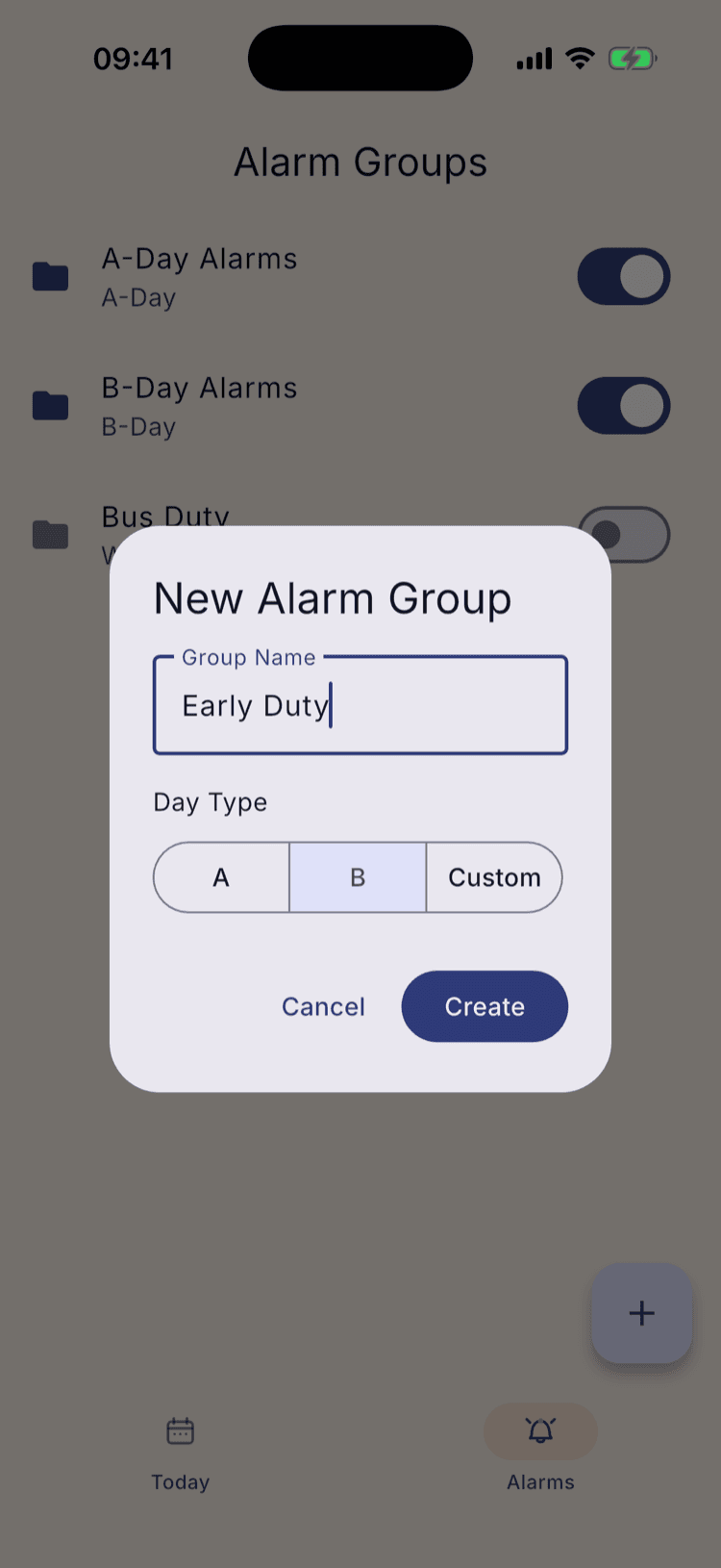
Tap Create
The group joins the list with its day type underneath the name, and it arrives switched on.
Open it and add the alarms
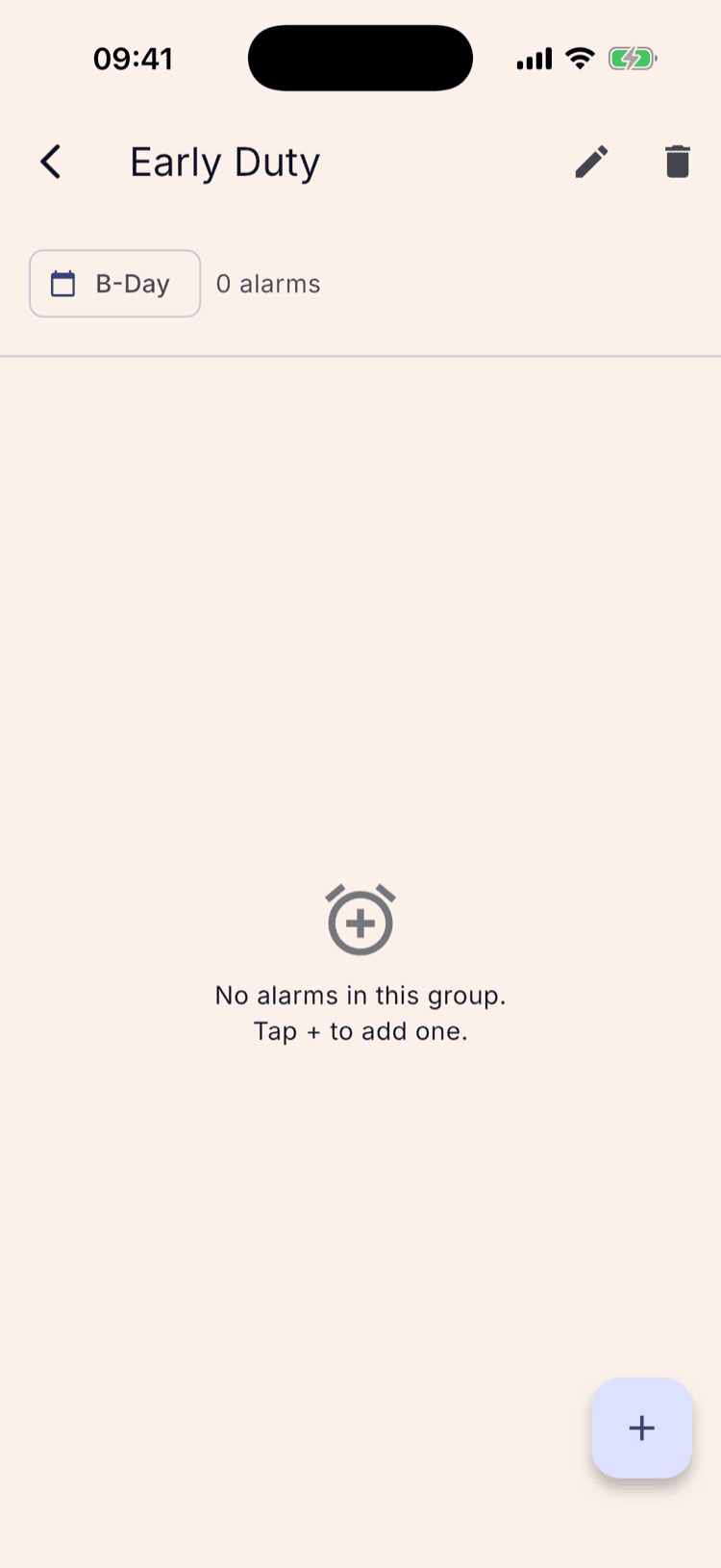
A group on its own does nothing. Tap it, then tap + to add the first alarm.
The header carries the day type and a count, and the pencil and bin in the top right rename or delete the whole group.
What happens next
Groups are per schedule, not per app. Build one on your fall schedule and it doesn't follow you to the spring one.
Renaming a day type later carries your groups with it. If you rename A to Blue in Schedule Settings, the groups pointing at A move to Blue rather than going stale.
There's no limit worth worrying about, and no cost to splitting things up. Two small groups you can switch on and off independently are easier to live with than one big one you have to edit.
Set it up once. Sleep through Sunday.
ScheduleLock is out now on the App Store and Google Play.
Get the app