Time, label, sound, and snooze
Everything you can change on a single alarm, and what the defaults do.
One alarm set the way you want it: the right time, a label you'll recognise at 6am, a sound you can hear, and a snooze that suits you.
- Open the Alarms tab, open a group, and tap the alarm.
- Tap Time for the clock, type over the Label, set Snooze Duration.
- Tap Sound for the ringtone and the alarm's own volume, then Save.
An alarm has four things on it and nothing else. Once you've seen the screen once you never need this page again.
The one worth reading is the sound row, because the volume on it is not your phone's volume.
Open the alarm
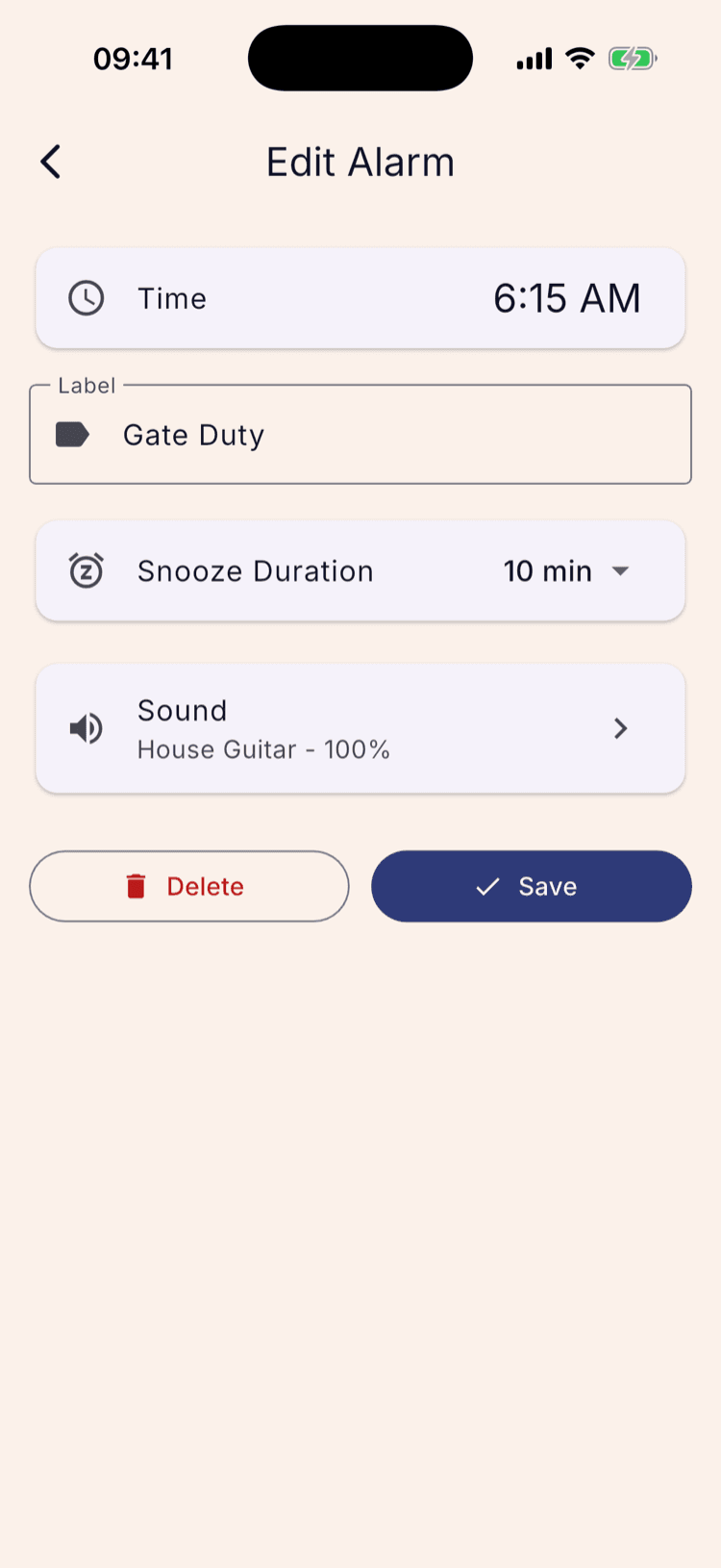
Alarms tab, then the group it lives in, then the alarm itself. Everything you can change is on this one screen: time, label, snooze, sound.
Adding a new alarm gives you the same screen with a Create button instead of Save and Delete.
Set the time
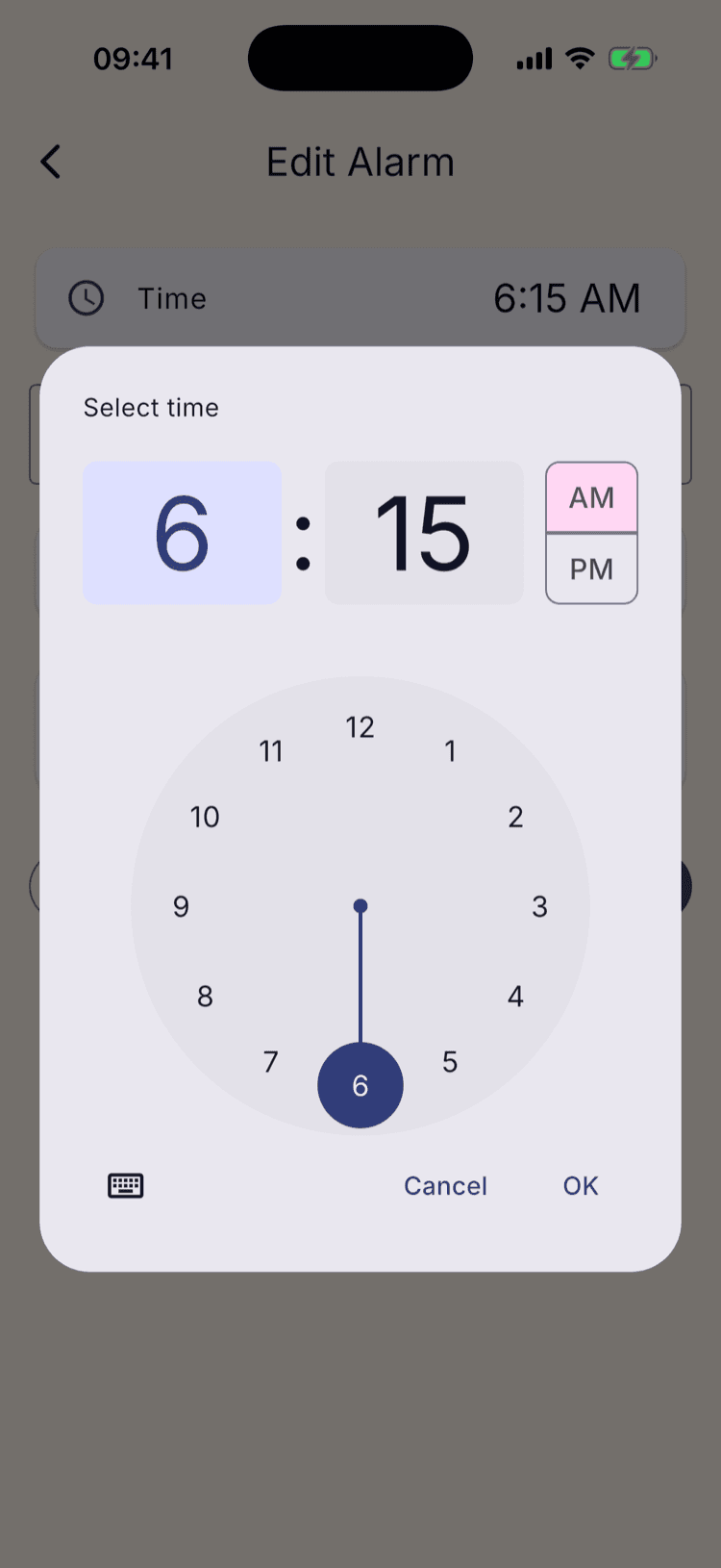
Tap the Time row for a clock face. Tap the hour, then the minutes, then OK. AM and PM are the pair of buttons to the right of the numbers.
The keyboard icon in the bottom left switches to typing the time instead, which is quicker if you know exactly what you want.
Give it a label
The label travels with the alarm, so it's what you see when it goes off, not just what you see in the list. That matters at 6am, when the difference between two alarms a few minutes apart is the only thing you need to know.
Name it after the thing you have to do. “Gate Duty” tells you something; “Alarm 2” doesn't.
Choose the snooze
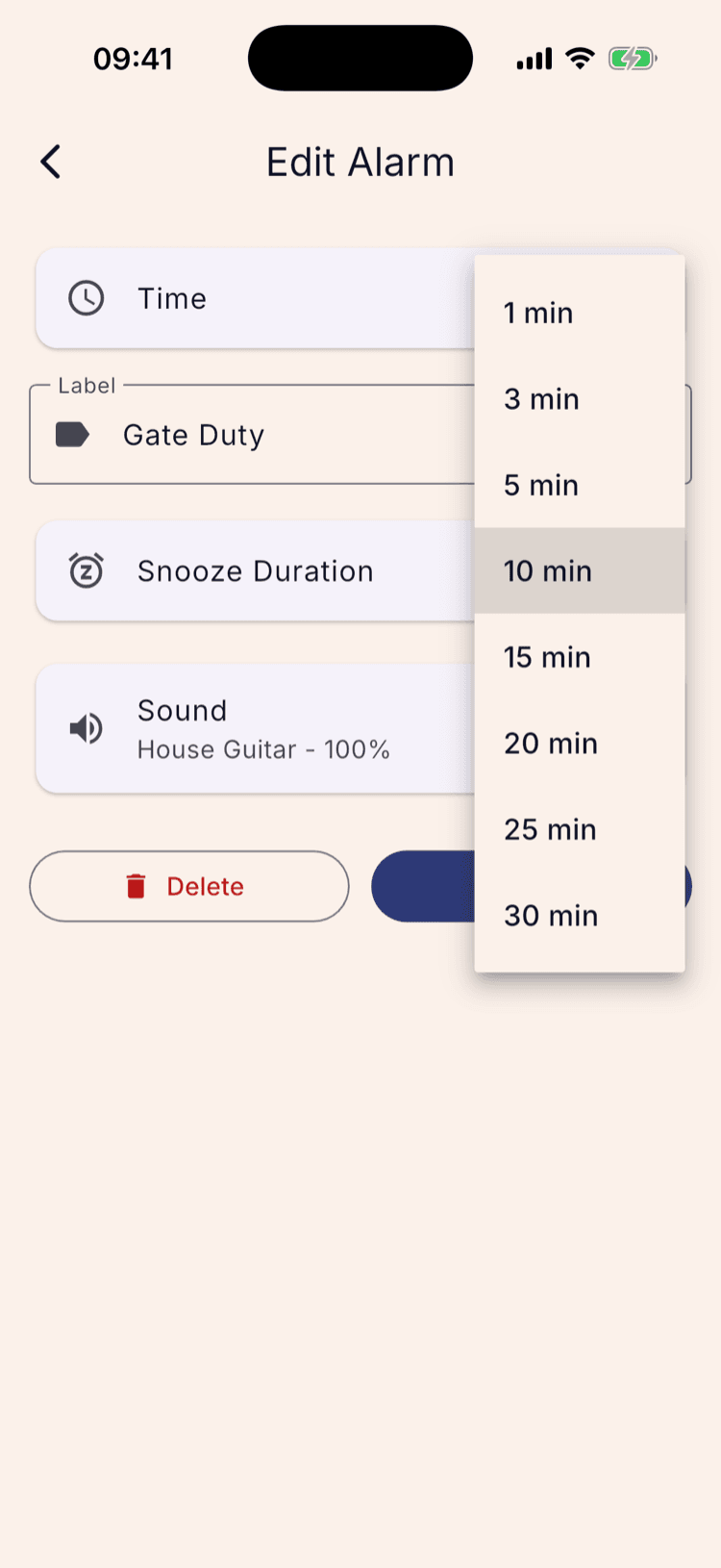
Snooze Duration is a dropdown, from 1 minute to 30. It's per alarm, so a wake-up alarm can snooze for ten minutes while a leave-the-house alarm snoozes for one.
Pick the sound, and set the volume that matters
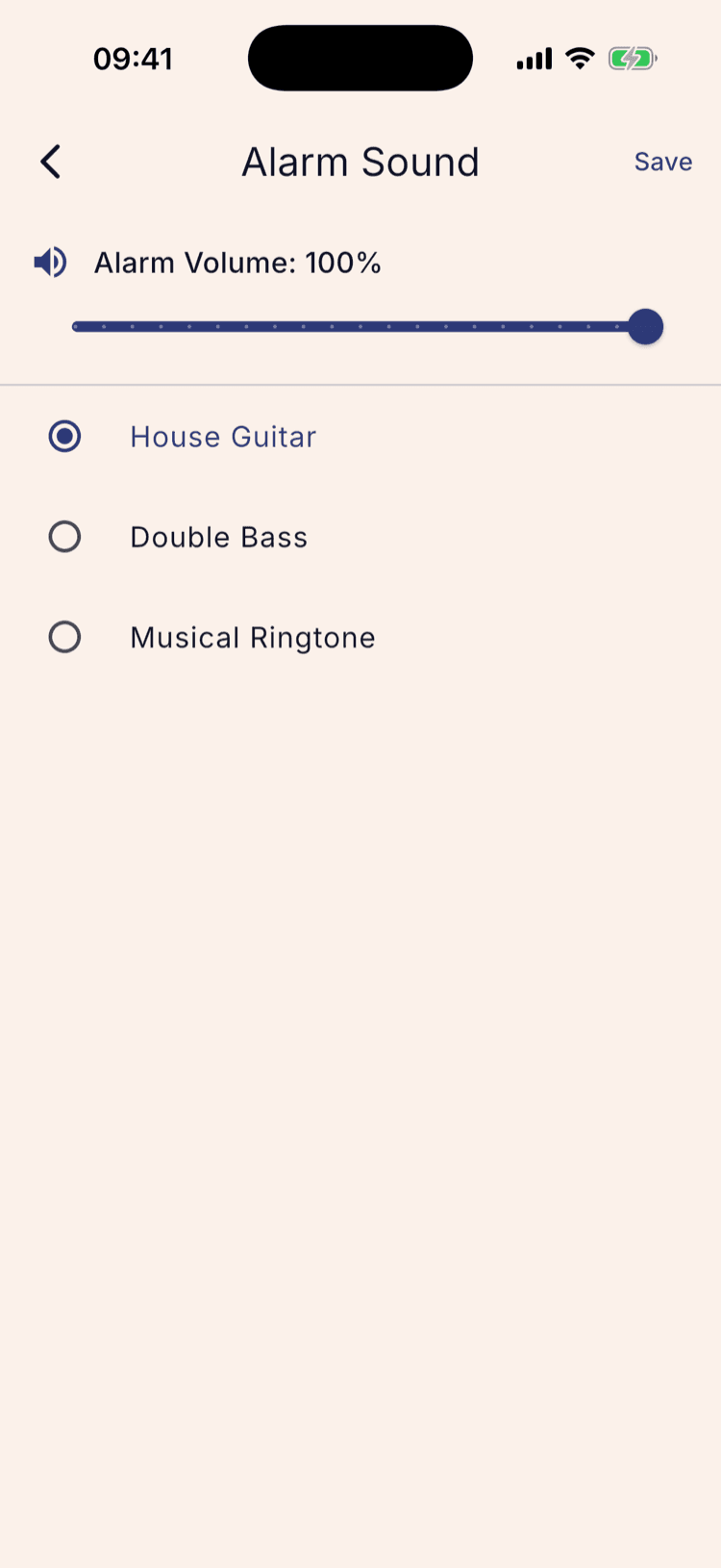
The Sound row opens the ringtone list. Tap one to hear it and select it, then Save.
Alarm Volume at the top is the one that counts. Your alarms ring at this level, not at whatever your phone's volume happens to be, which is the whole point: a phone turned down for a meeting still wakes you up the next morning.
If your phone is turned down, the previews on this screen may be silent even though the alarm itself won't be. The app says so in a hint when it detects it.
Save
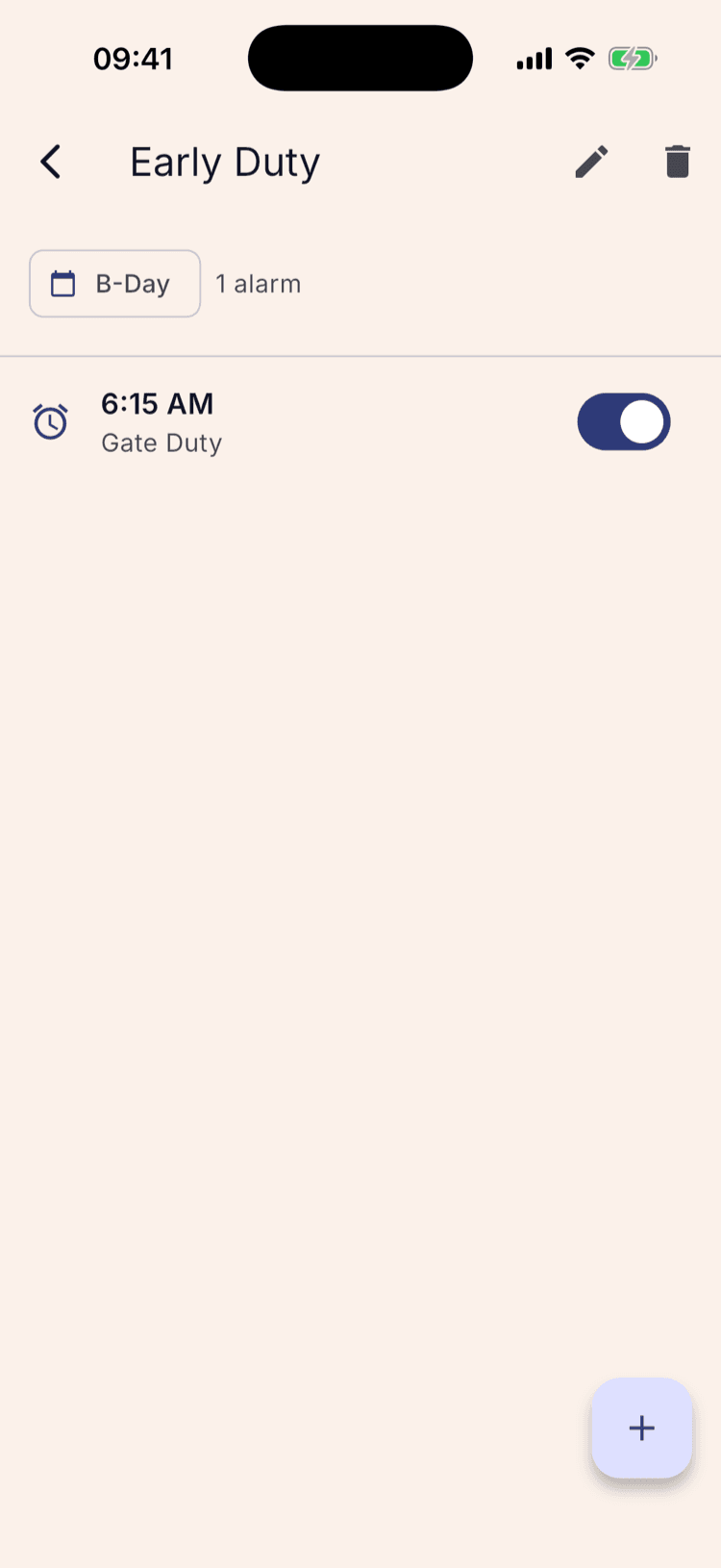
Back on the alarm, tap Save. It lands in the group with its time and label, and the toggle beside it switches this one alarm off without deleting it.
Delete, next to Save, removes the alarm and asks first. Switching it off is almost always what you actually want.
What happens next
Saving reschedules your alarms straight away. There's nothing to confirm and nothing to sync.
Sound choices don't travel between platforms. If you share your schedule with someone on the other kind of phone, they get your times, labels and snooze settings, but they pick their own sounds.
If an alarm is still on the built-in default, the ringtone list opens with nothing ticked. That's not a fault, it just means you haven't chosen one yet.
Set it up once. Sleep through Sunday.
ScheduleLock is out now on the App Store and Google Play.
Get the app