Alarms only on certain weekdays
Set a weekly cadence inside a group for the duty that only lands on Tuesdays.
A group that fires on the weekdays you choose, every week, no matter where the rotation has got to.
- Alarms tab, tap +, and name the group.
- Set Day Type to Custom, then tap the weekdays you want.
- Tap Create and add the alarms to it.
Not everything follows the rotation. The staff meeting is on Tuesdays, bus duty is on Wednesdays, and neither of them cares whether it's an A-day or a B-day.
Custom is the group type for those. Instead of following your cycle it follows the week, so it lands on the same days every time.
Start a new group
Alarms tab, then the + button, then give it a name. This is the same dialog as any other group.
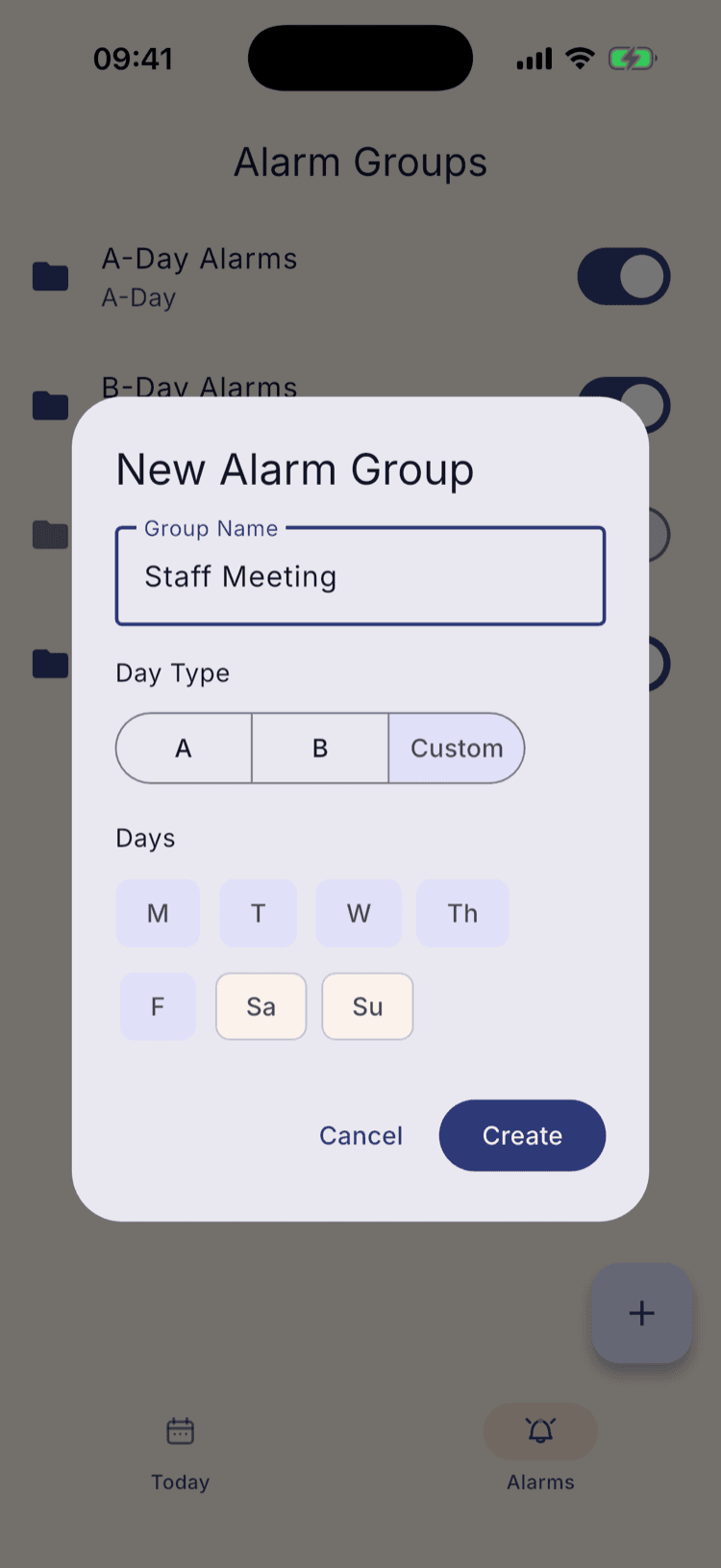
Set Day Type to Custom
Custom is the last option, after your day names. Choosing it adds a row of weekday chips underneath, already set to Monday through Friday.
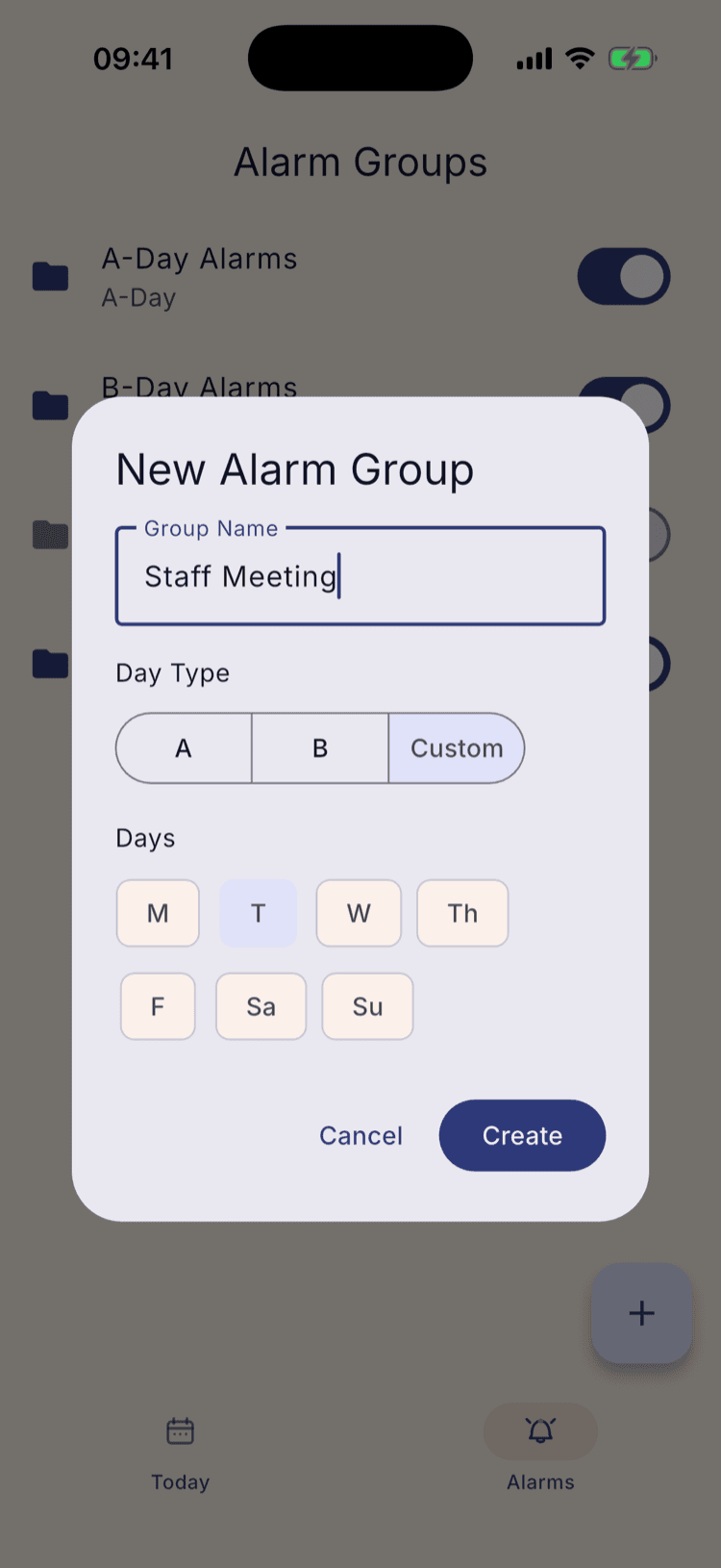
Tap the days you want
Tap a chip to turn it on or off. For a Tuesday meeting, that means turning the other four off and leaving T.
Weekends are there too, which is the point if you coach on Saturdays.
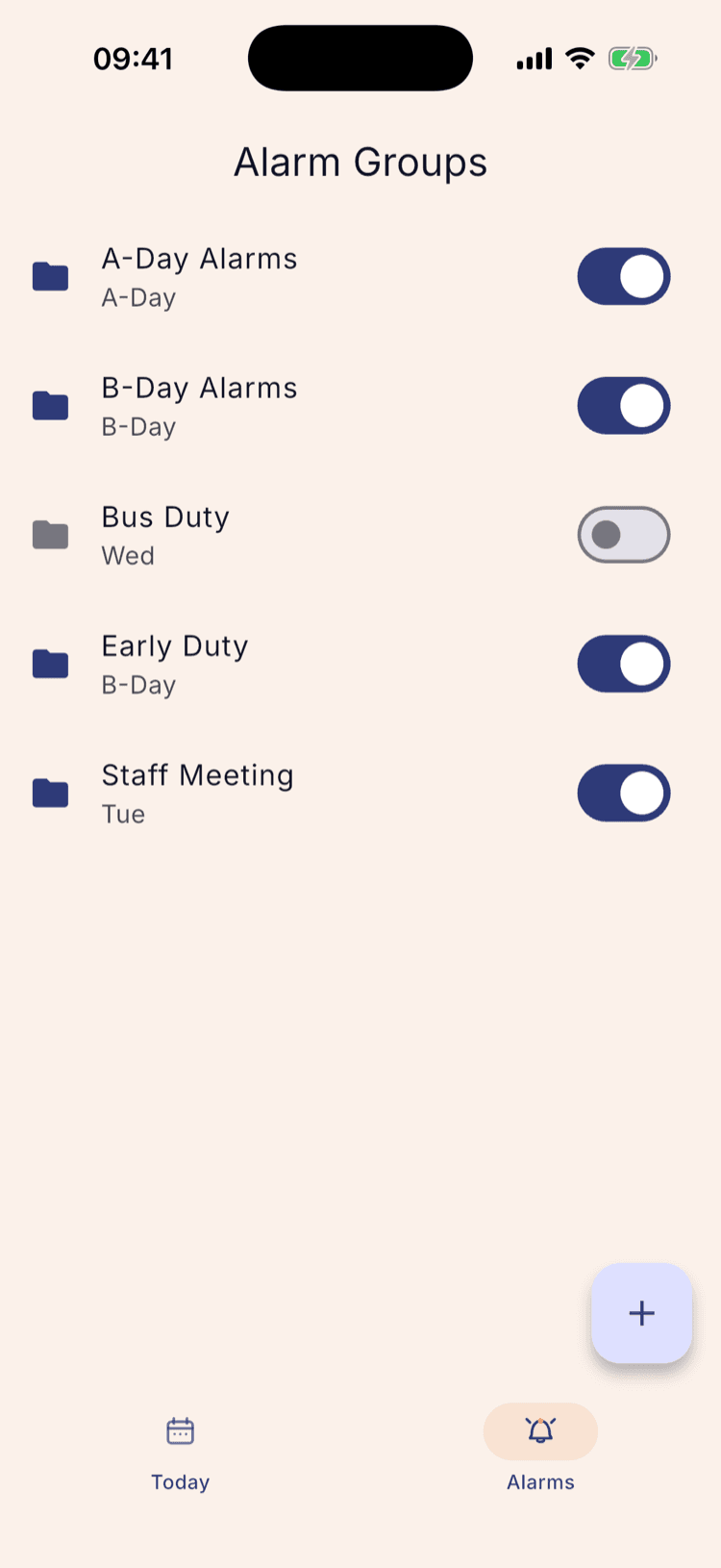
Create it
The group joins the list showing its days instead of a day type. That's the quickest way to read the screen later: anything with a day name under it follows your rotation, anything with weekdays under it follows the week.
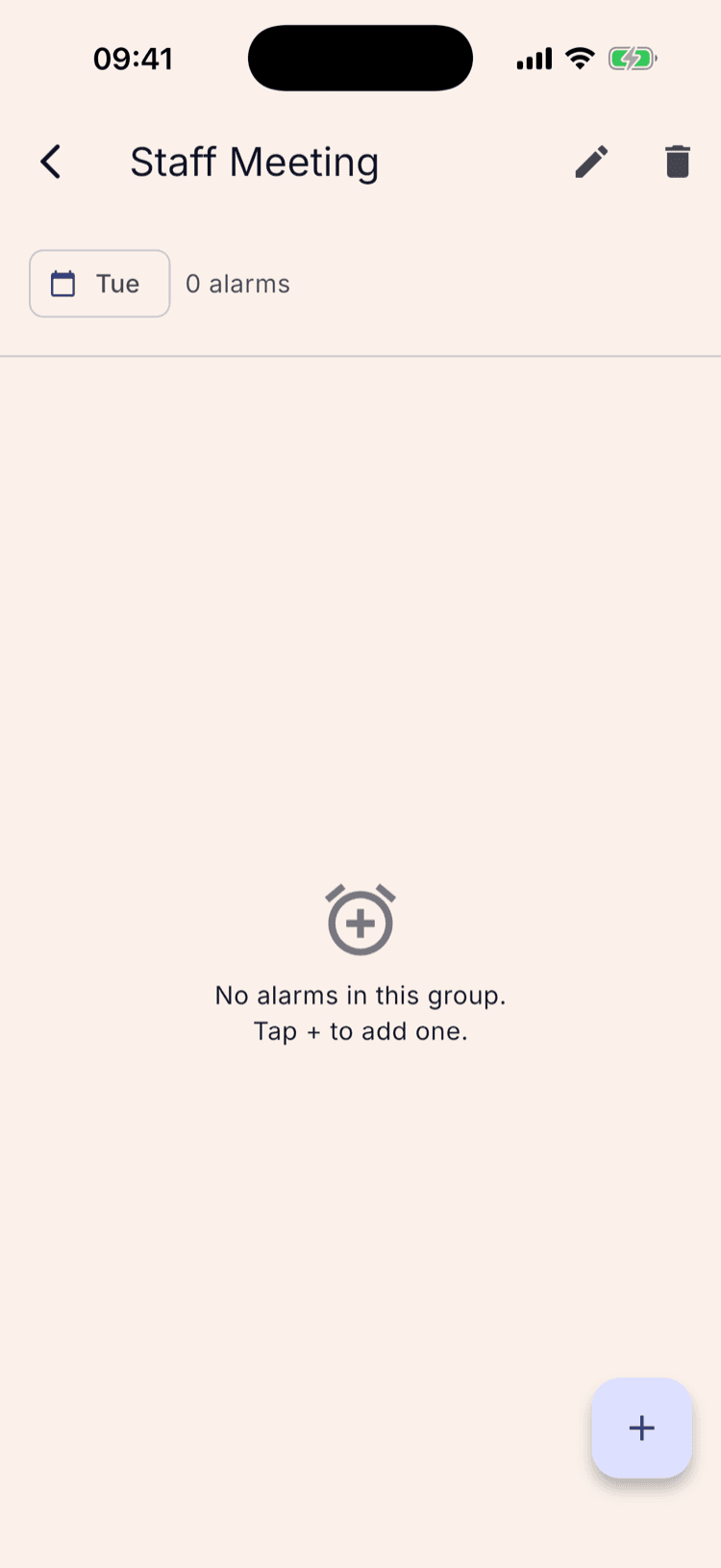
Add its alarms
Open the group and tap + as usual. The header carries the weekdays rather than a day type, and everything else about the alarm works the same way.
On the home calendar, days carrying one of these alarms get a small dot in the corner and a Custom key joins the legend. That's how a weekly alarm shows up on a calendar that's otherwise coloured by day type.
What happens next
Your breaks still apply. A break closes the school for the whole day, so a Tuesday alarm doesn't ring on a Tuesday inside winter break.
Your term dates don't. A Custom group follows the week rather than the school year, so it keeps firing on its weekdays after the last day of term, where a rotation group would have stopped. If you don't want it going off over the summer, switch the group off at the end of the year using the toggle on its row.
An alarm that belongs to both kinds of day only rings once. If a rotation group and a weekly group both land on the same morning, you get each alarm once, not twice.
Set it up once. Sleep through Sunday.
ScheduleLock is out now on the App Store and Google Play.
Get the app