Set up a traditional or day-of-week schedule
No rotation? Run the same alarms every weekday, or different alarms on different days.
A schedule with no rotation to track, and alarm groups that either run every school day or only on the weekdays you choose.
- Schedule Settings, then the + button, then “I'll set it up manually”.
- Name it, pick Traditional or Day-of-Week, and tap Next. There's nothing else to fill in.
- Build one Every Day group for alarms that never change, and a Custom group per set of weekdays that does.
Most schools don't rotate. The bell rings at the same time every day, or it changes by weekday and stays put all year. Either way there's no cycle to keep track of, and setup is correspondingly short.
The one thing worth knowing before you start: Traditional and Day-of-Week build exactly the same schedule. The real choice comes later, when you decide how your alarm groups are shaped.
Pick Traditional or Day-of-Week
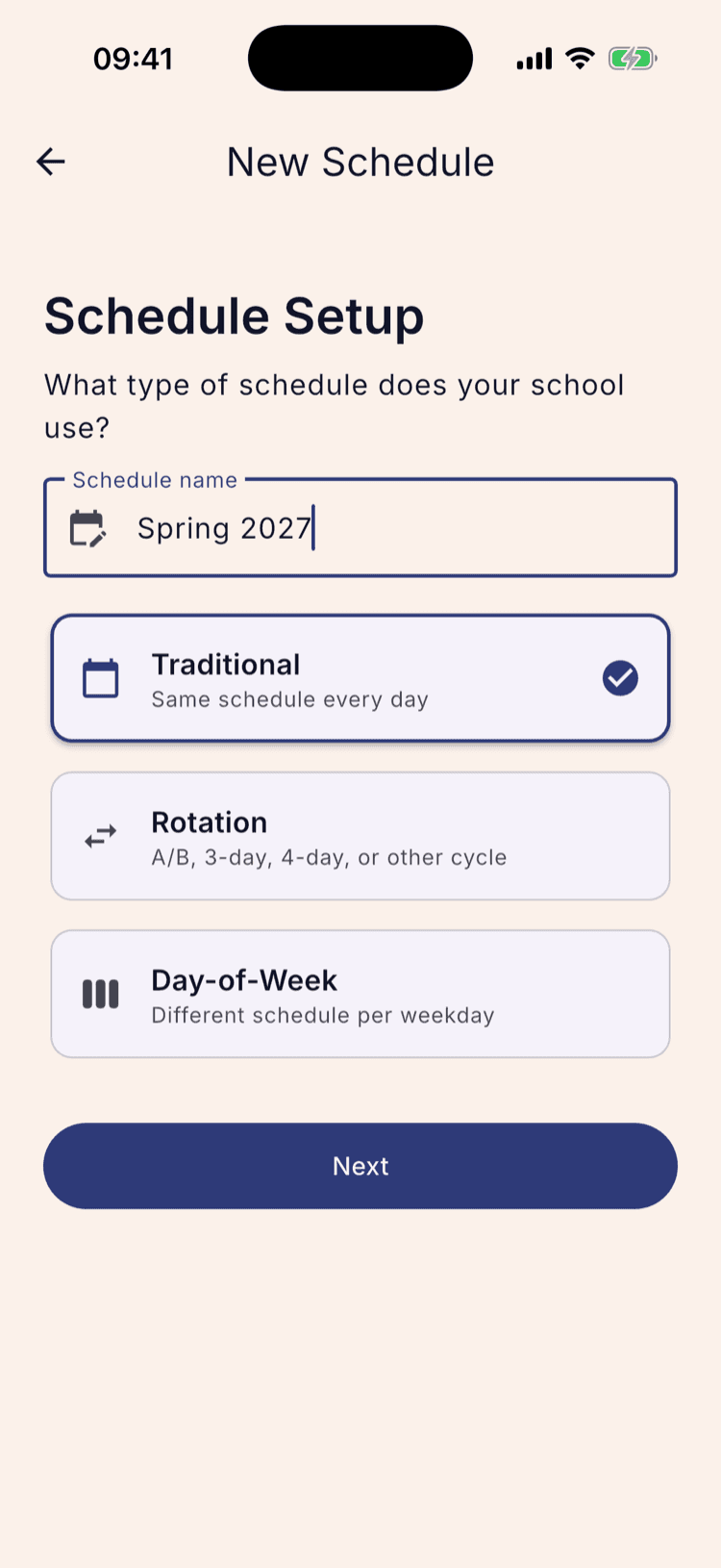
Open the three-dot menu, tap Schedule Settings, then the + button, then “I'll set it up manually”. Name the schedule and choose either Traditional or Day-of-Week.
Notice what doesn't happen: no cycle length appears, and no term dates are asked for. Next lights up straight away, because for a schedule with no rotation there's nothing else the app needs.
These two options produce an identical schedule. Whichever you pick, the app stores the same thing, and the Schedules list labels it with both names. Pick the one that describes your week and move on; nothing later is closed off by the choice.
Activate it
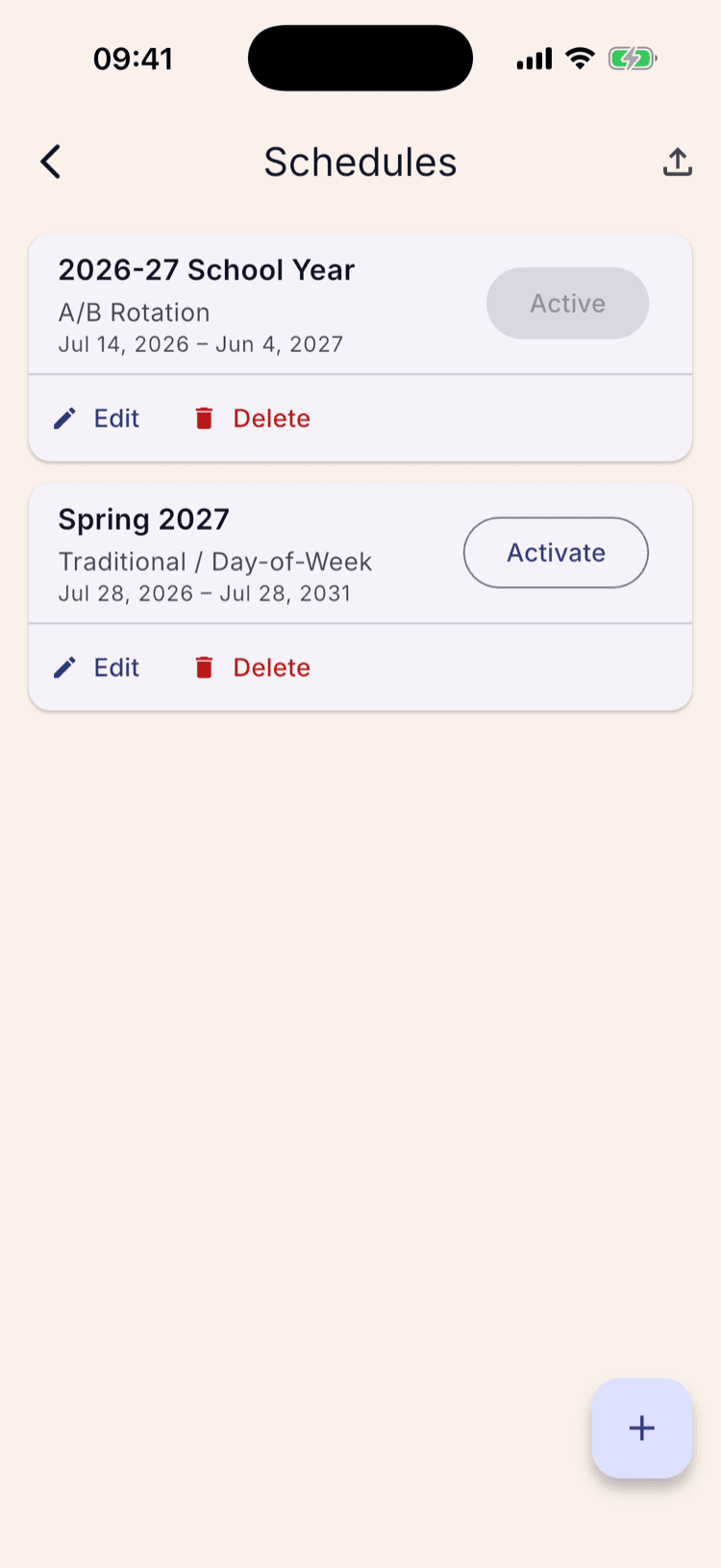
Tap Next and the new schedule appears on the Schedules list with an Activate button. Tap that, and whichever schedule was running before steps down.
The card underneath the name reads “Traditional / Day-of-Week”, one label for both options, which is the app telling you the two are the same thing.
The dates on the card are not a term you entered. A schedule without a rotation has no term to bound, so the app fills in a span running five years out, which is its way of saying this one doesn't expire.
Same alarms every day: Every Day
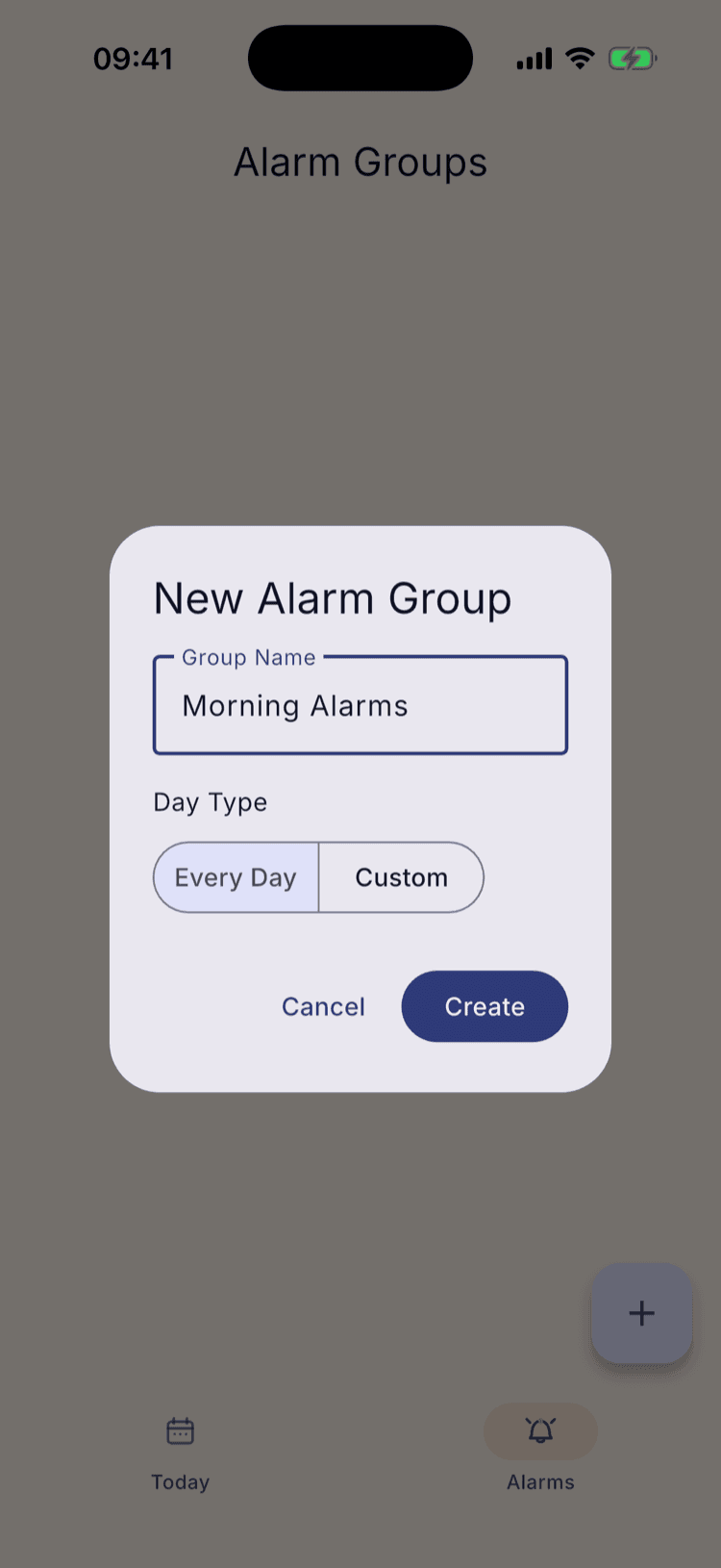
Go to the Alarms tab and tap + to create a group. On a schedule with no rotation the Day Type control offers two choices instead of day names: Every Day and Custom.
Every Day is the traditional case. One group, holding the alarms that don't change, firing on every school day. Most people need exactly one of these.
Every Day means every school day, not every day of the week. Weekends and anything you've added as a break stay quiet on their own.
Different alarms on different days: Custom
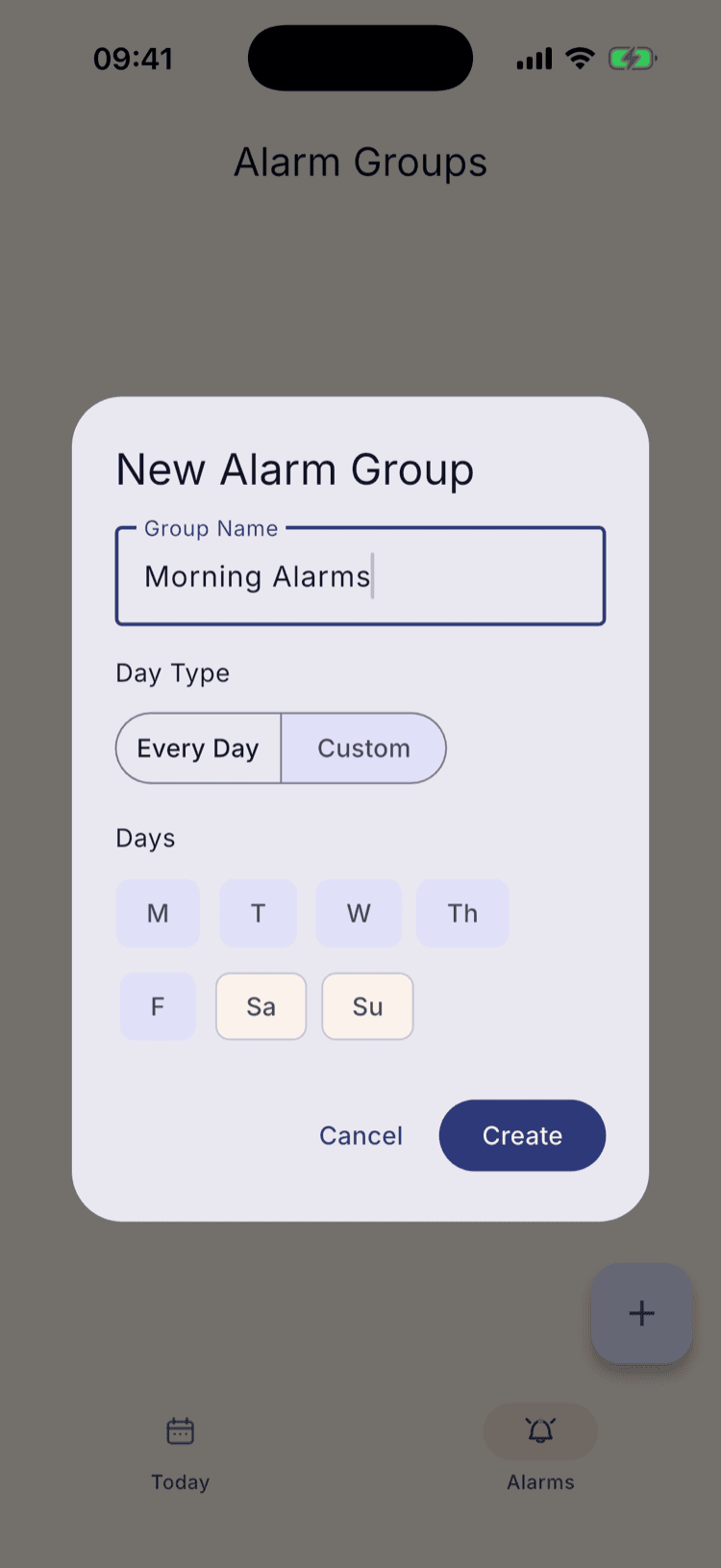
Tap Custom and a row of weekday chips appears, with Monday to Friday already selected. Turn off the days this group shouldn't cover.
This is the day-of-week case, and it's built one group at a time. A late Wednesday start is a Custom group with only W selected; a Tuesday duty is another with only T. Build as many as your week needs, each with its own alarms.
The dialog grows taller when Custom is selected, so the Create button moves down. Look before you tap.
What it looks like on the calendar
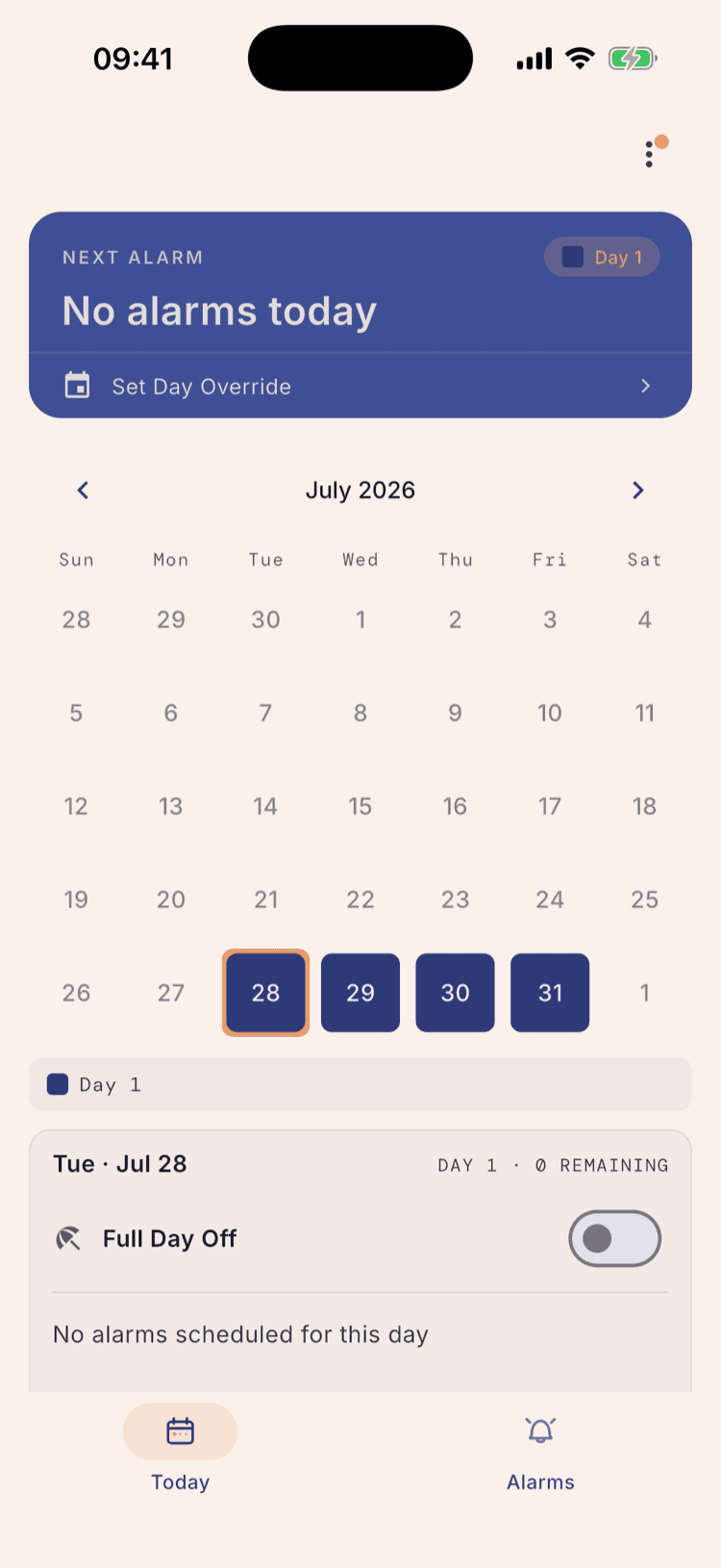
The home calendar colours every school day the same, and the key underneath has a single entry. That's the whole point of this kind of schedule: there's no day type to get wrong, so there's nothing to check each morning.
Tapping a day still opens the panel underneath with that day's alarms, which is where you'd go to silence one for a single date.
What happens next
Add your breaks. It's the one piece of upkeep this kind of schedule still needs, and it's what keeps the app quiet over a long weekend or a holiday without you switching anything off.
Mixing the two is fine and often right. An Every Day group for the alarms that never change, plus a Custom group for the one morning a week that's different, is less work than building five near-identical groups.
If your school moves to a rotation later, build a new schedule rather than converting this one. Both can sit on the Schedules list, and you activate whichever is current.
Set it up once. Sleep through Sunday.
ScheduleLock is out now on the App Store and Google Play.
Get the app