Set up a 4-, 6-, or 8-day rotation
Longer cycles, labelled Day 1 through Day N, and how they advance across weekends.
A rotation of 3, 4, 6 or 8 days running on your calendar, with each school day carrying the right day number even when the cycle no longer lines up with the week.
- Schedule Settings, then the + button, then “I'll set it up manually”.
- Pick Rotation, choose your cycle length, and rename the days if your school calls them something else.
- Set your term dates, tap Next, then Activate the new schedule.
A two-day A/B rotation almost lines up with the week: A on Monday, B on Tuesday, and back to A the following Monday. Anything longer stops lining up entirely. On a six-day cycle three Mondays in a row can be Day 1, Day 6 and Day 5, which is exactly why keeping track of it in your head stops working.
Setting one up is the same flow as an A/B rotation with two extra decisions: how long the cycle is, and what the days are called.
Start a new schedule and pick Rotation
Open the three-dot menu on the home screen, tap Schedule Settings, then the + button at the bottom right. The first screen offers to read your school calendar for you; tap “I'll set it up manually” underneath if you'd rather type it in.
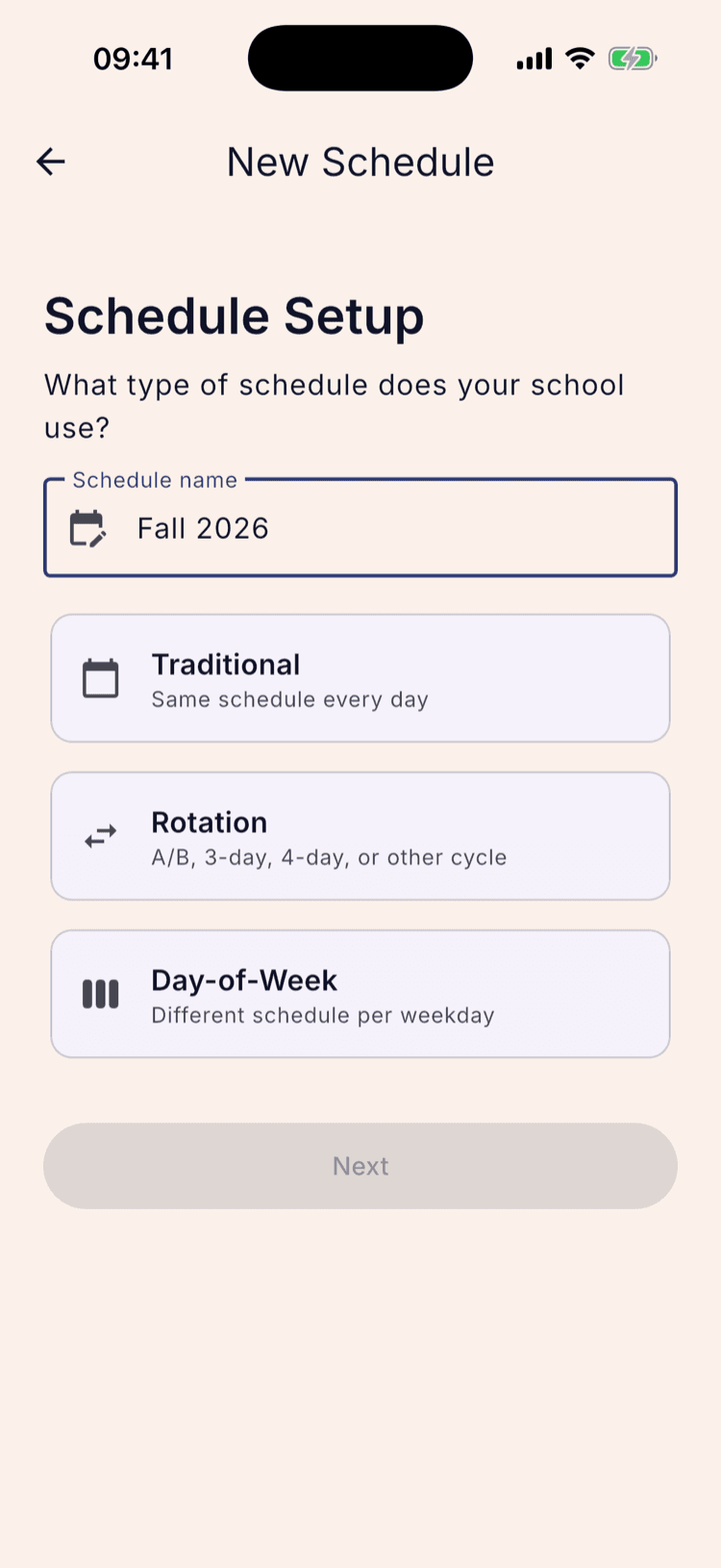
Give the schedule a name, then choose Rotation. Traditional and Day-of-Week are the two options for schools that don't rotate at all.
The name is the one you'll see on the Schedules list when you have more than one, so something like “Fall 2026” is easier to recognise later than the default.
Choose your cycle length
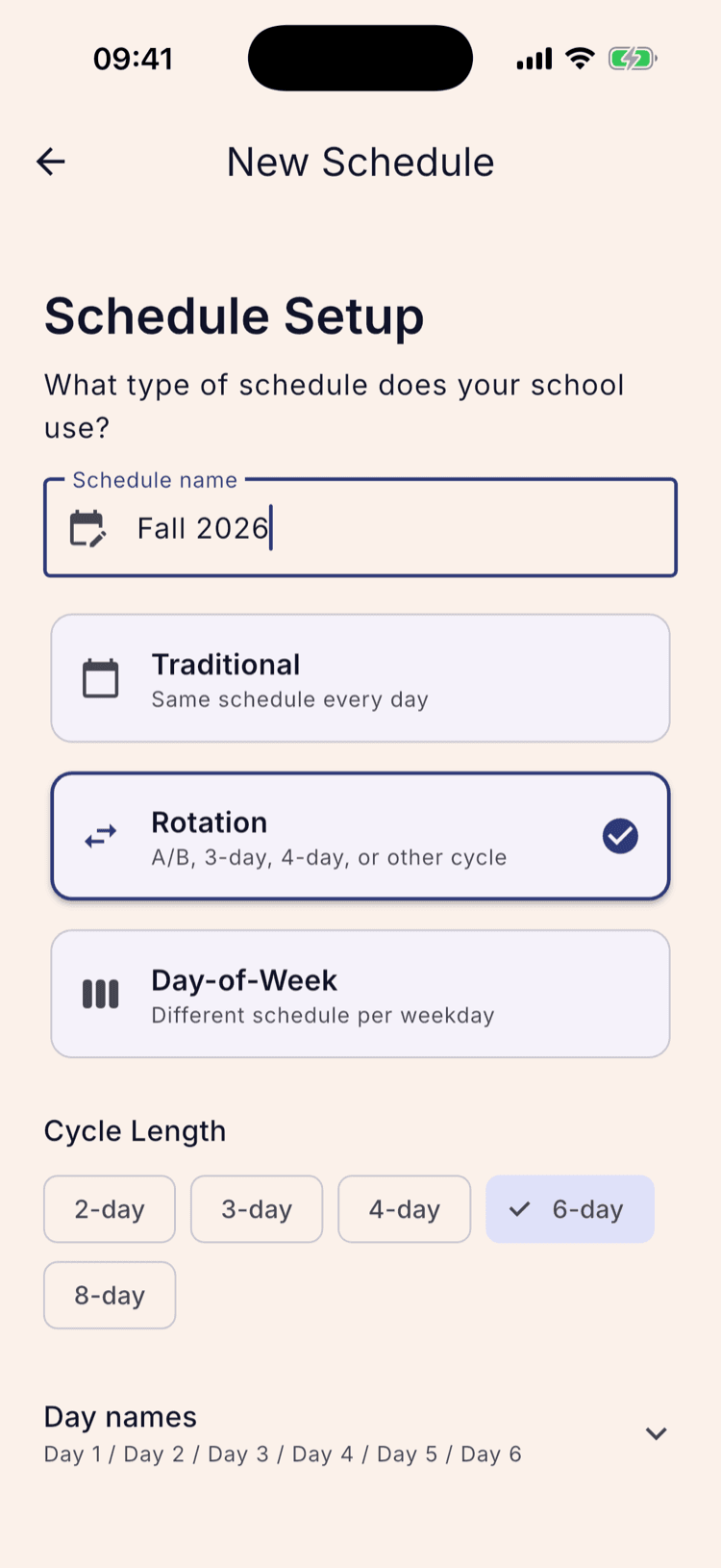
Picking Rotation opens a row of cycle lengths: 2-day, 3-day, 4-day, 6-day and 8-day. Choose the number of school days it takes before your schedule repeats.
Count school days, not calendar days. A six-day cycle means six days of teaching, and it carries on across the weekend rather than restarting on Monday.
Changing the cycle length resets the day names underneath it, so set the length first and rename afterwards. Nothing else you've entered is affected.
Name the days
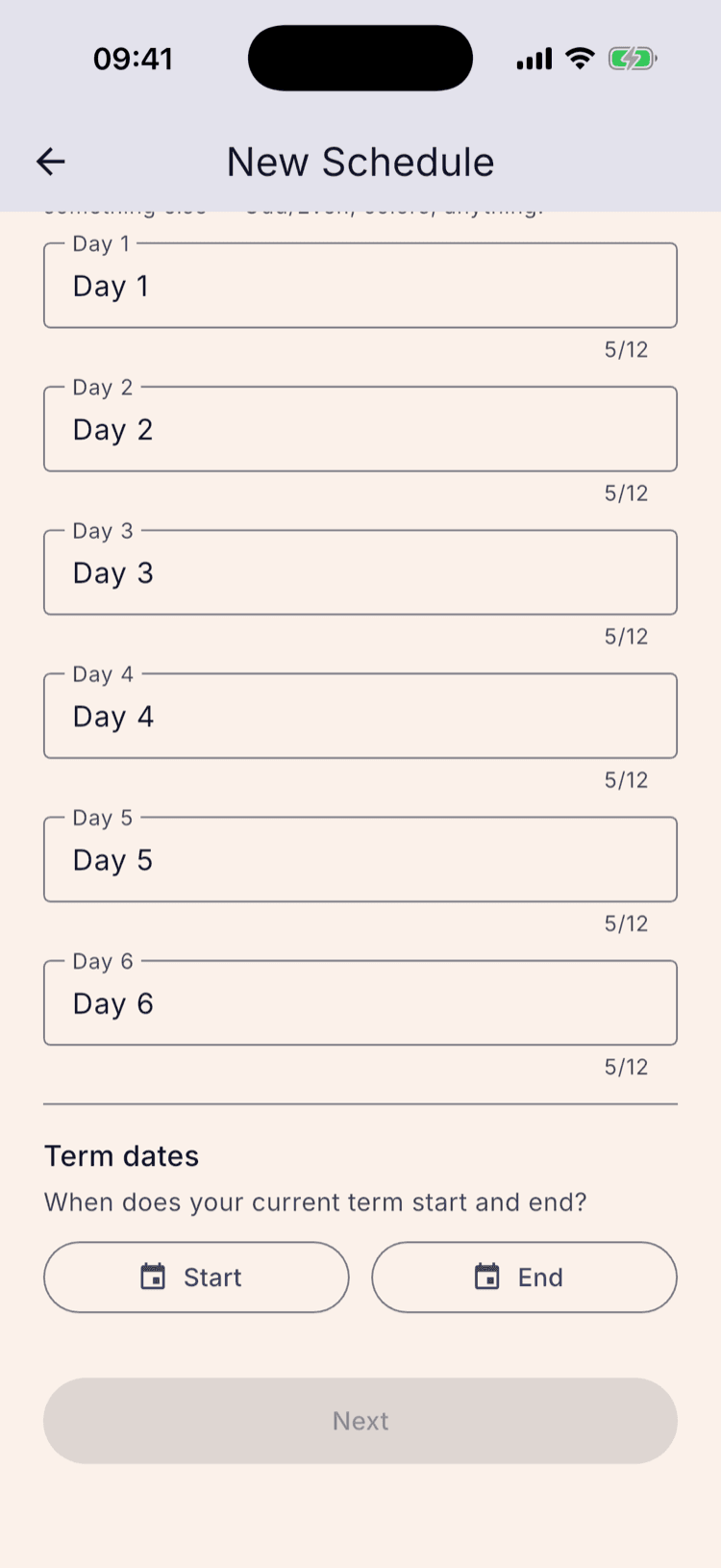
Open Day names and you get one field per day in the cycle, filled in as Day 1 through Day 6. If your school calls them something else, type that instead. Colours, letters and numbers all work, up to twelve characters each.
Use whatever is printed on the staff calendar. The name you set here is what appears on the calendar, on the day panel, and on every alarm group you build later.
Set your term dates
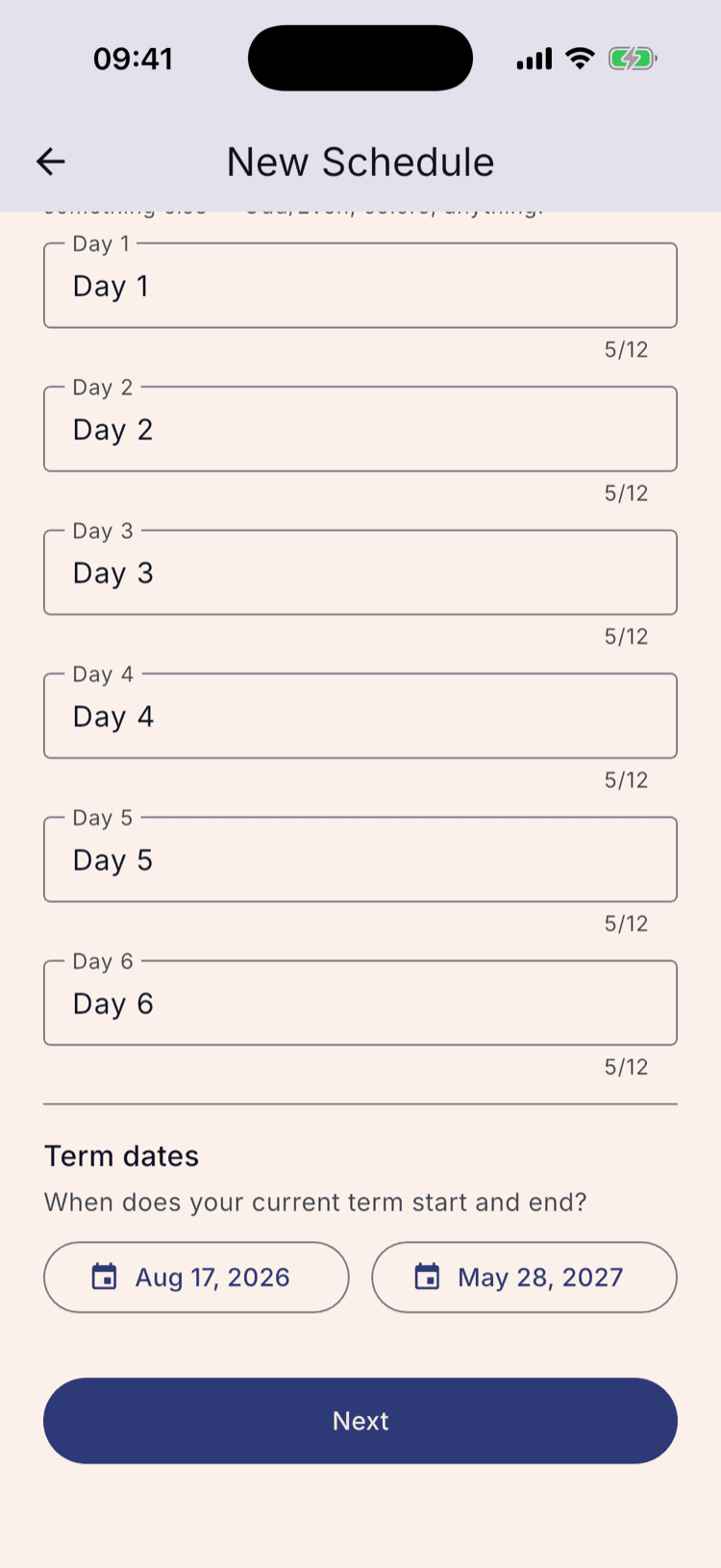
Enter the first and last day of the term. The rotation starts on the first day and stops after the last, so these dates decide where the colours on your calendar begin and end.
The first day of term becomes the first day of the cycle. If your term opens on something other than Day 1, set the dates now and correct the starting point afterwards from Schedule Settings.
Next stays greyed out until both dates are set. It's the only thing this screen insists on for a rotation.
Activate it
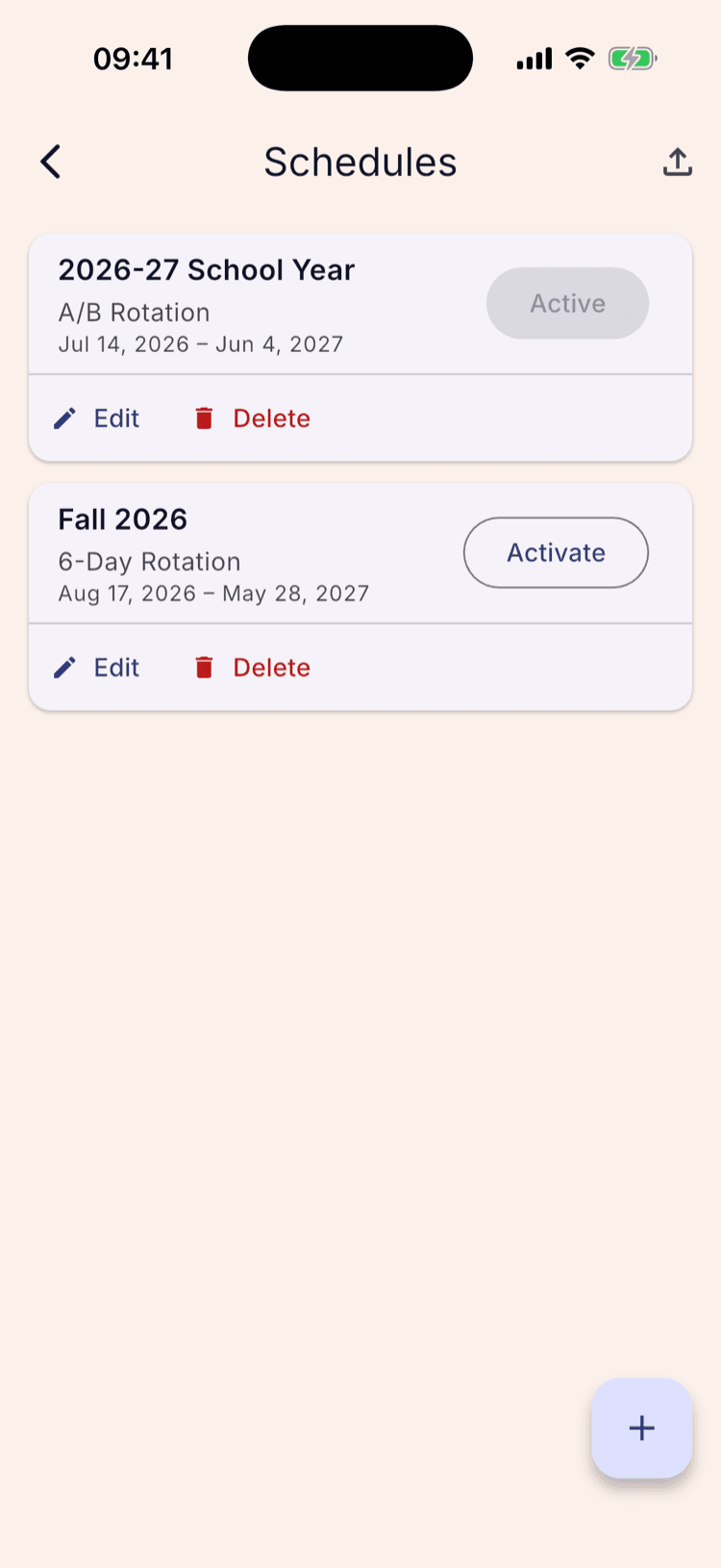
Tapping Next creates the schedule and returns you to the Schedules list, where the new one is waiting with an Activate button. It is not running yet.
Tap Activate. The schedule you were using before steps down to make room, so only one is ever live at a time.
The card summarises what you built, which is the quickest way to catch a wrong answer: here it reads 6-Day Rotation with the term dates underneath.
Check it on the calendar
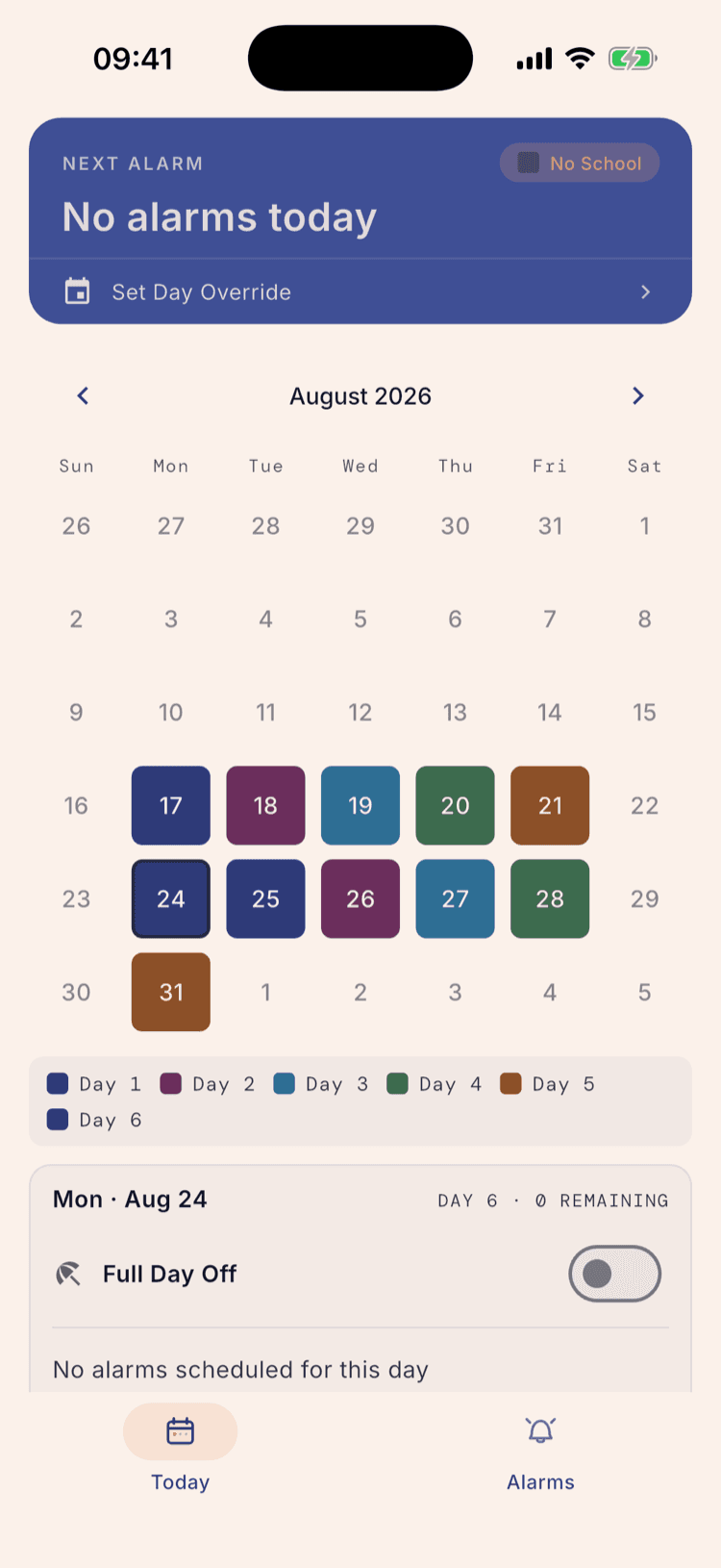
Back on the home screen the calendar opens on the first month of your term with every school day coloured by its day type, and a key underneath naming them.
This is where a long rotation stops being abstract. Look down the Monday column: the 17th is Day 1, the 24th is Day 6, and the 31st is Day 5. Three Mondays, three different days, because a six-day cycle carries straight across each weekend instead of restarting.
Tap any day to see it named in full. The panel underneath gives the date, the day type, and the alarms set for it.
The calendar has five colours and reuses them beyond the fifth day, so on a 6-day cycle Day 6 is drawn in Day 1's colour, and on an 8-day cycle Days 6, 7 and 8 repeat the colours of Days 1, 2 and 3. Two days sharing a colour are not the same day. Tap the day and read the panel underneath when you need to be certain, as the shot does here for Day 6.
What happens next
Add your breaks before you trust it with a Monday. A long rotation is the case where a break matters most, because pausing for a week shifts every day after it, and getting that wrong is invisible until an alarm goes off on the wrong morning.
Build your alarm groups per day name. With a six-day cycle you get six day types to choose from when you create a group, plus a Custom option for anything that follows the week instead.
If today comes out as the wrong day, fix it from Schedule Settings rather than rebuilding the schedule. Resync Cycle takes one answer, which day today actually is, and re-anchors the rotation from there.
Set it up once. Sleep through Sunday.
ScheduleLock is out now on the App Store and Google Play.
Get the app