From install to your first alarm
The whole setup flow end to end, from opening the app for the first time to alarms armed for your first day of school.
A schedule, an alarm group, and two working alarms, armed for your first school day.
- Tap Get Started and allow both notification prompts.
- Name your schedule, choose Rotation, and set your term dates.
- Name an alarm group, pick which days it covers, and add your alarms.
Setup runs once and takes about three minutes. The app doesn't ask you for any of it again.
Every screen below is part of the flow the app walks you through, in order. Everything you choose here can be changed afterwards.
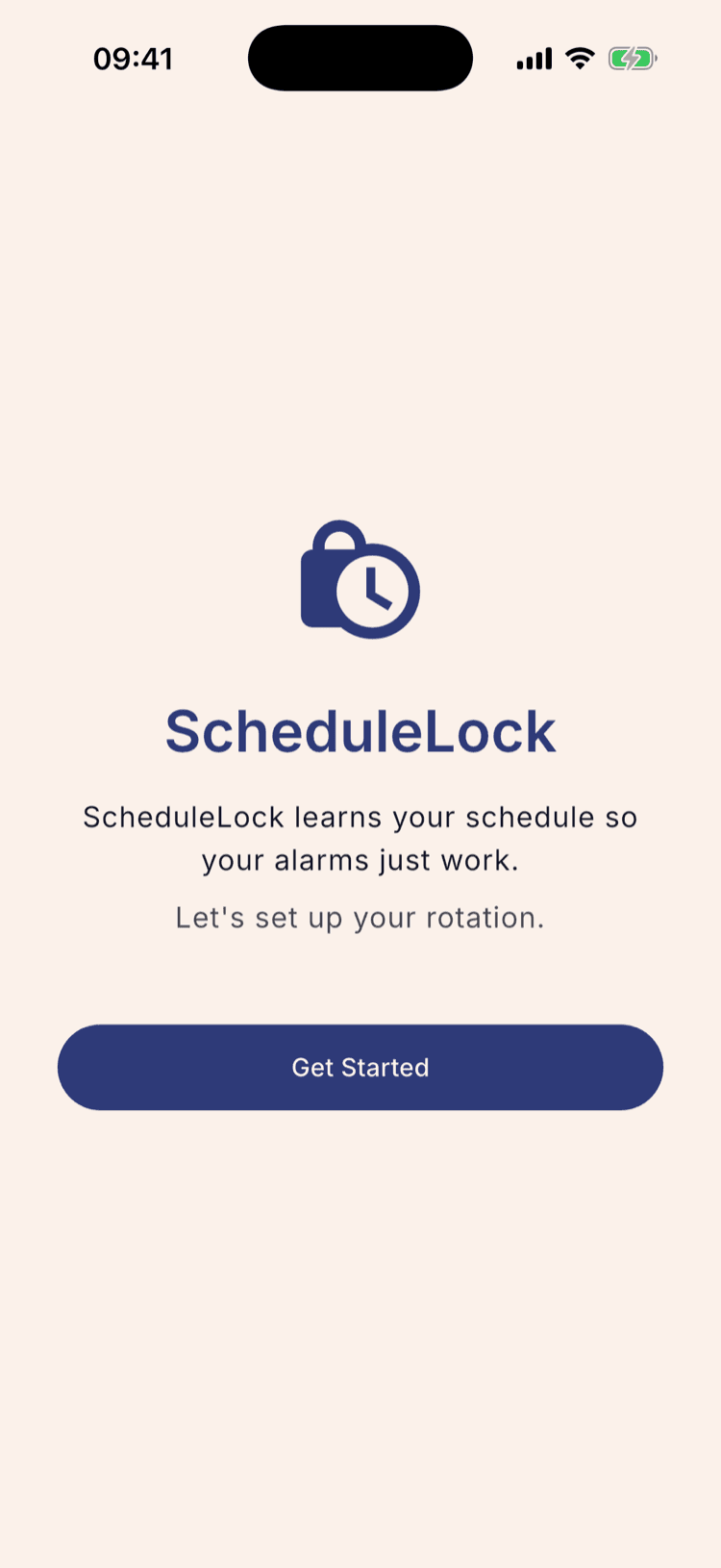
Tap Get Started
One screen, one button. There's no account to create and nothing to sign in to.
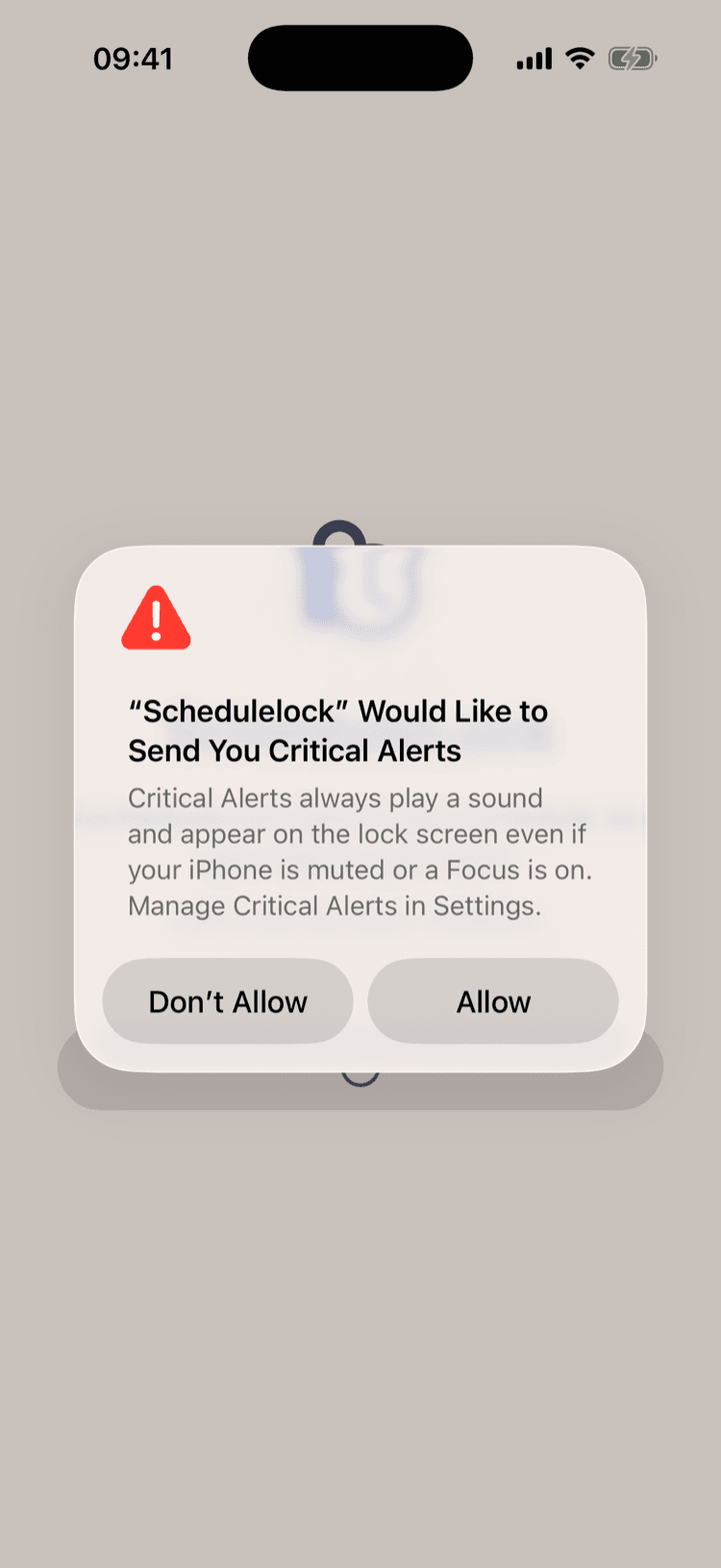
Say yes to both alerts
iPhone asks twice. The first prompt is ordinary notification permission. The second is Critical Alerts, which lets an alarm play a sound and show on the lock screen even when your phone is muted or a Focus is on.
Decline the second and your alarms are still scheduled, but a muted phone will mute them too.
Android asks different questions — permission to schedule exact alarms, and permission to display over other apps so an alarm can take over the screen. Same idea, and both are worth saying yes to.
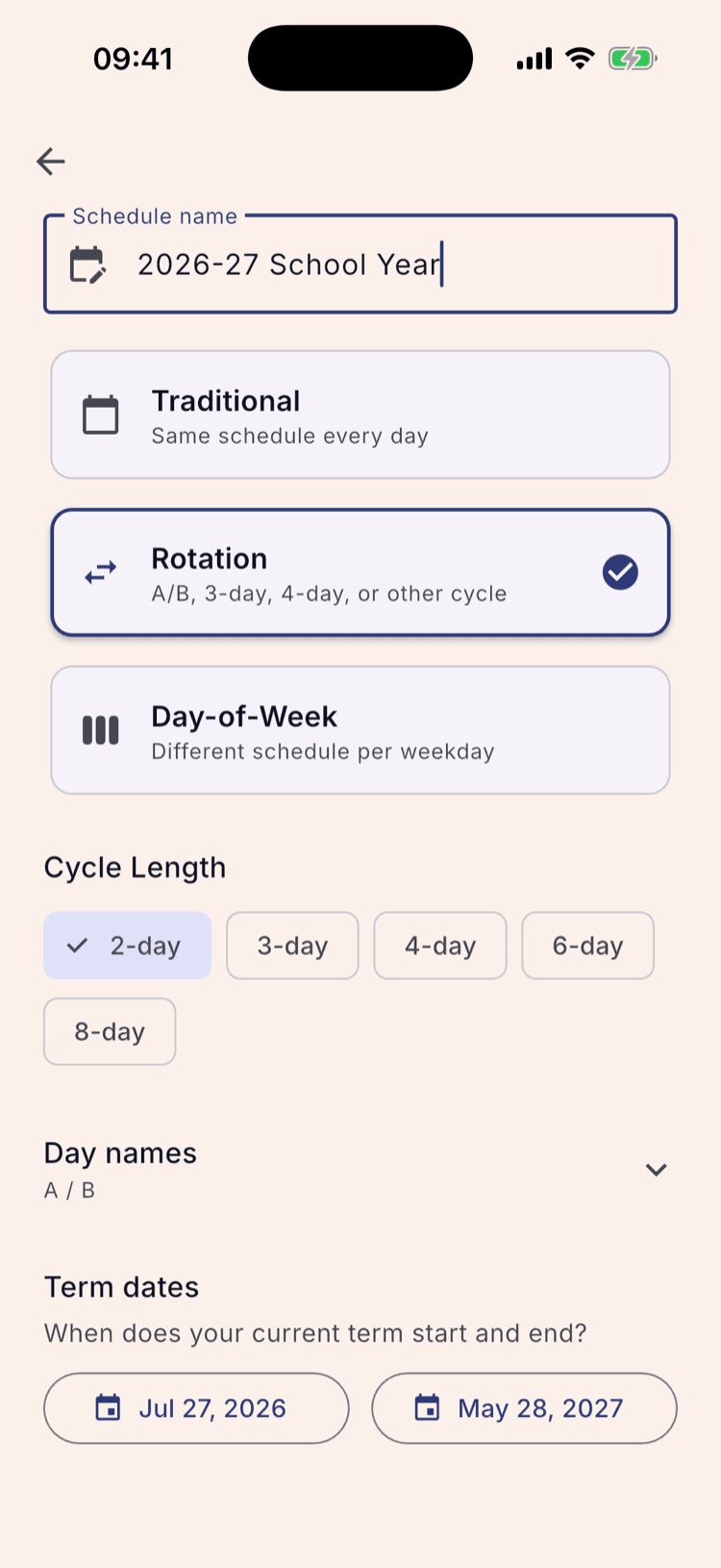
Set up your schedule
Name it, then pick the cadence your school runs. Rotation is the A/B or multi-day one; Traditional and Day-of-Week are for schools without a cycle.
For an A/B schedule, leave Cycle Length on 2-day and set your term start and end. The start date does double duty — it's also where the rotation begins counting, so your first day of school becomes your first day name.
The screen before this one offers to read your school calendar with an AI and fill the dates in for you, which is worth taking if you have the district PDF handy. That and the full rotation setup both have their own tutorials, linked at the bottom of this page.
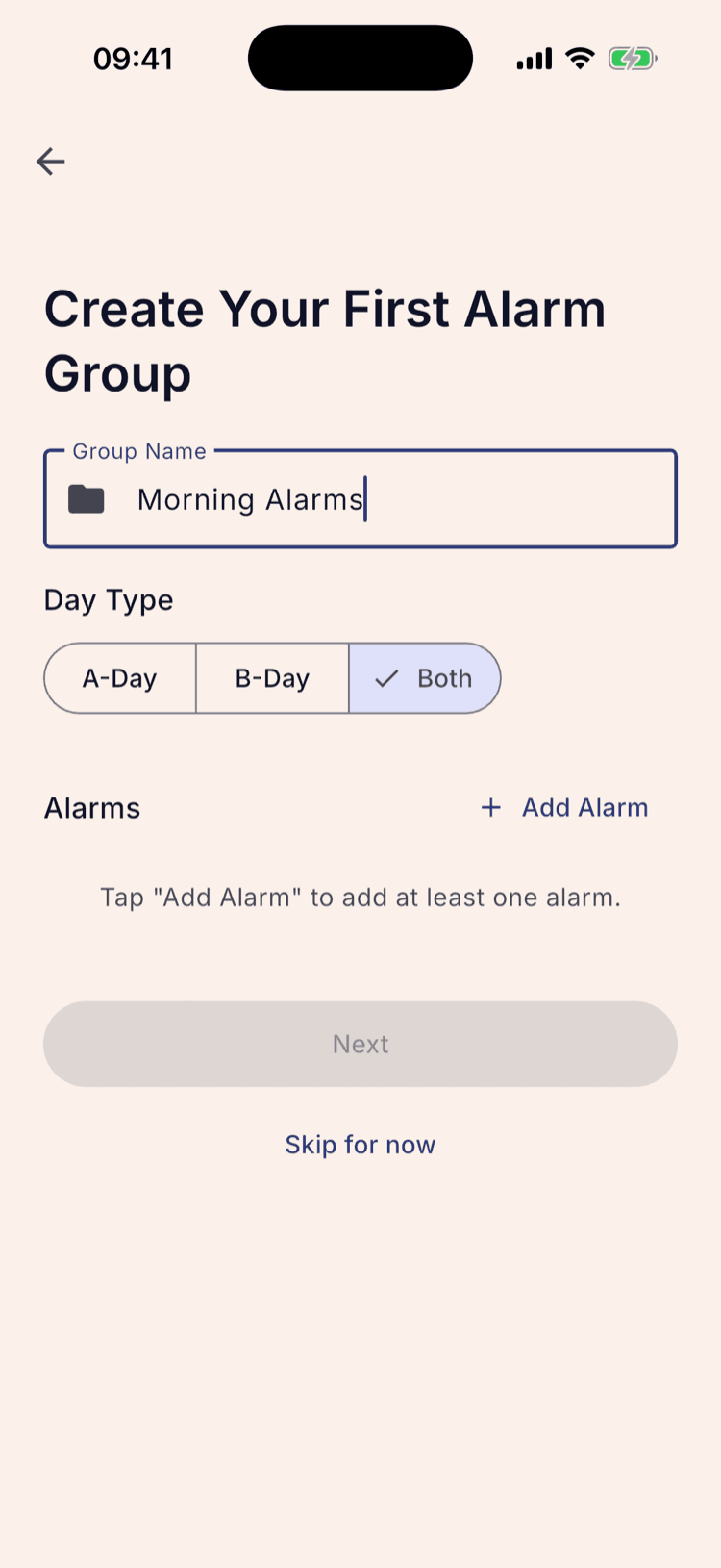
Name your first alarm group
A group is a set of alarms that share a day type. Give it a name — Morning Alarms is the app's own suggestion, and a good one.
Then choose which days it covers. A-Day and B-Day are for alarms that only apply to one kind of day. Both is for the ones that don't care, which is where most people's wake-up alarm belongs — you get up at the same time either way.
Add your alarms
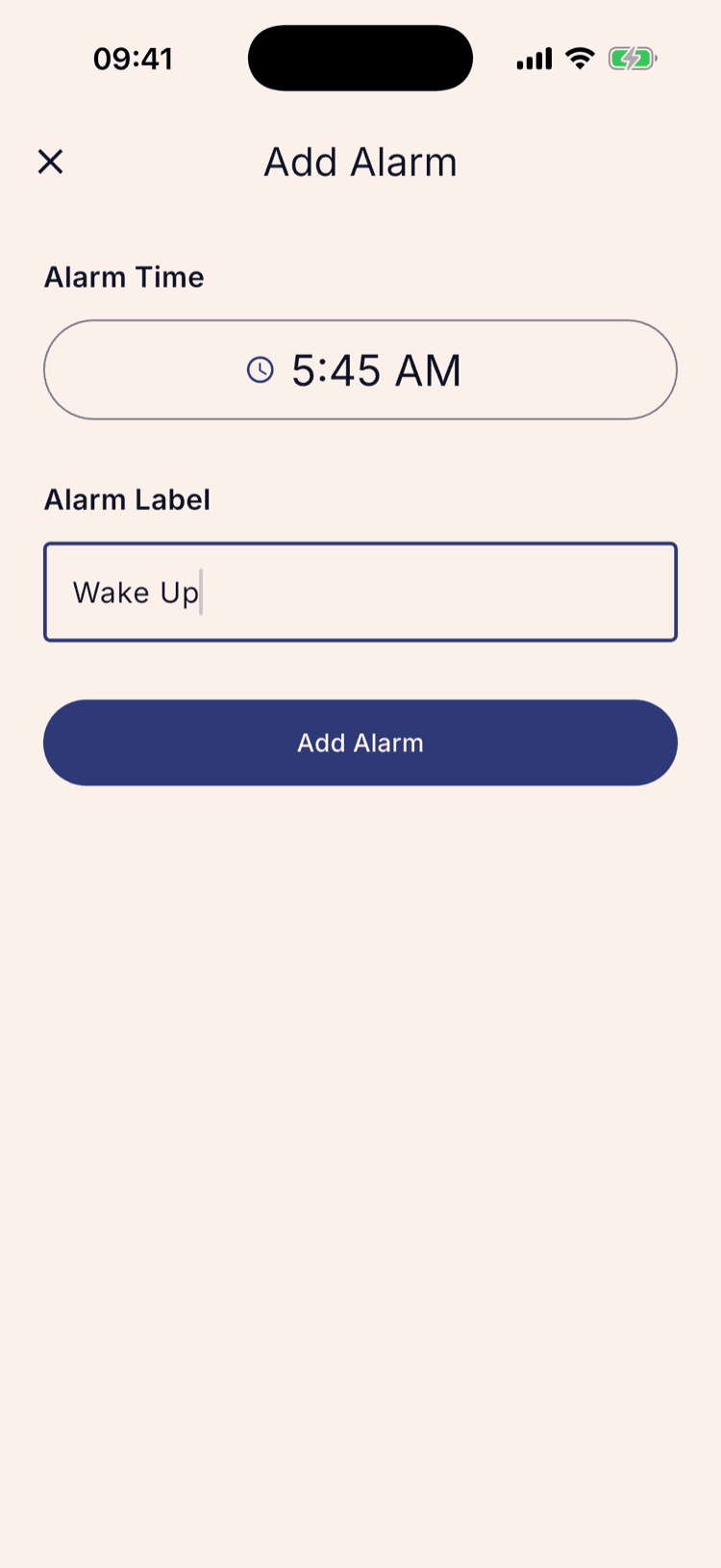
Add Alarm opens a small screen with two things on it: a time and a label. The label is what shows on the lock screen when the alarm fires, so make it something you'll recognise half awake.
Add as many as belong in this group. Two is a common start: one to wake up, one to leave.
The time picker opens as a 24-hour dial. The small keyboard icon in its bottom-left corner switches to typing the numbers instead.
Check the summary
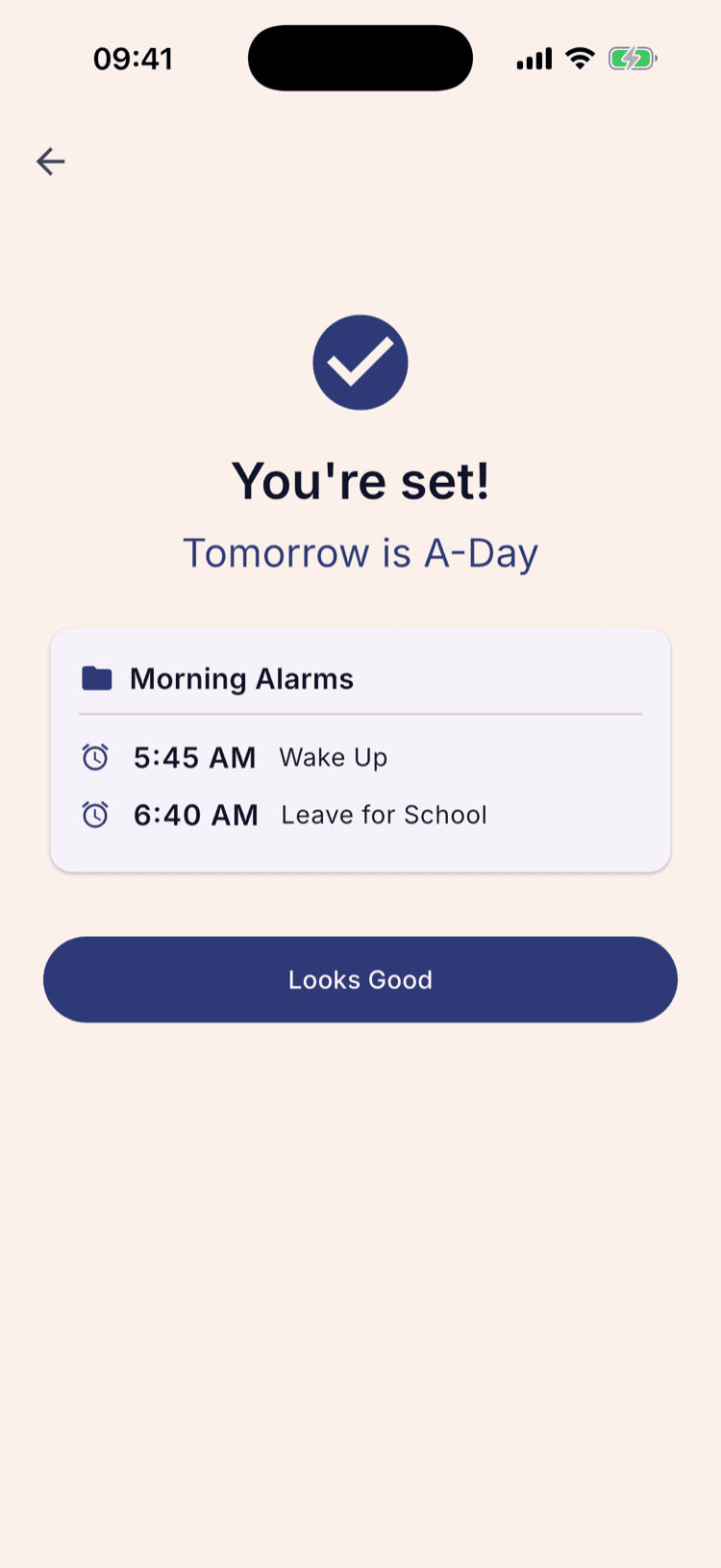
The last screen reads your setup back: the group you made and every alarm in it.
Above that it names tomorrow's day type — “Tomorrow is A-Day”.
Set up over a weekend or before term starts and it says so instead, which means nothing is due to ring yet.
Tap Looks Good and setup is finished.
See them on your calendar
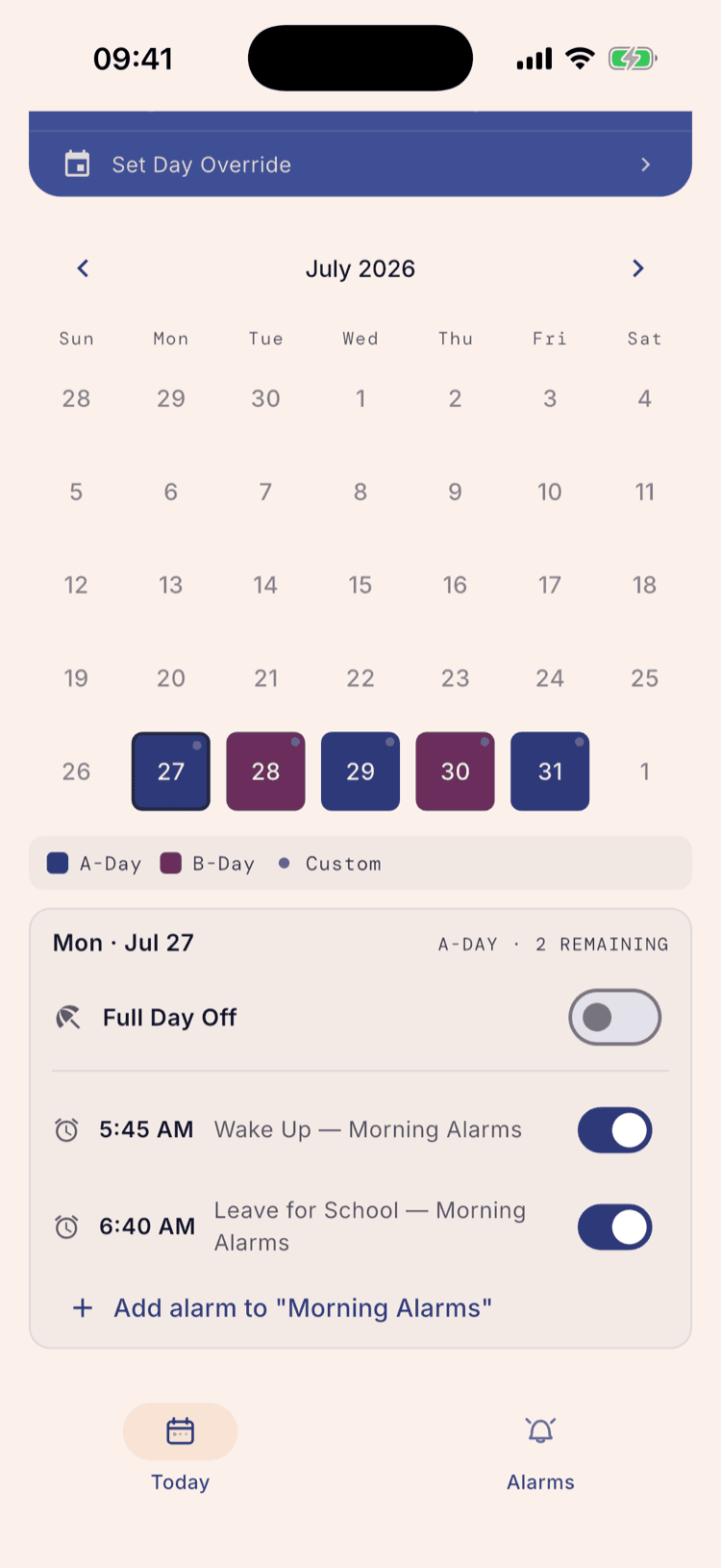
The app opens on your month with every school day coloured by type. Tap your first day of school: the panel underneath names it — A-Day here — and lists both alarms, switched on and counted in the header as 2 remaining.
The small dot in the corner of each coloured day marks the days your Both group fires. Since it covers A and B days alike, that's every school day.
Nothing here is locked in. Times, labels, day types and whole groups are editable from the Alarms tab afterwards, and the schedule itself from Schedule Settings.
What to do next
Two things finish the job; neither is urgent tonight.
Add your school's breaks, so the app stays quiet over Thanksgiving and winter break instead of ringing at 5:45 on a day nobody has school. On a rotation they do a second job: they keep your A and B days lined up with your school's once the building reopens.
Then add the alarms that differ by day type. The group you just made covers both kinds of day; the ones that only land on an A day — a duty period, an early meeting — belong in a group of their own.
If the day type ever disagrees with your school, that's a small fix rather than a rebuild. Resync Cycle, in Schedule Settings, pins today to the day type you tell it and corrects the rest from there.
Set it up once. Sleep through Sunday.
ScheduleLock is out now on the App Store and Google Play.
Get the app