Check your setup on the calendar
Read the colour-coded calendar to confirm your rotation is right before you trust it with a Monday.
Confidence that what you set up is what will actually ring, checked on today, on an ordinary day, and on the first morning back after a break.
- Check today's colour and the day type on the home screen against what your school says it is.
- Tap any day to see the exact alarms set for it, group by group.
- Page forward to a break and check the first day back is the day type you expect.
Setting a rotation up takes a minute. Trusting it takes slightly longer, and the calendar is where that happens: every school day is coloured by its day type, so a wrong setup usually looks wrong straight away.
Three checks catch almost everything. Is today right, is an ordinary day carrying the alarms you meant, and does the pattern survive a break.
Start with today
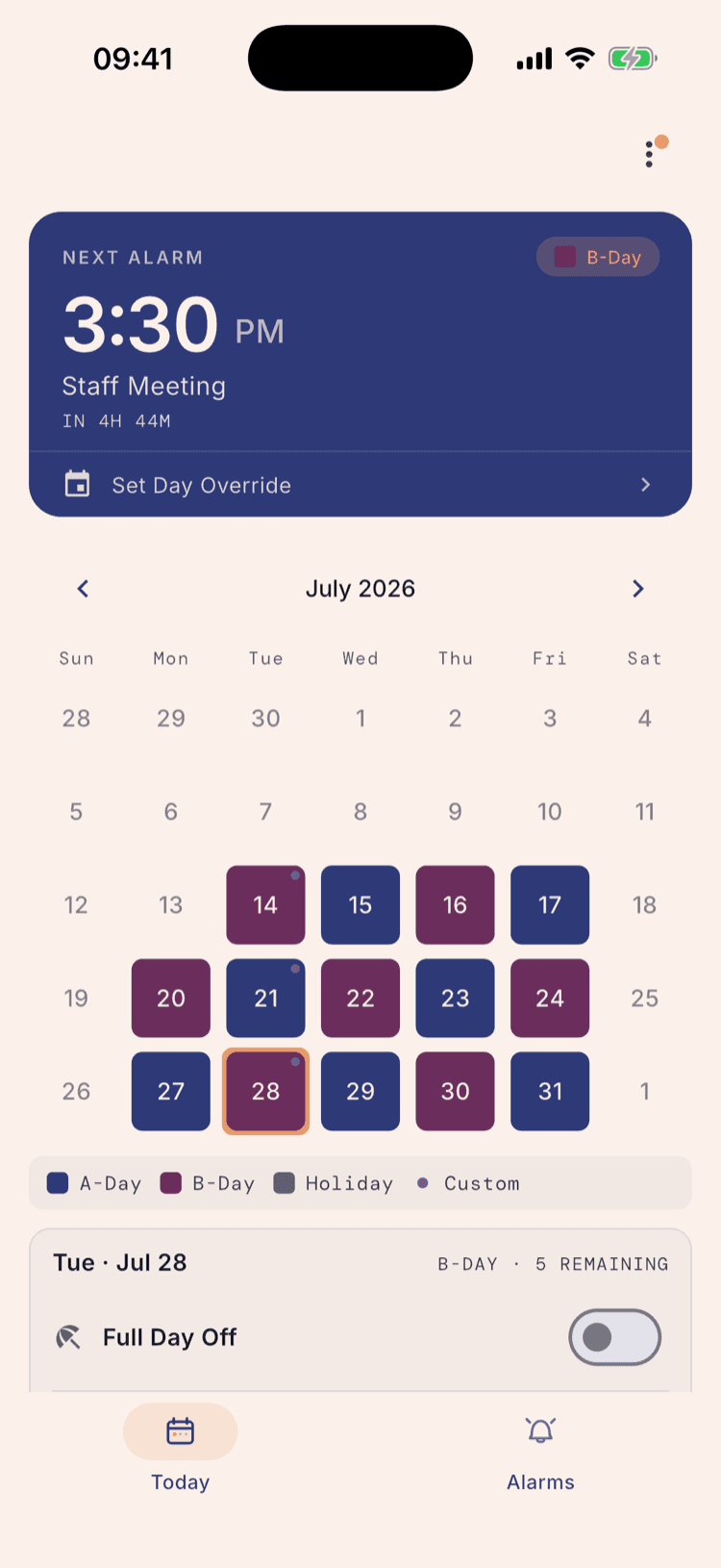
Today's date carries a ring on the calendar, and the card at the top of the screen names its day type alongside your next alarm. If those agree with what your school says today is, the anchor of your whole rotation is correct.
This is the single most useful check, because everything else is counted outward from it. A rotation that has today right is almost always right everywhere.
If today is the wrong day type, don't rebuild the schedule. Schedule Settings has a Resync Cycle option that takes one answer, which day today actually is, and re-anchors the rotation from there.
Tap a day to see what will actually ring
Tapping any school day opens a panel underneath it listing every alarm set for that date: the time, the label, and the group each one comes from. The header repeats the day type and counts what's still to come.
The group name after each alarm is the part worth reading. Here Thursday is a B-Day, and the alarms arrive from two different groups, which is what you'd expect if you have a duty or a class that only happens on some days.
Each alarm has its own switch, so this is also where you'd silence one for a single date without touching the group.
An alarm only appears here when its group is switched on as well as the alarm itself. If something you expected is missing, the group is the first place to look.
Check the pattern across a break
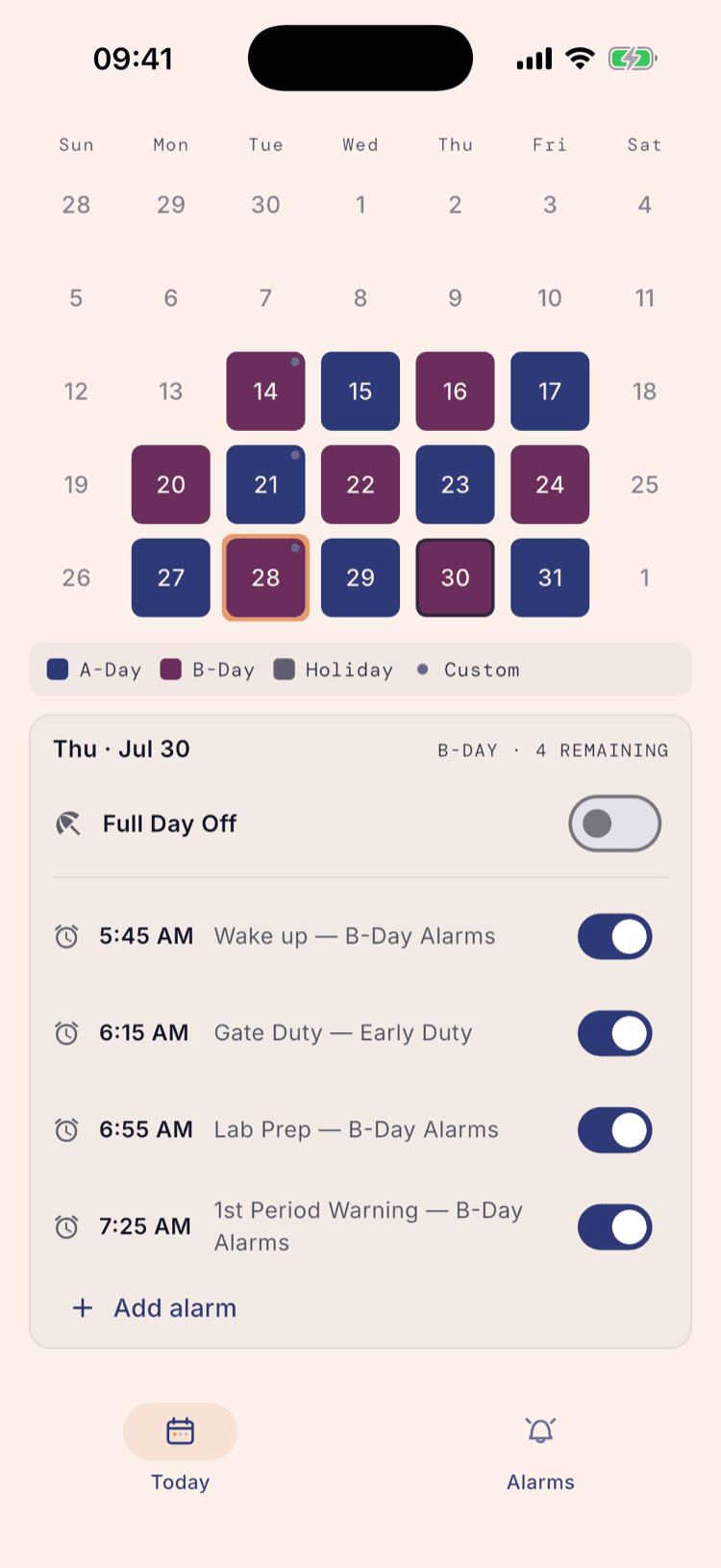
Page forward to your next school holiday. The days inside it turn grey and stop carrying a day type, which is the app telling you it already knows not to ring.
The day to check is the first one back. A break set to pause holds the rotation where it left off, so the morning you return picks up from the last day you taught rather than restarting. Confirm that day is what your school's calendar says it is.
Getting this wrong is the mistake that stays hidden longest, because everything looks fine until the first morning of a new term.
Breaks can pause, continue, or reset the rotation, and the choice changes what the first day back is. If the day after the break isn't what you expect, that setting is what to change, not the term dates.
The dot in the corner
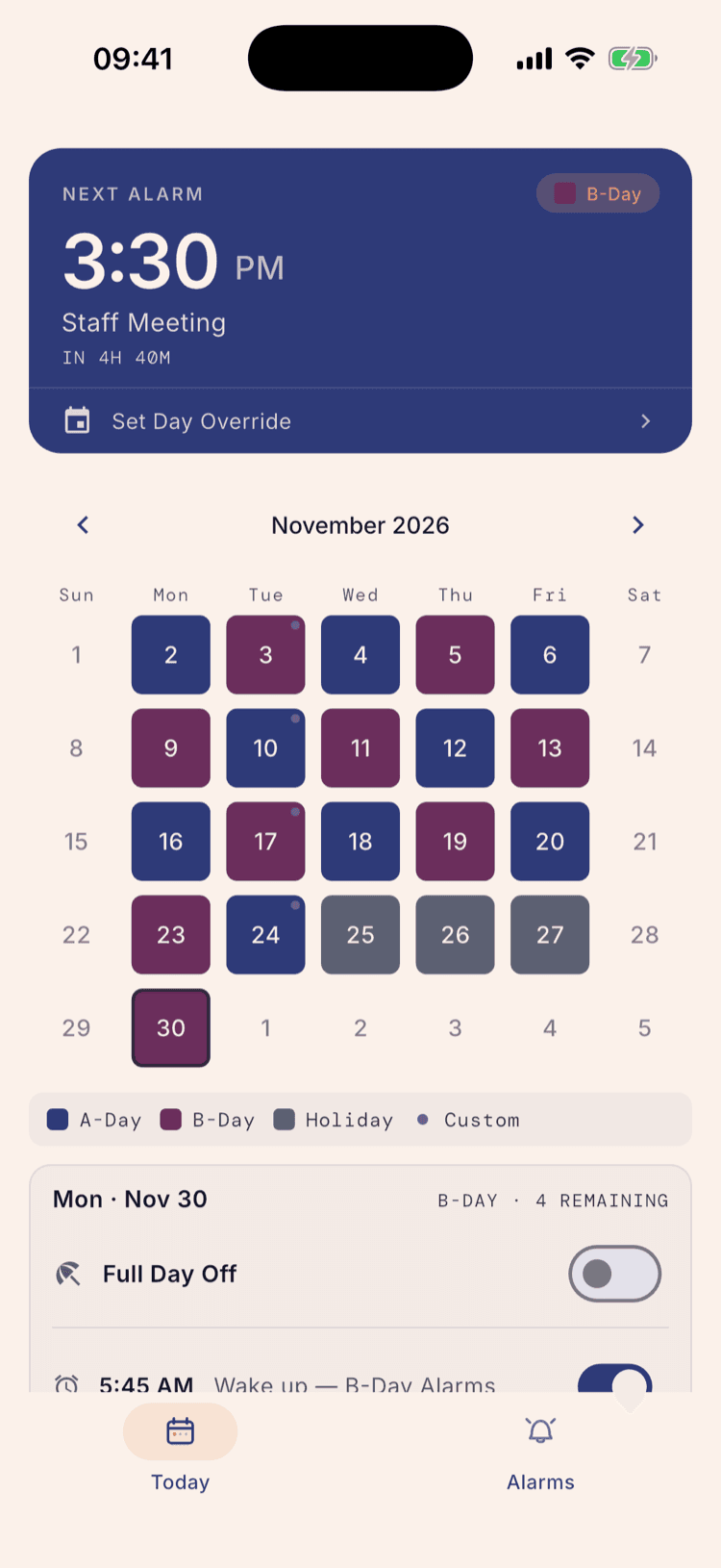
Some days carry a small dot in the top corner, and a Custom entry joins the key underneath the calendar. That marks a day with an alarm that follows the week rather than the rotation, like a Tuesday meeting or a Wednesday duty.
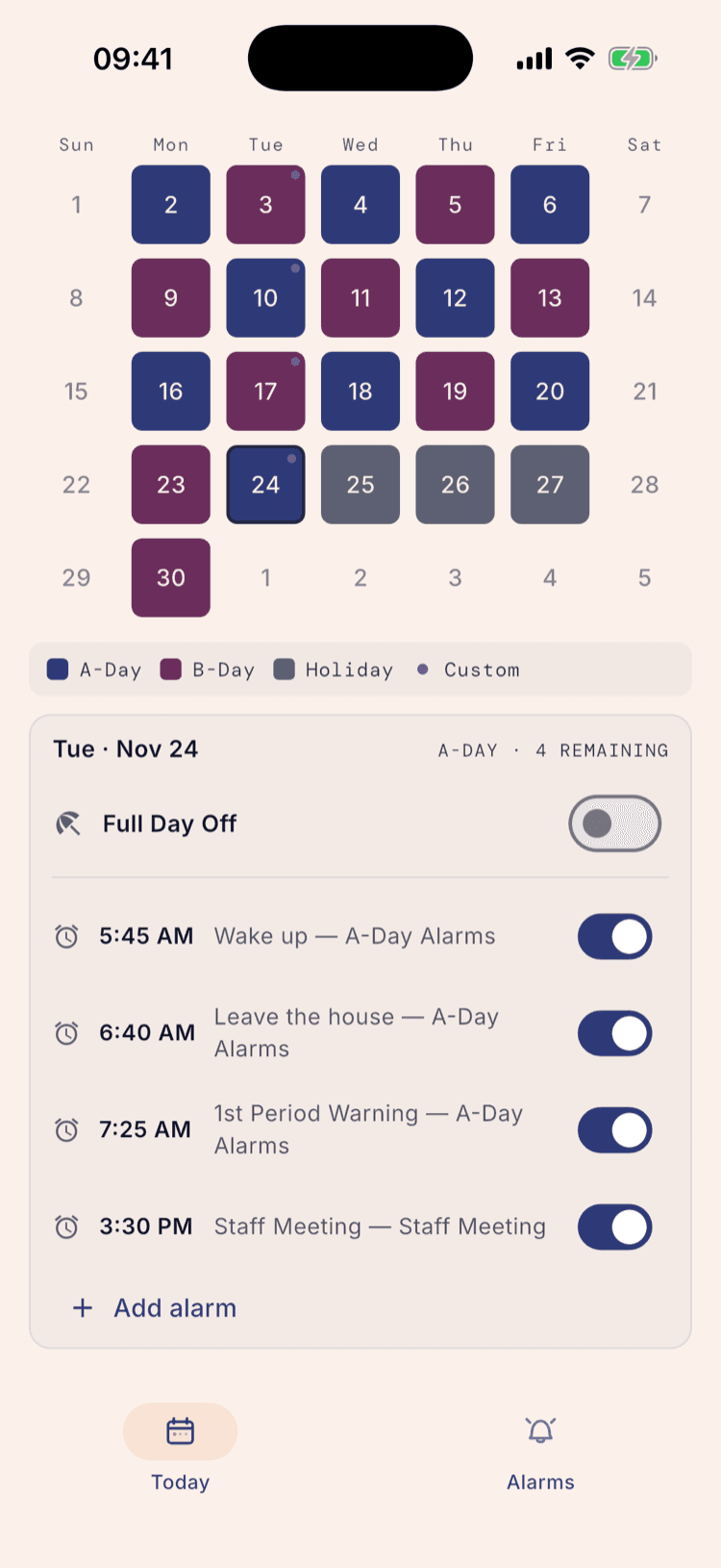
The dot is on every Tuesday here because a weekly group covers them. Tapping one shows why: alongside the A-Day alarms sits the 3:30 PM Staff Meeting, from a group of its own.
It's worth knowing the mark exists, because that alarm won't be explained by the day's colour. Nothing about the rotation puts it there.
What happens next
Do this once properly and you shouldn't need to again. The calendar is worth re-reading after you add breaks, after you change a day name, and on the first morning of a new term, which are the three moments when a rotation can quietly shift.
The calendar reads your schedule, not the alarms your phone is holding. It will happily show a correct-looking rotation whether or not your phone is permitted to ring. That's a separate check, and “Make sure your alarms actually fire” is the page for it.
Anything you change here applies to the day you tapped and nothing else. Switching an alarm off for one date, or setting a full day off, leaves every other day alone.
Set it up once. Sleep through Sunday.
ScheduleLock is out now on the App Store and Google Play.
Get the app