Import a schedule someone sent you
Open the file, review every group and alarm, and decide what's on before it saves.
The sender's schedule saved on your phone — rotation, term, breaks, groups and alarms — switched off until you activate it.
- Save the .schedlock file to Files, then open it with Share → ScheduleLock. Tapping the file only previews it.
- On the import screen, switch off any group or alarm you don't want, and set each break to Pause, Reset or Continue.
- Tap Import, then Not yet or Activate now.
A .schedlock file holds a complete schedule: rotation, term dates, breaks, alarm groups and alarms.
Opening one takes you to a review screen listing everything in the file with a switch beside it. Nothing saves until you tap Import, and nothing rings until you activate the schedule. This page covers both, and what happens when the same person sends you a revised file later.
Open the file with ScheduleLock
Save the .schedlock file to Files first, from wherever it arrived — a Drive link, a message, an email.
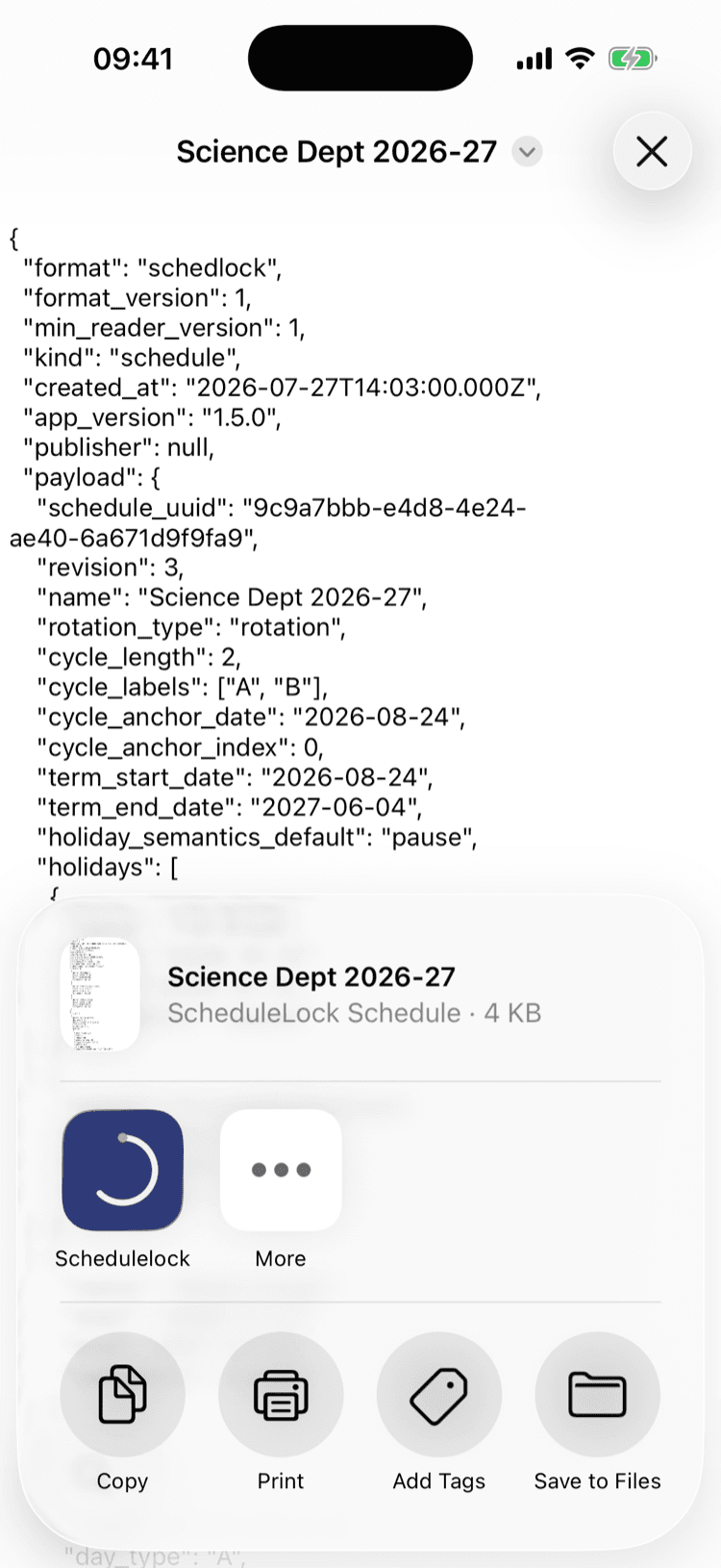
In Files, tap the Share button in the bottom corner and choose ScheduleLock. Don't tap the file itself: iOS previews .schedlock as a text document and shows you the raw contents instead of opening the app.
If ScheduleLock isn't in the row of apps, tap More. To import without the share sheet: in the app, menu → Schedule Settings → the upload icon at the top of the Schedules screen.
Check the header first
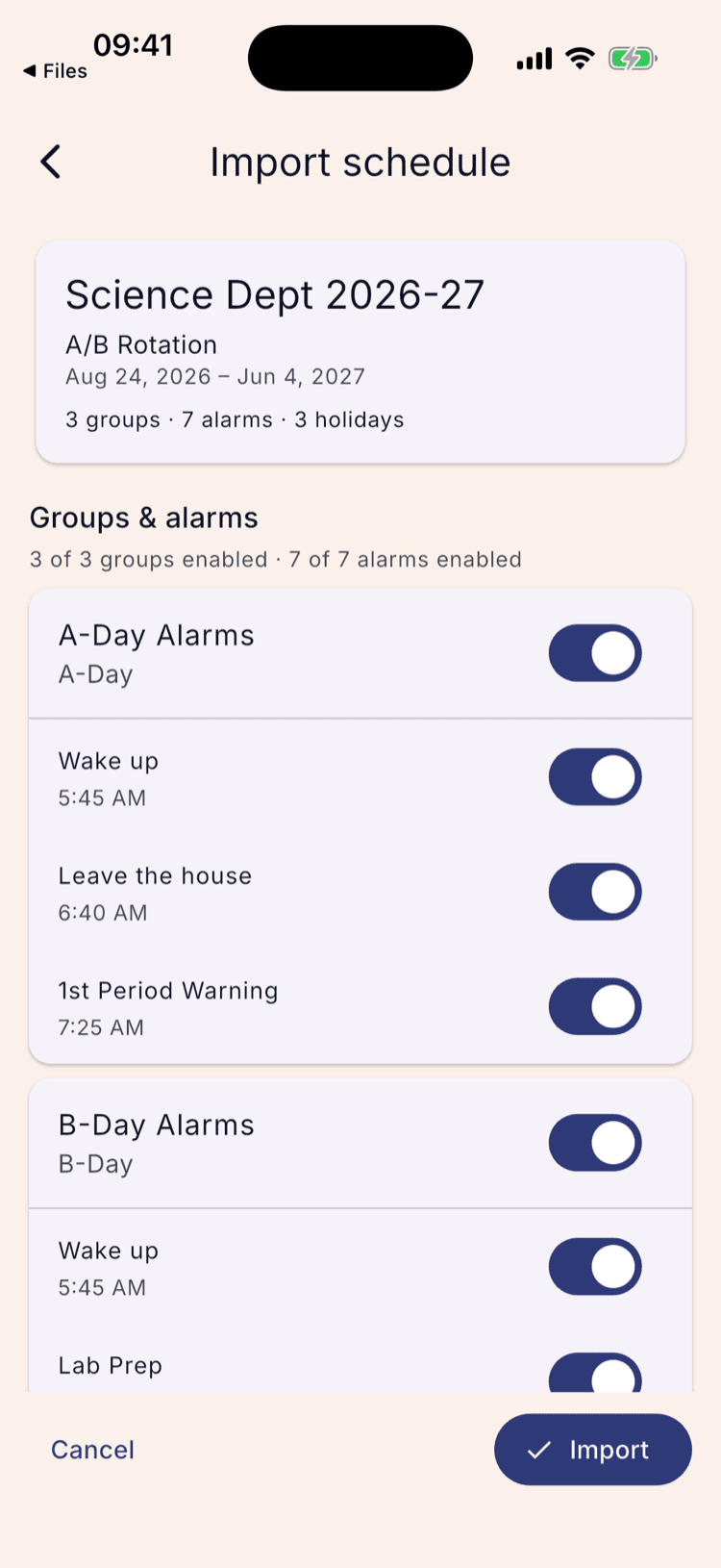
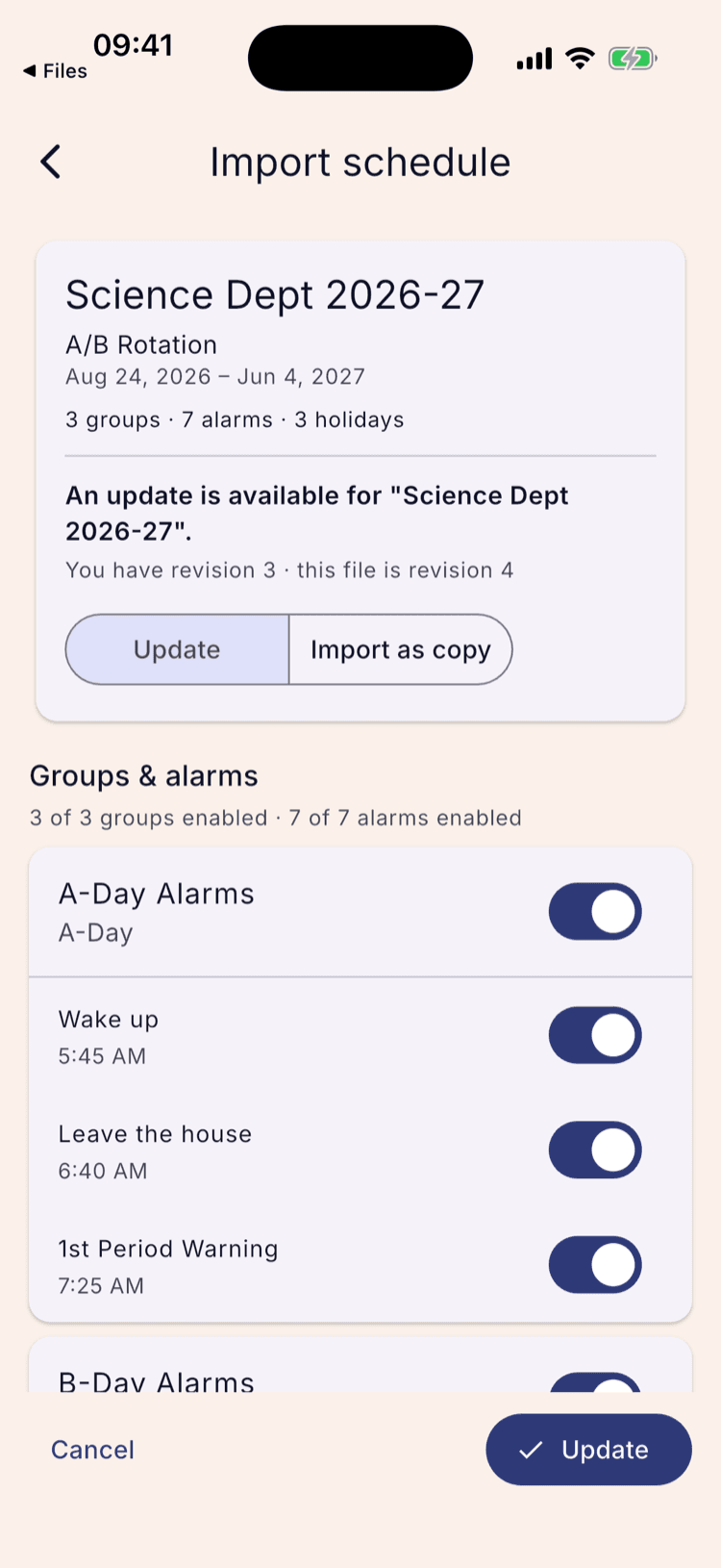
The card at the top shows the schedule's name, its cadence, its term dates, and counts of groups, alarms and holidays.
Check the cadence and term dates match your school. A file built for a different school imports without complaint — nothing here warns you it's the wrong one.
Switch off what you don't want
Every group and every alarm in the file has its own switch, and all of them work before anything is saved.
Switching a group off still imports it, disabled — turn it on later from the Alarms tab if you want it. Individual alarms work the same way. Use this for anything specific to the sender: a duty period, an early meeting, a prep block you don't teach.
The line above the list — “3 of 3 groups enabled · 7 of 7 alarms enabled” — recounts as you flip switches.
Set what each break does
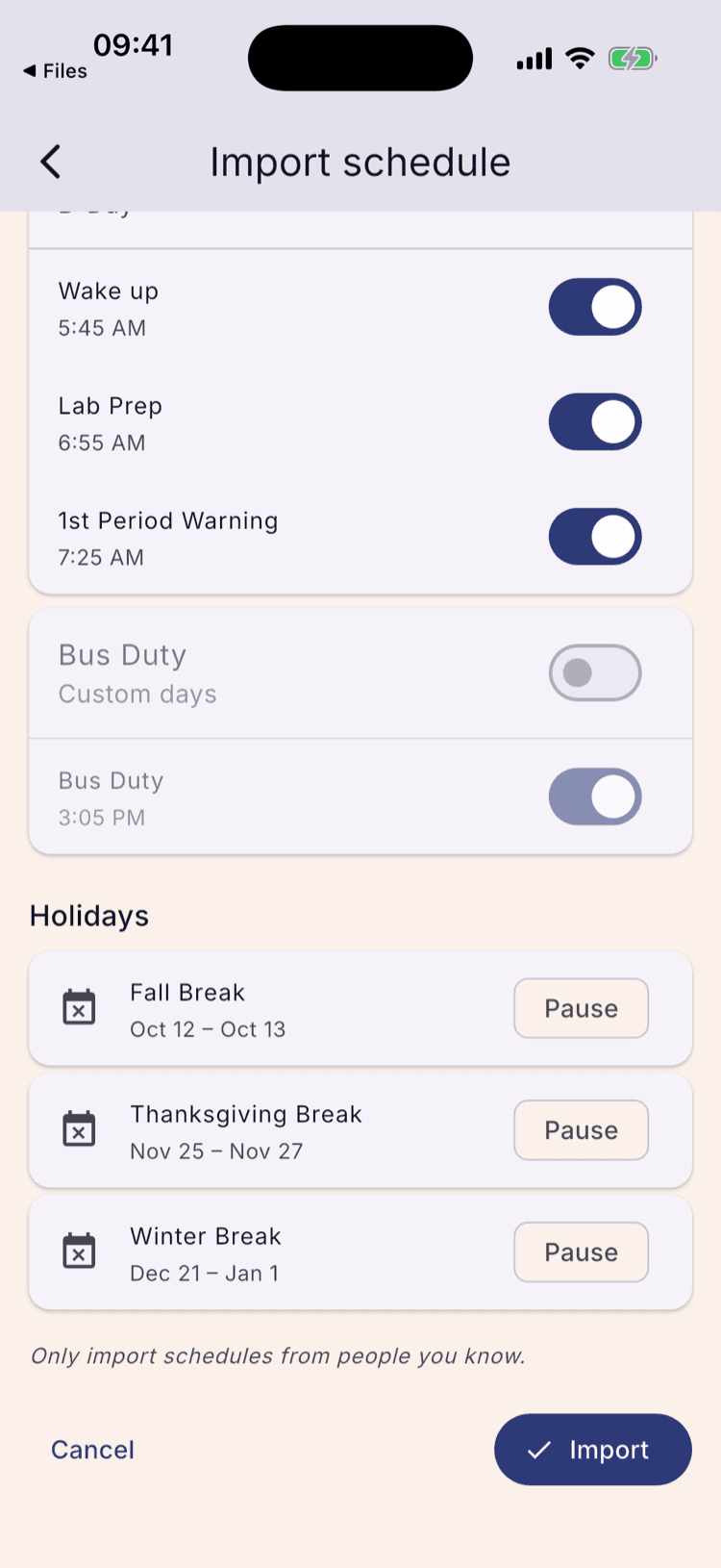
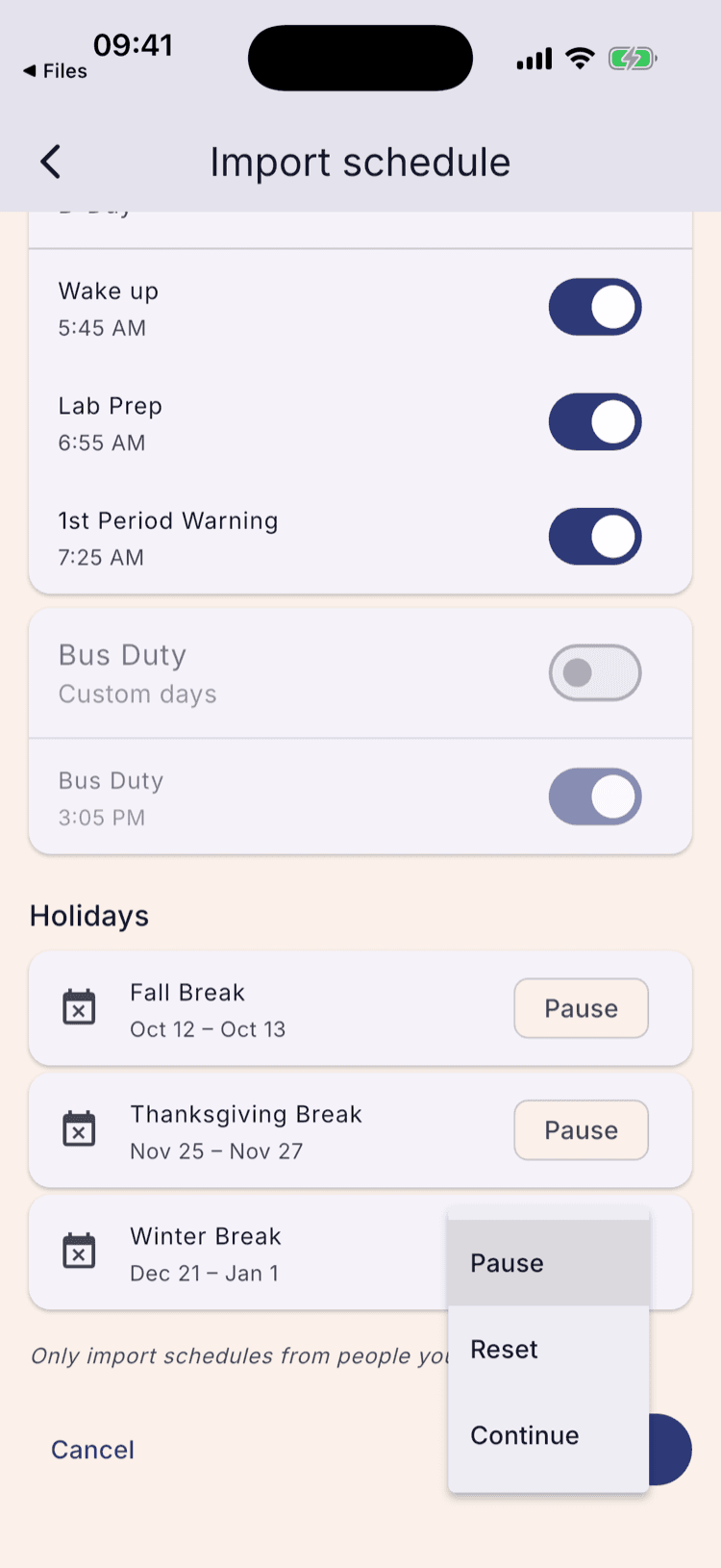
Each break arrives with the sender's setting on a chip. Tap the chip to change it.
All three keep the same days silent; they differ in what the rotation does afterwards. Pause resumes where the cycle left off. Reset restarts at Day 1 on the first day back. Continue counts through the break without ringing.
Only applies to a rotating schedule. Change it if the sender's school returns on a different day type than yours — the Pause, reset, or continue tutorial linked below shows each setting on a real calendar.
Tap Import
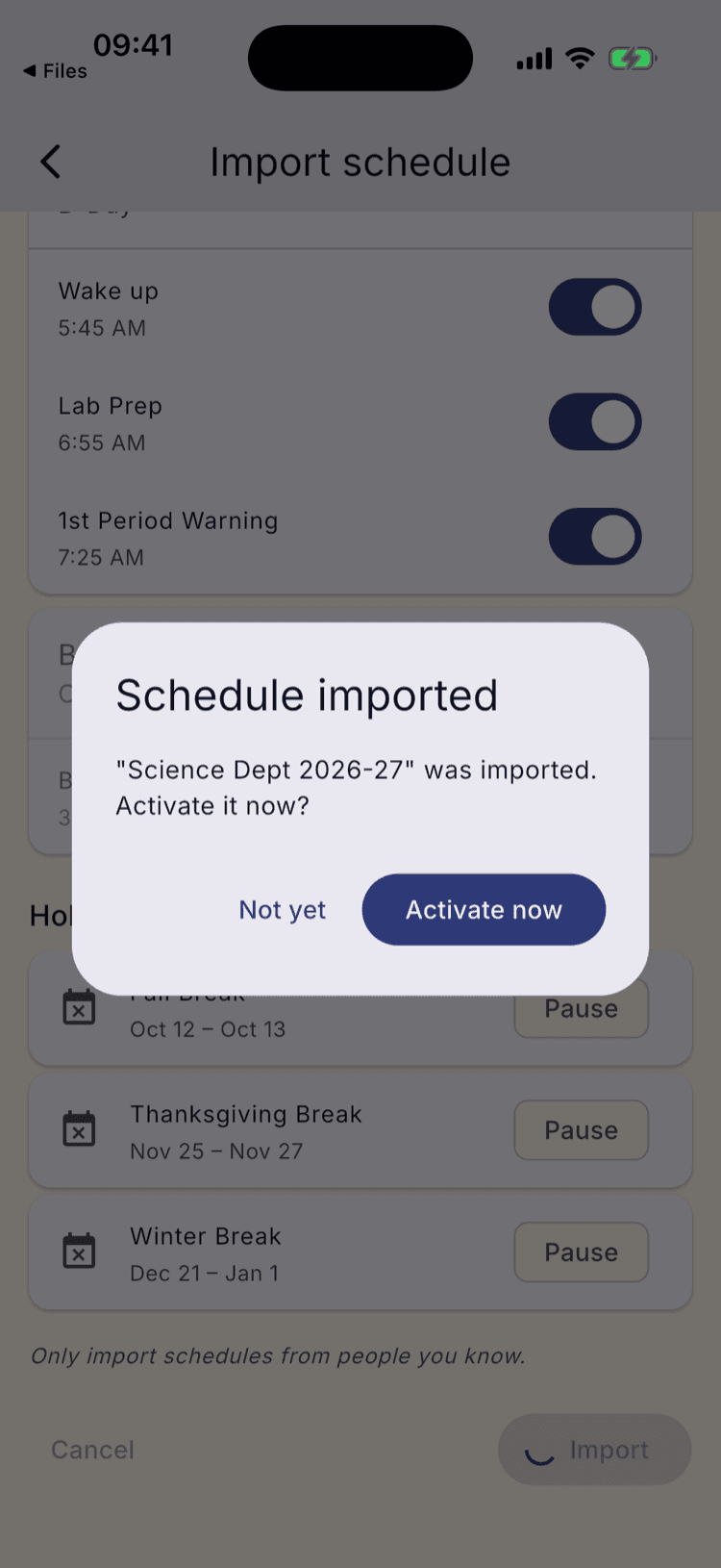
Import saves exactly what's on screen, then asks whether to activate the schedule.
Not yet saves it without changing what you're currently running. Activate now makes it the schedule the app runs from. Imported schedules are never activated on their own.
Activate it when you need it
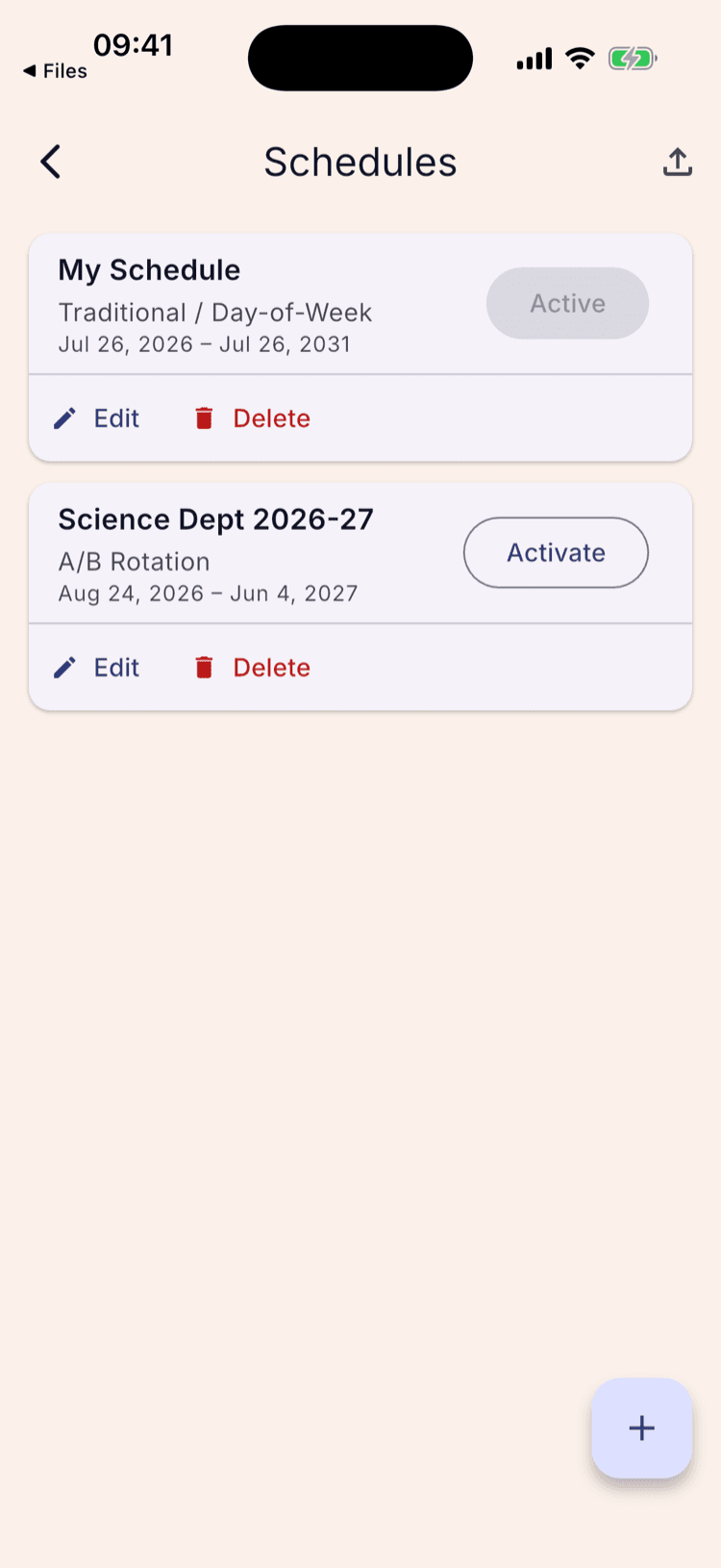
Imported schedules are listed under menu → Schedule Settings, each with its cadence, term dates, and an Activate button.
One schedule is active at a time. Activating this one deactivates your current schedule — it isn't deleted, and its own Activate button switches back.
If they send a revised file
Open a newer file for a schedule you already have and the header compares the two by revision number and offers Update or Import as copy. The button at the bottom reads Update.
Update overwrites the schedule you already have, in place. Import as copy leaves it untouched and saves a second, separate schedule.
Update re-proposes the sender's switches, so a group you turned off last time is on again — check the list. It does keep the sound and volume you customised on any alarm whose time and label haven't changed.
What transfers and what doesn't
Transfers: the rotation and term dates, the breaks, and every alarm group with its times, labels and snooze settings.
Doesn't transfer: day overrides. A day you took off, or alarms you suppressed for one morning, stay on the phone that set them — the sender's snow day doesn't become yours, and yours survives an import.
Alarm sounds are stored per platform, so a schedule shared from an iPhone doesn't carry sound choices to an Android phone, or the other way round. Those alarms use the default sound; change them in the alarm editor.
Once saved, an imported schedule behaves like any other — rename it, edit its alarms, add your own breaks, or delete it.
Set it up once. Sleep through Sunday.
ScheduleLock is out now on the App Store and Google Play.
Get the app